

Integrate LinkedIn with Sngine in a few easy steps to let your users log in with their LinkedIn accounts.
- Go to https://www.linkedin.com/developer/apps and sign in with your Linkedin account
-
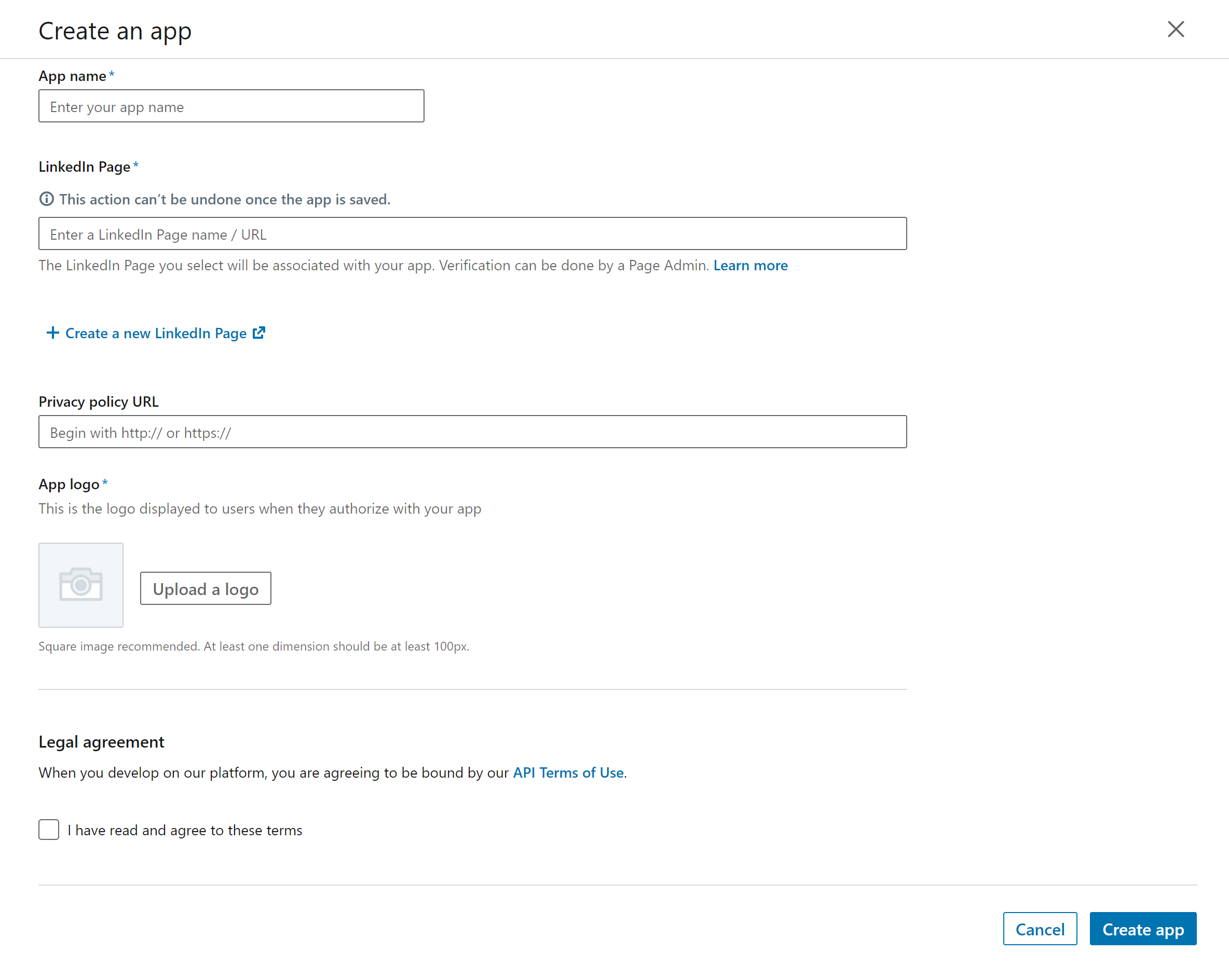
Click Create Application and fill the form

-
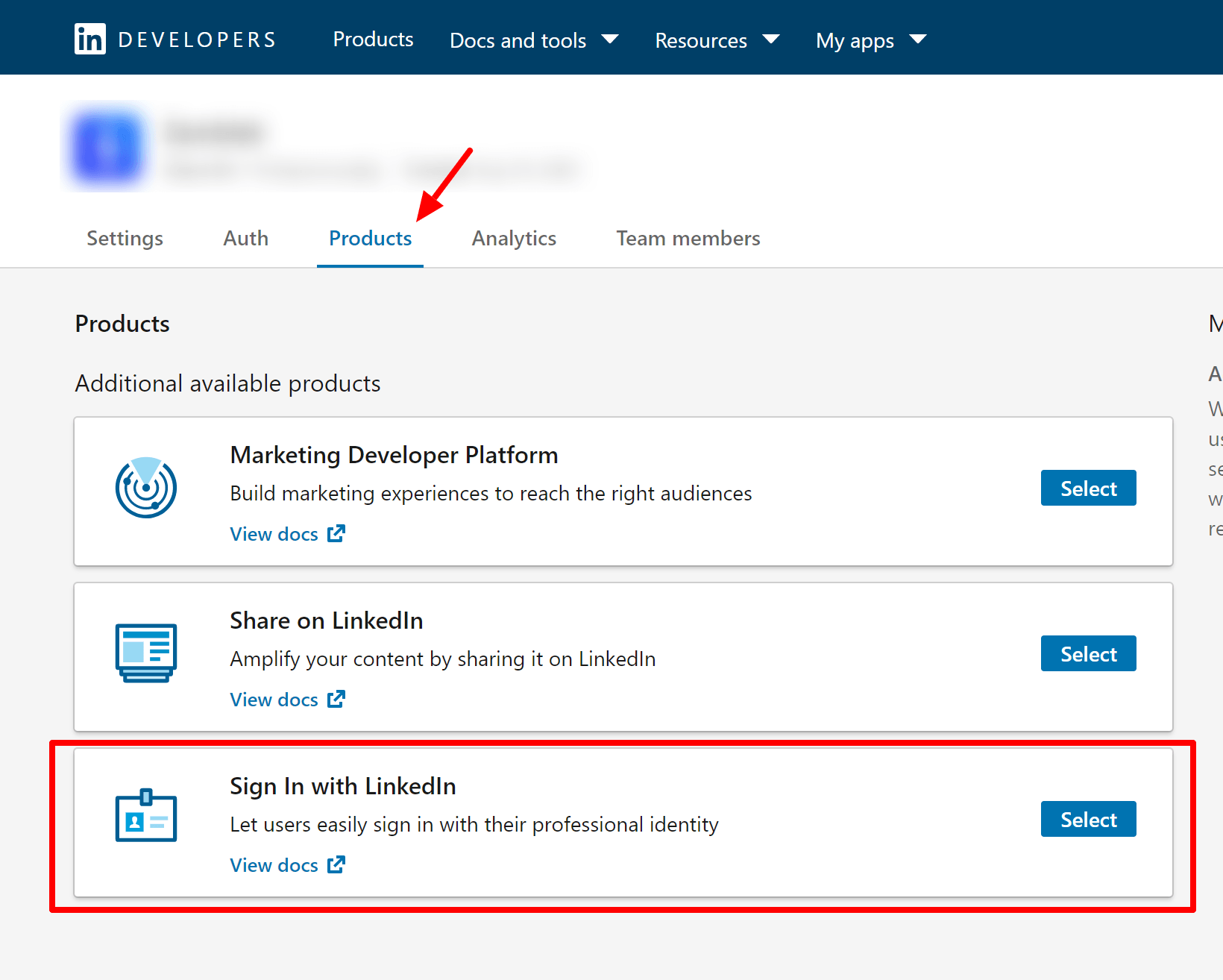
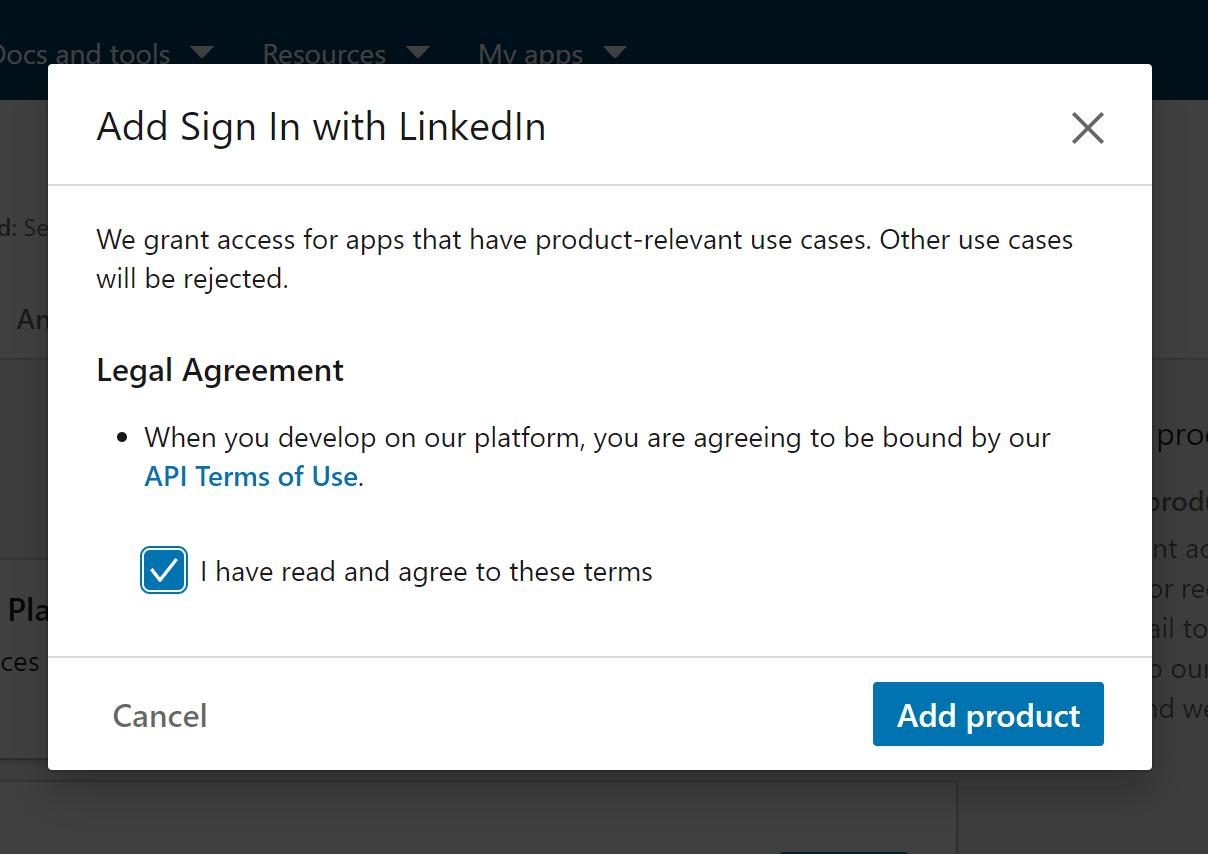
After creating the app, go to Products tab and select Sign in with LinkedIn — it will need review from LinkedIn team
-
Back in your Authentication and Provide this URI as the OAuth 2.0 Redirect URIs for your application as following:
If you installed Sngine in your domain directly like domain.com the URI should be like this:
https://www.domain.com/connect/linkedinIf you installed Sngine in your domain directly but without
wwwlike domain.com the URI should be like this:
https://domain.com/connect/linkedinIf you installed Sngine in sub-domain like sub.domain.com the URI should be like this:
https://sub.domain.com/connect/linkedinIf you installed Sngine in a directory like domain.com/directory the URI should be like this:
https://www.domain.com/directory/connect/linkedin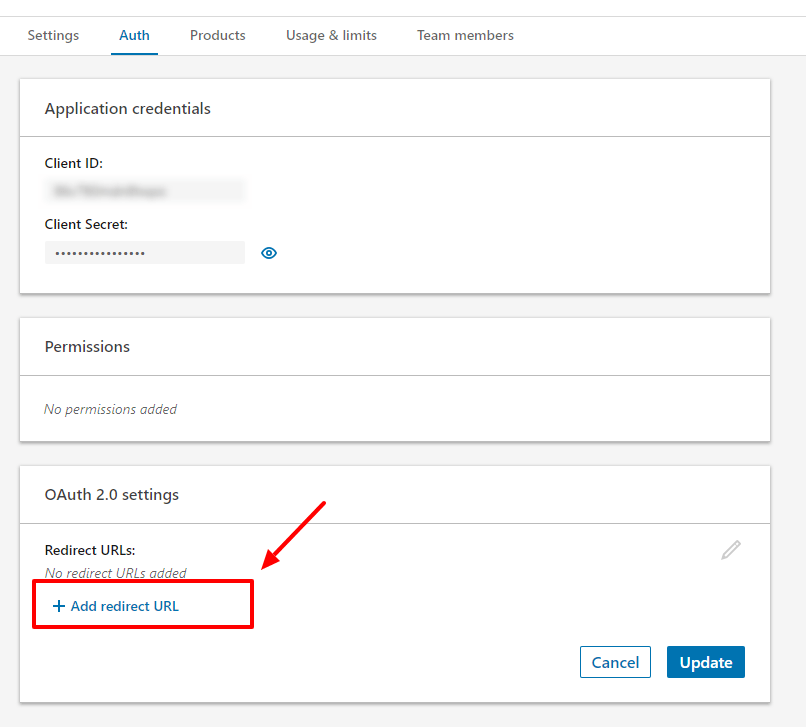
-
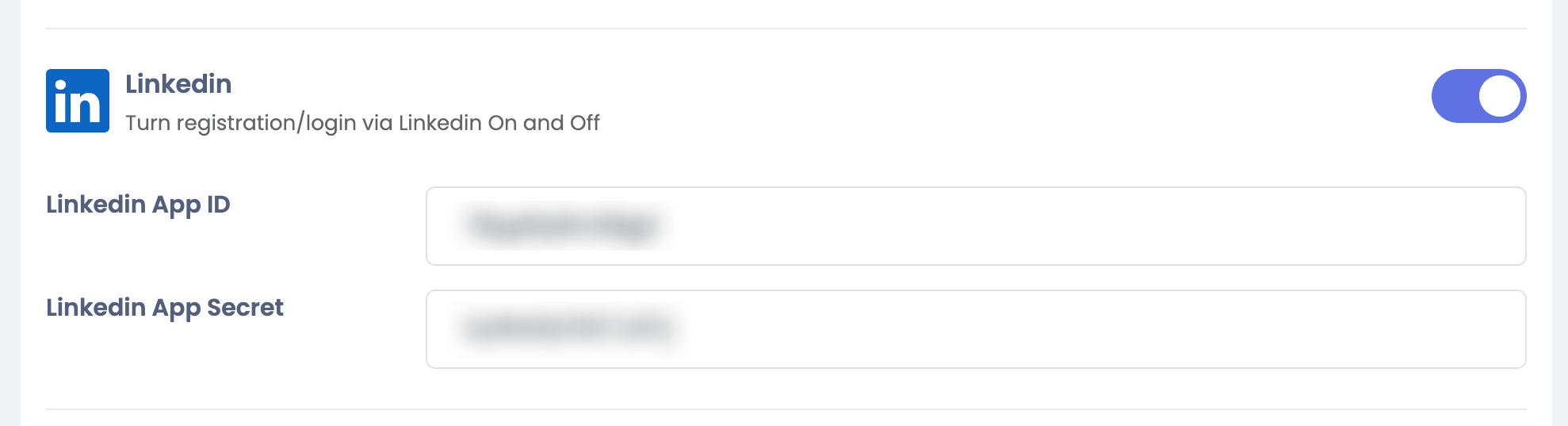
Once your app is approved, go to Sngine Admin Panel → Settings → Registration Settings → Social Login and paste both keys as shown