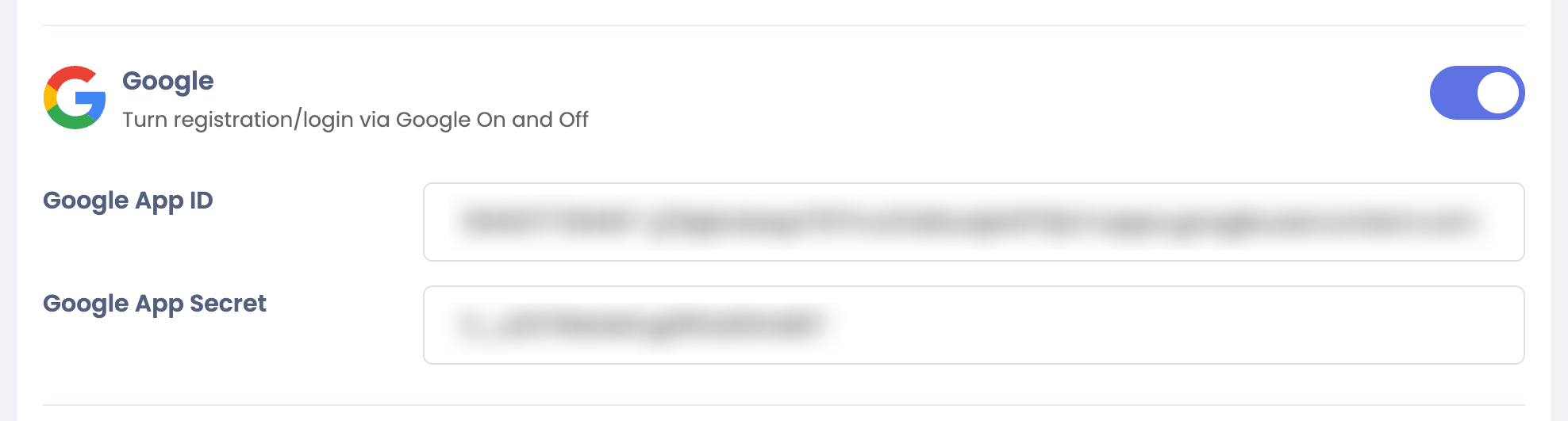


Integrate Google with Sngine in a few easy steps to let your users log in with their Google accounts.
Create a Google Cloud project
-
Go to https://console.developers.google.com/ and sign in with your Google account
-
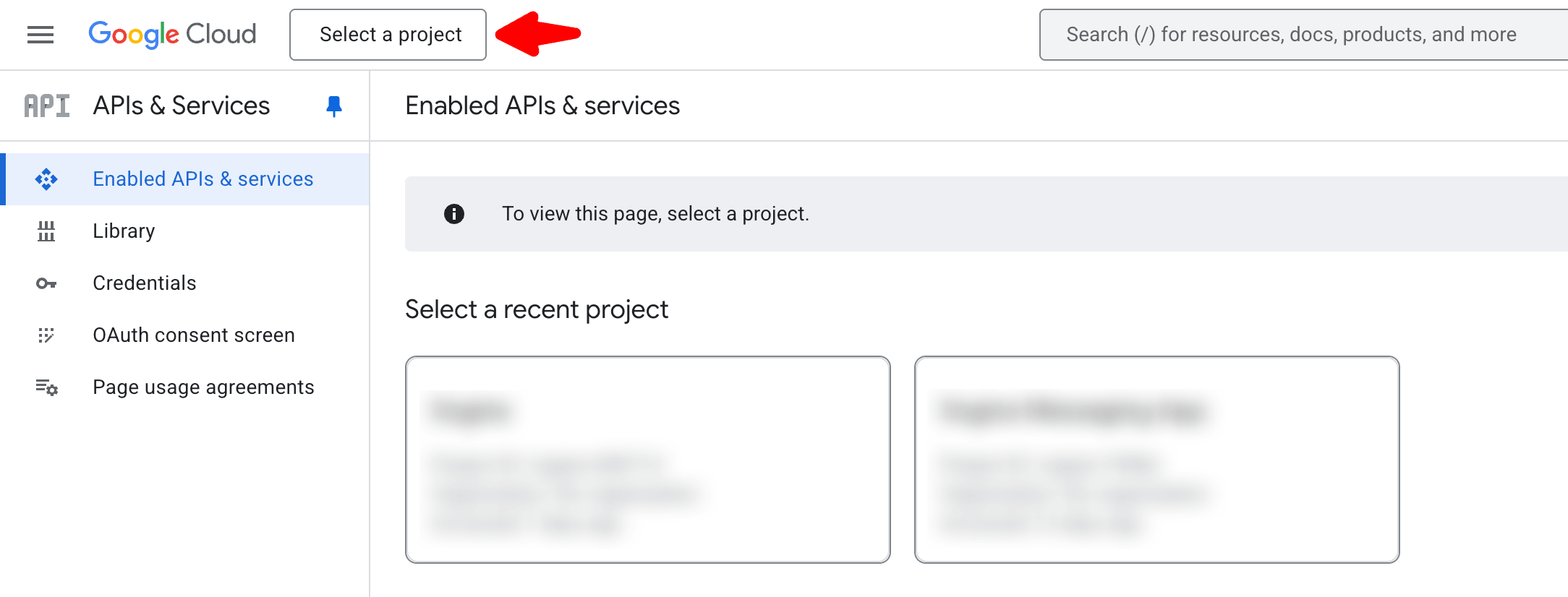
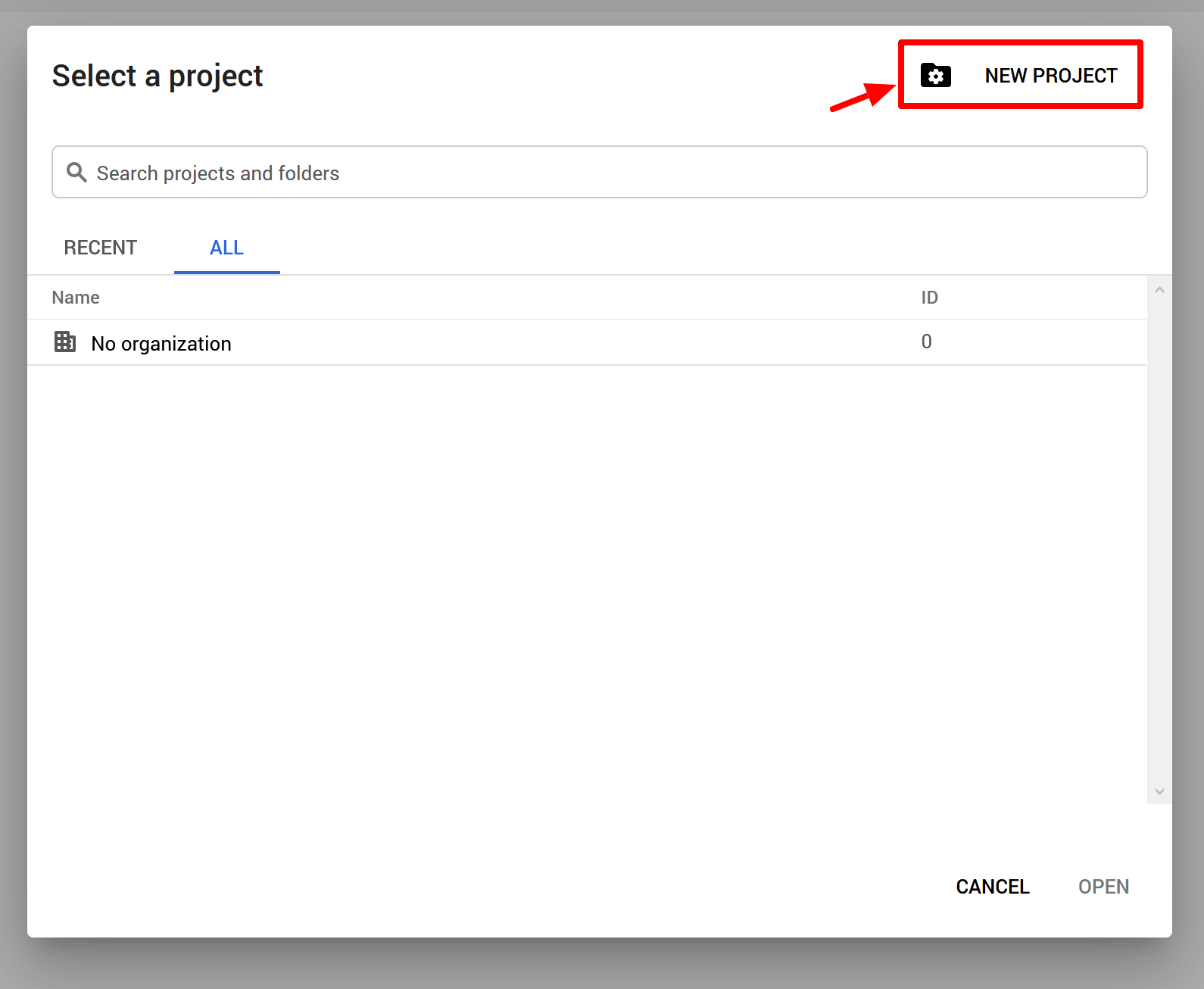
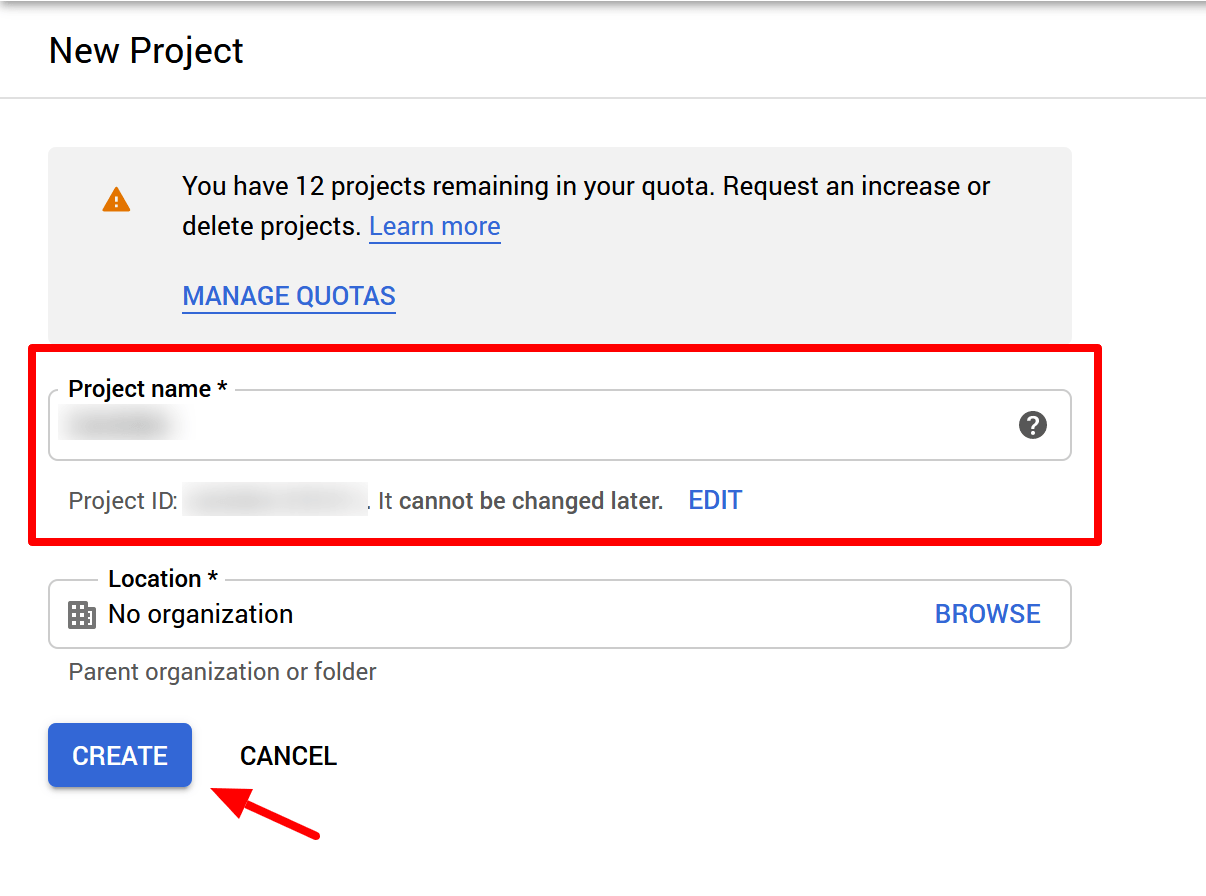
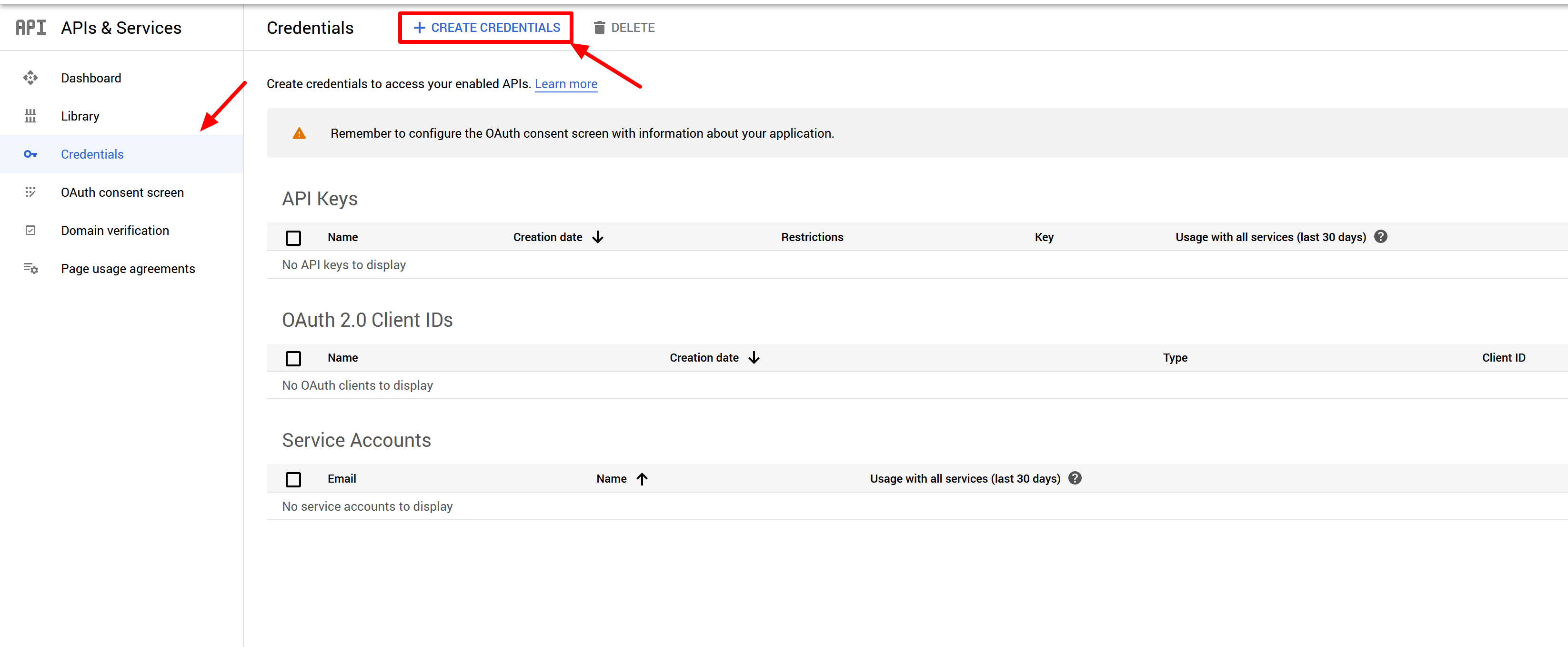
Click Select a project then click on NEW PROJECT and follow the steps
-
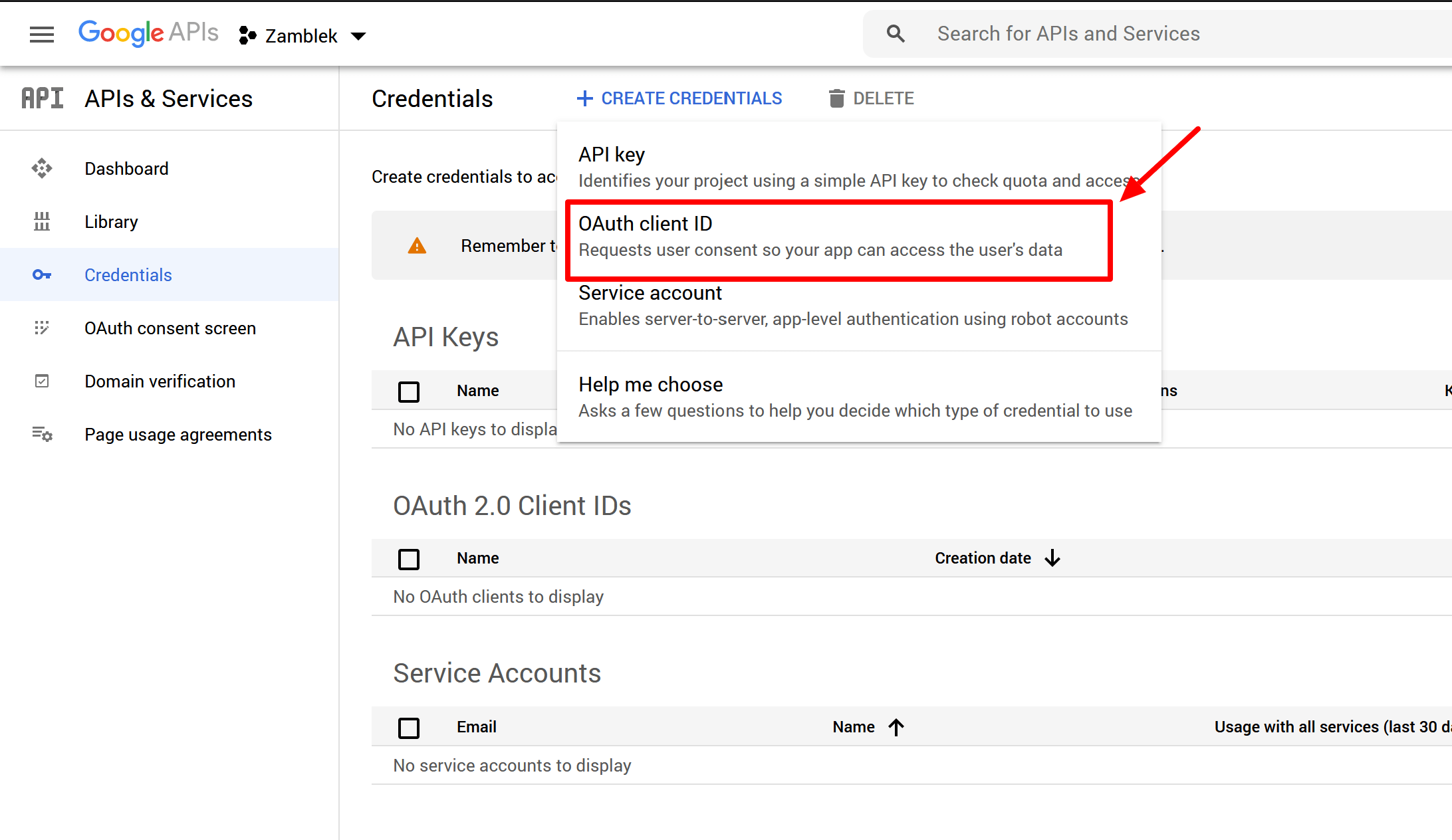
Select Credentials and click Create Credentials and select OAuth client ID
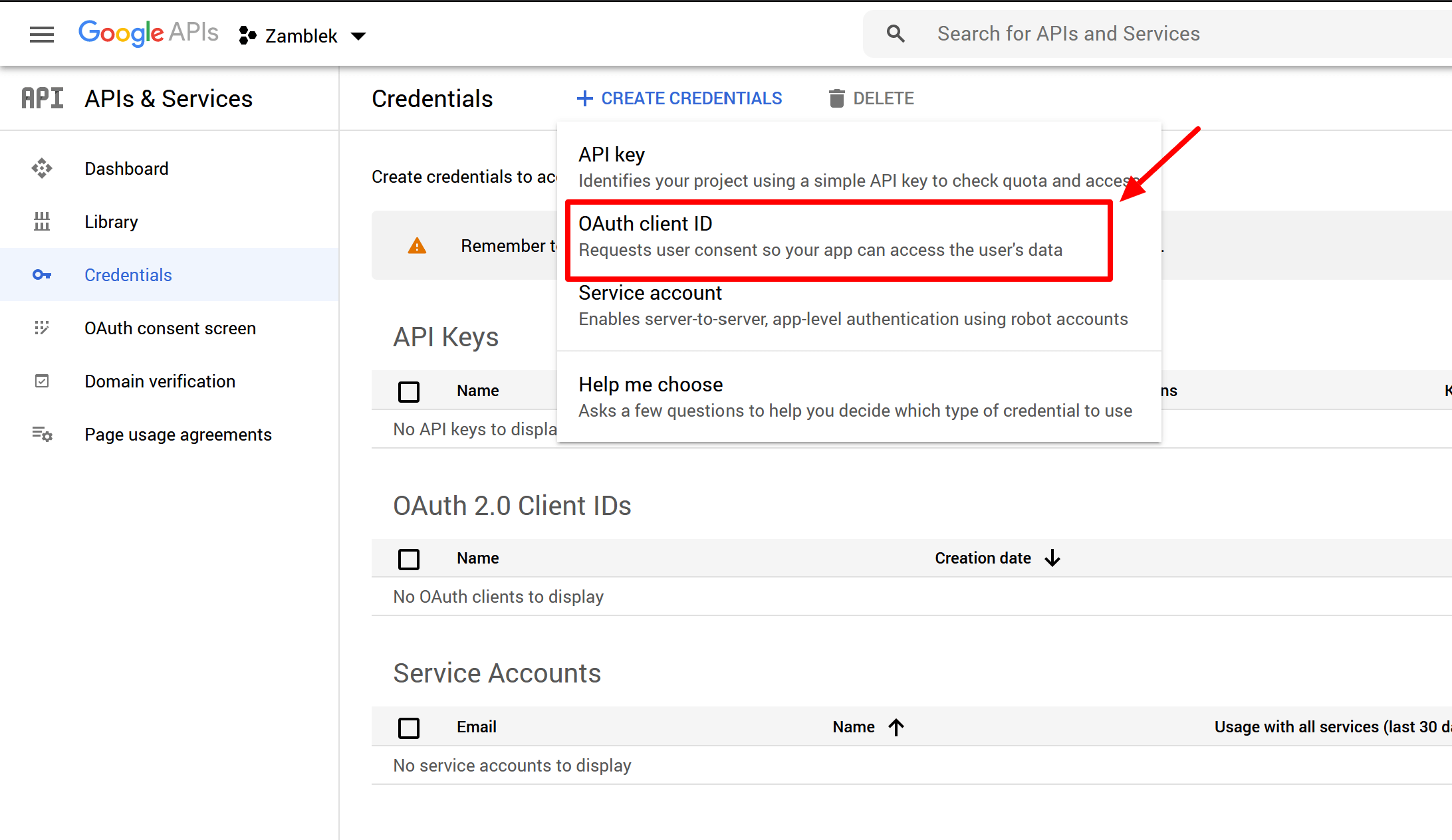

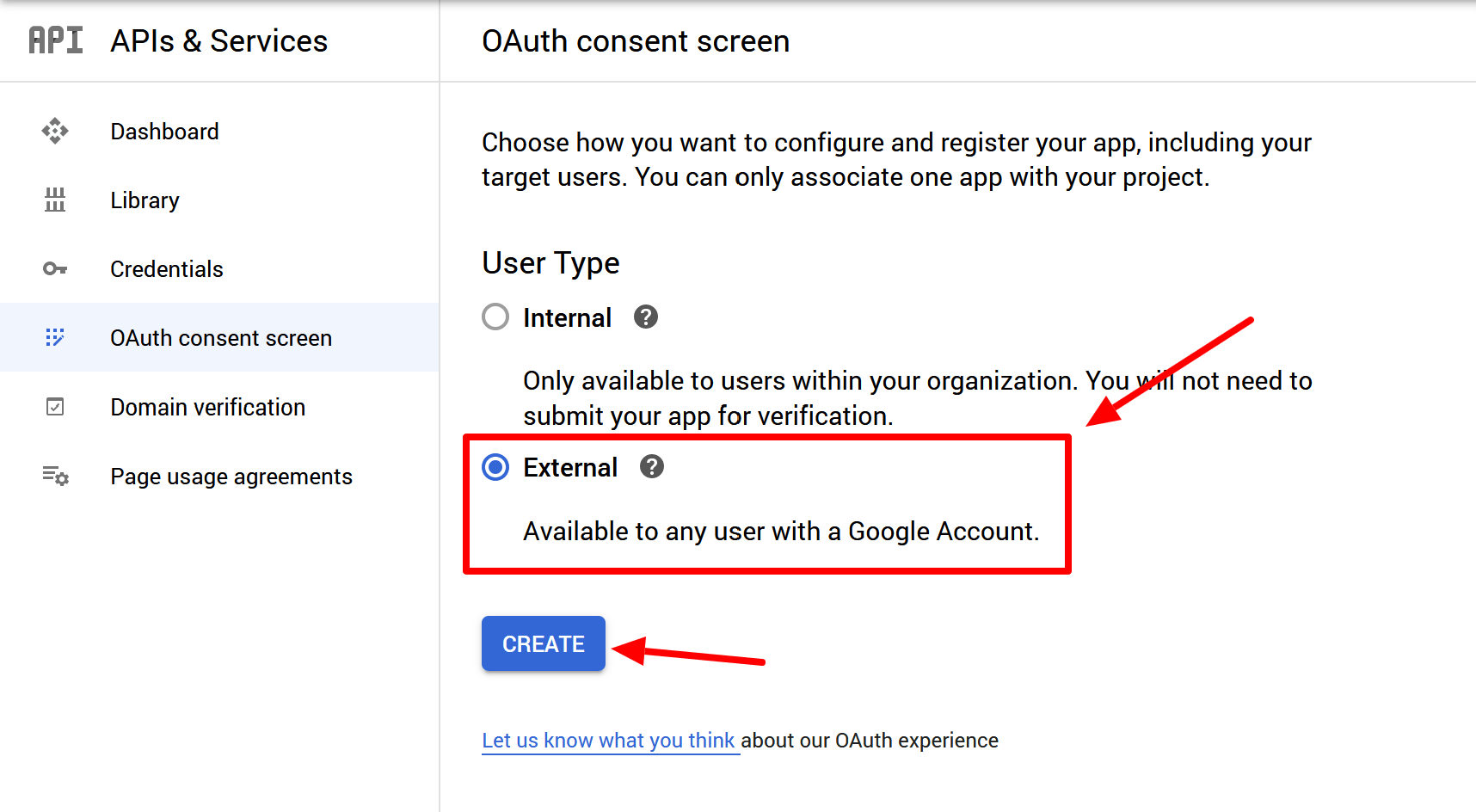
Configure the consent screen
-
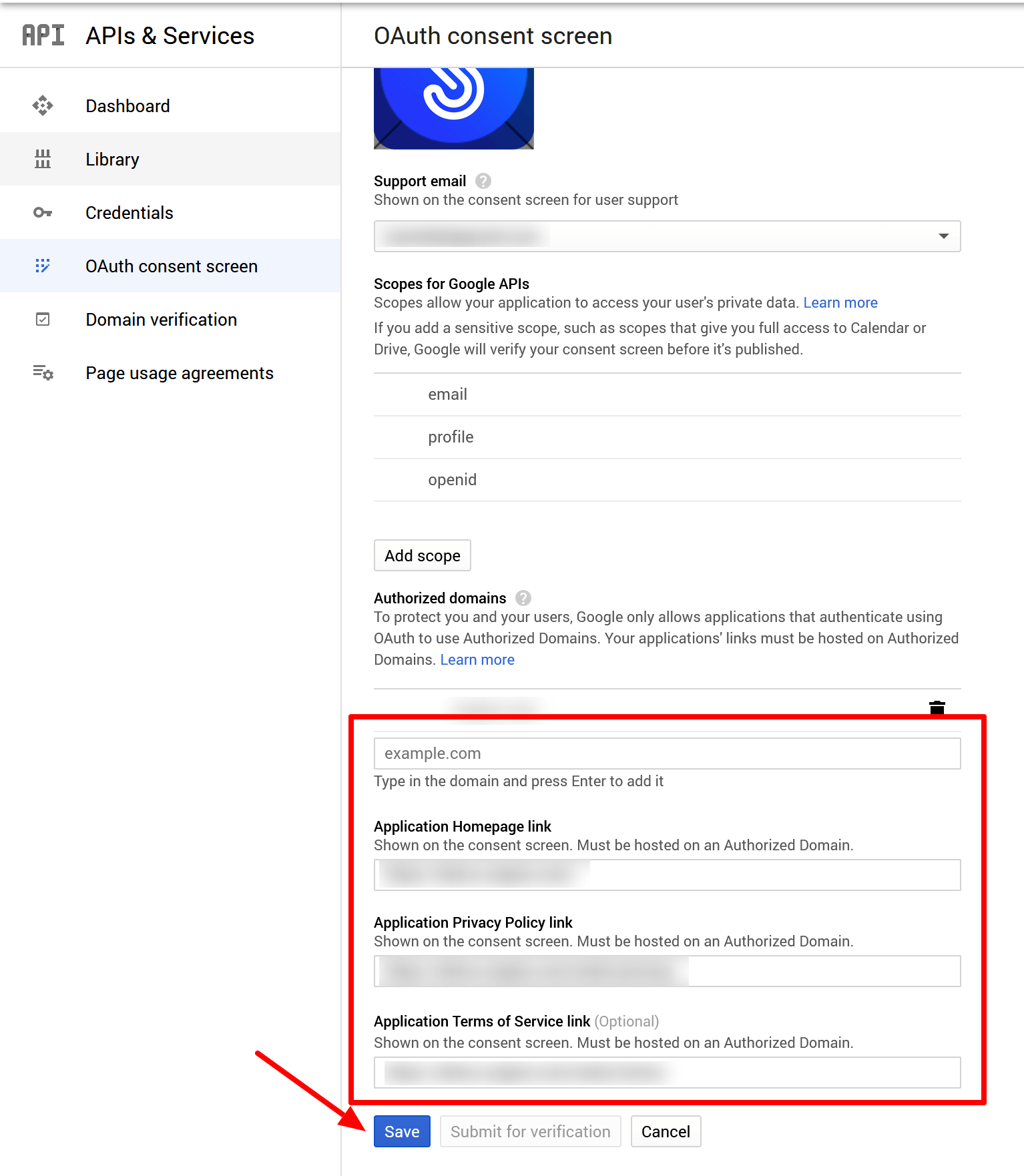
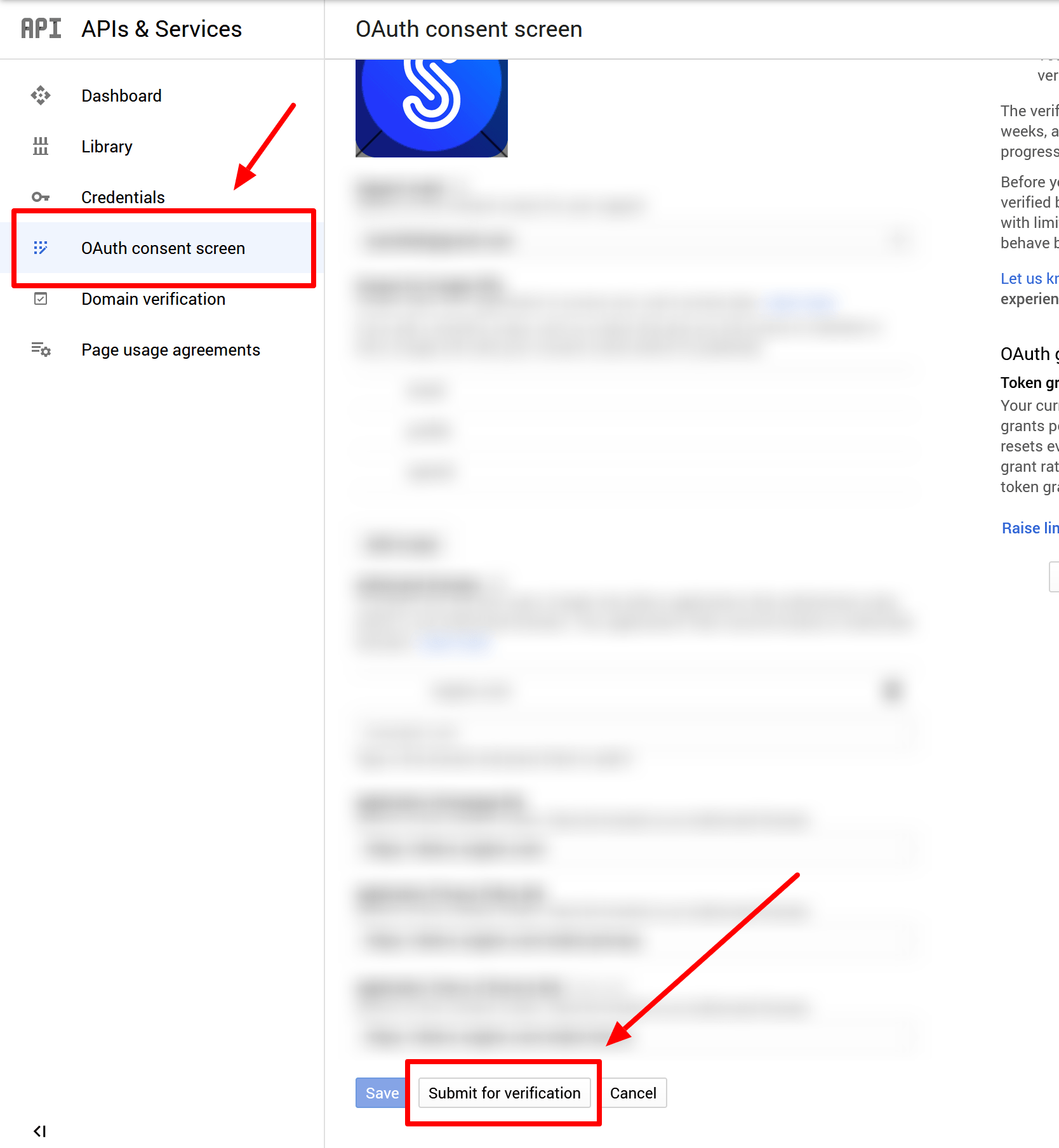
But first you need to configure the Consent Screen, which requires verification from the Google team
-
Once the Consent Screen is configured, submit your app for verification by the Google team
Create the OAuth credentials
-
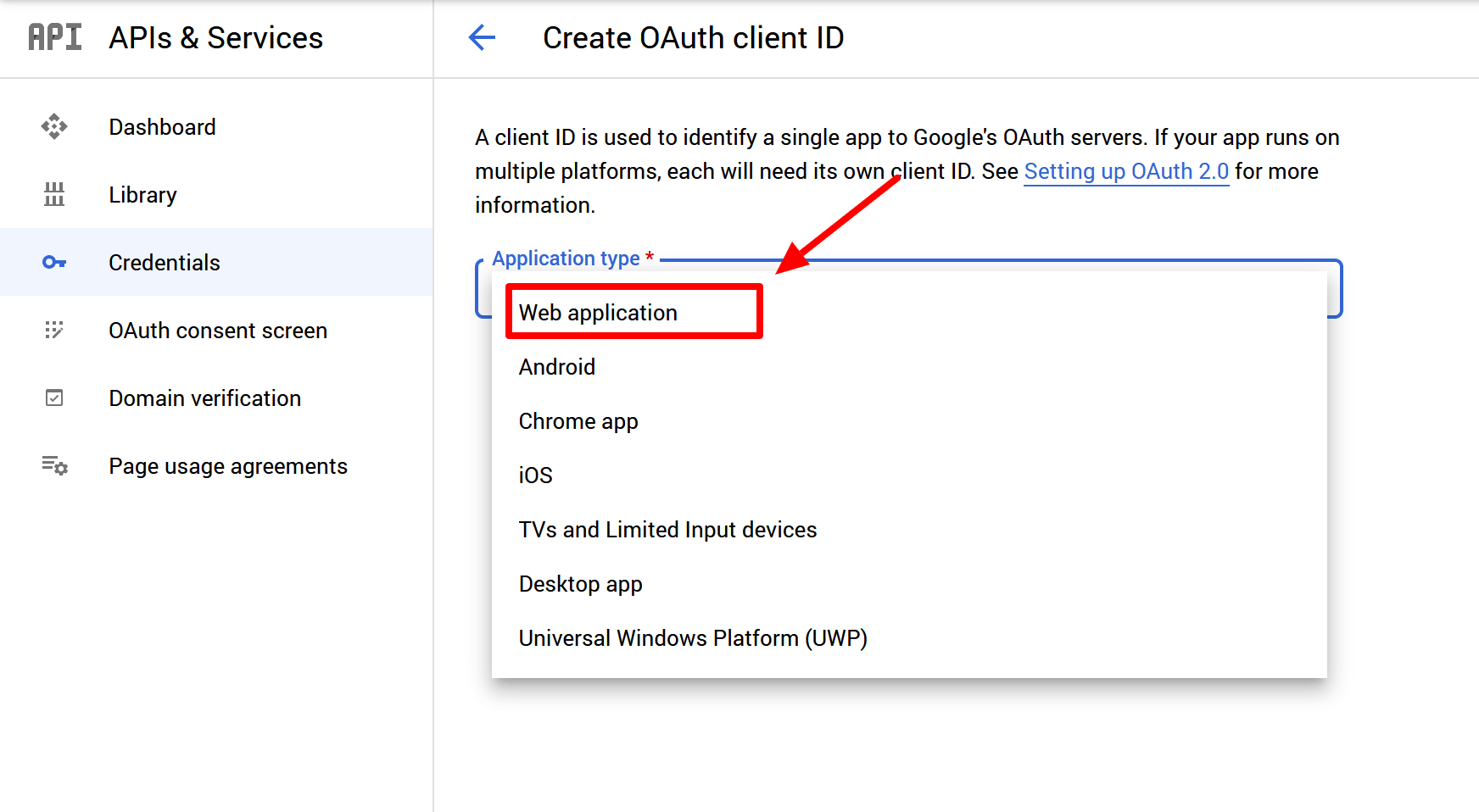
You can now create the credentials — select Credentials and click Create Credentials and select OAuth client ID
-
Provide this URI as the Callback URL for your application as following:
If you installed Sngine in your domain directly like domain.com the URI should be like this:
https://www.domain.com/connect/googleIf you installed Sngine in your domain directly but without
wwwlike domain.com the URI should be like this:
https://domain.com/connect/googleIf you installed Sngine in sub-domain like sub.domain.com the URI should be like this:
https://sub.domain.com/connect/googleIf you installed Sngine in a directory like domain.com/directory the URI should be like this:
https://www.domain.com/directory/connect/google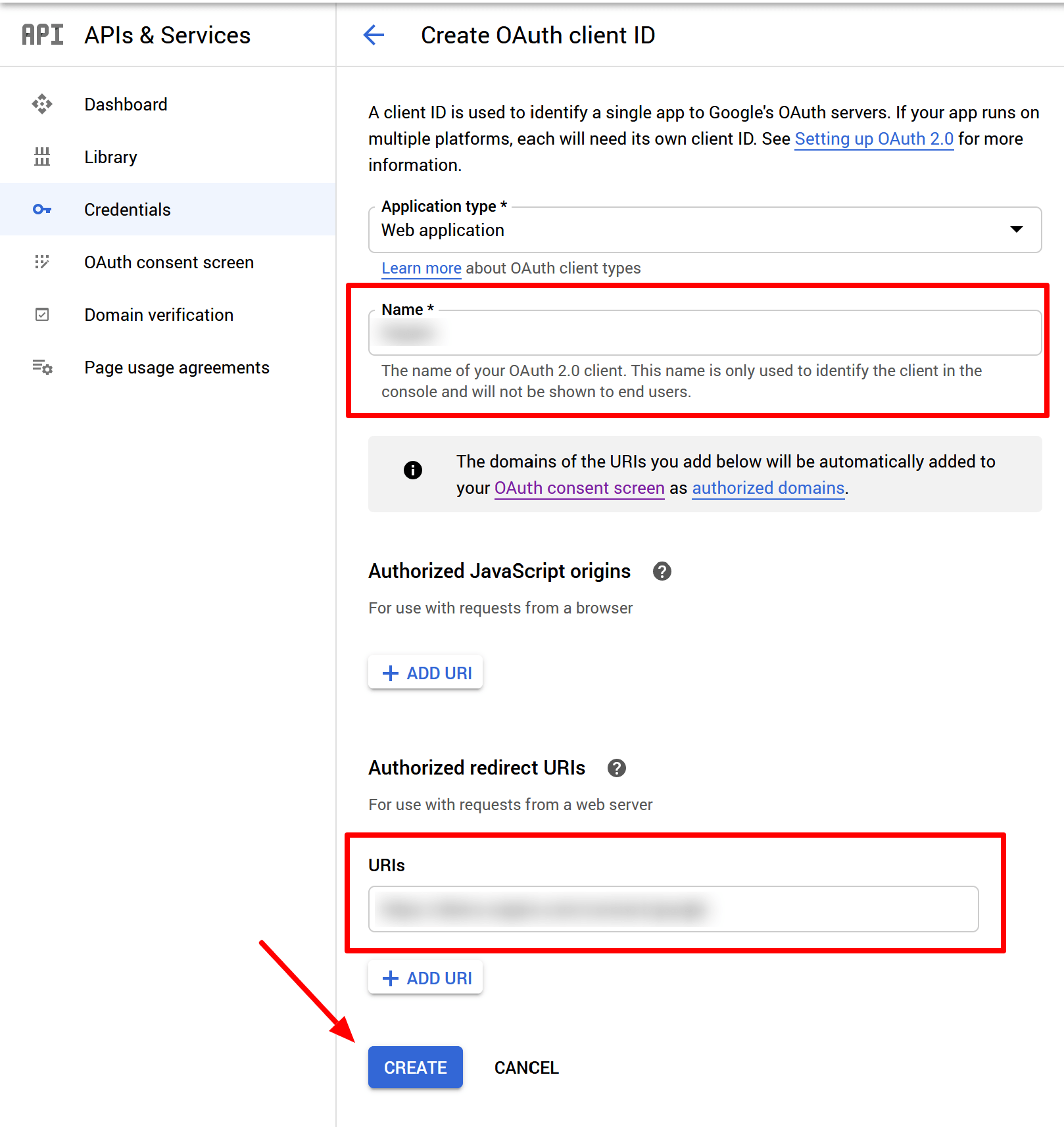
-
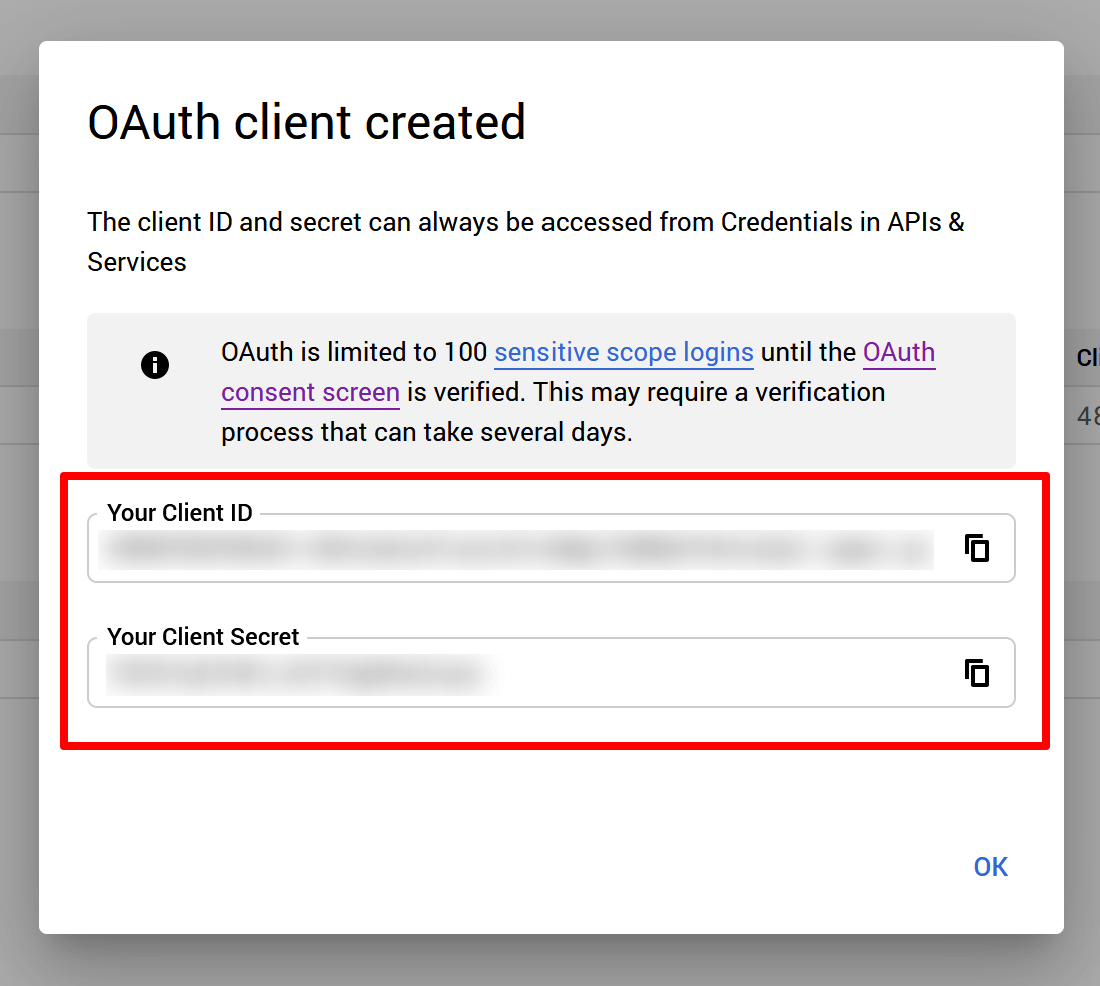
Copy both Client ID and Client Secret
Add the credentials to Sngine
-
Go to Sngine Admin Panel → Settings → Registration Settings → Social Login and paste both keys as shown