


LiveKit
Integrate LiveKit with Sngine in a few easy steps for live streaming.
Create the LiveKit project
-
Go to https://cloud.livekit.io/ and sign in with your LiveKit account
-
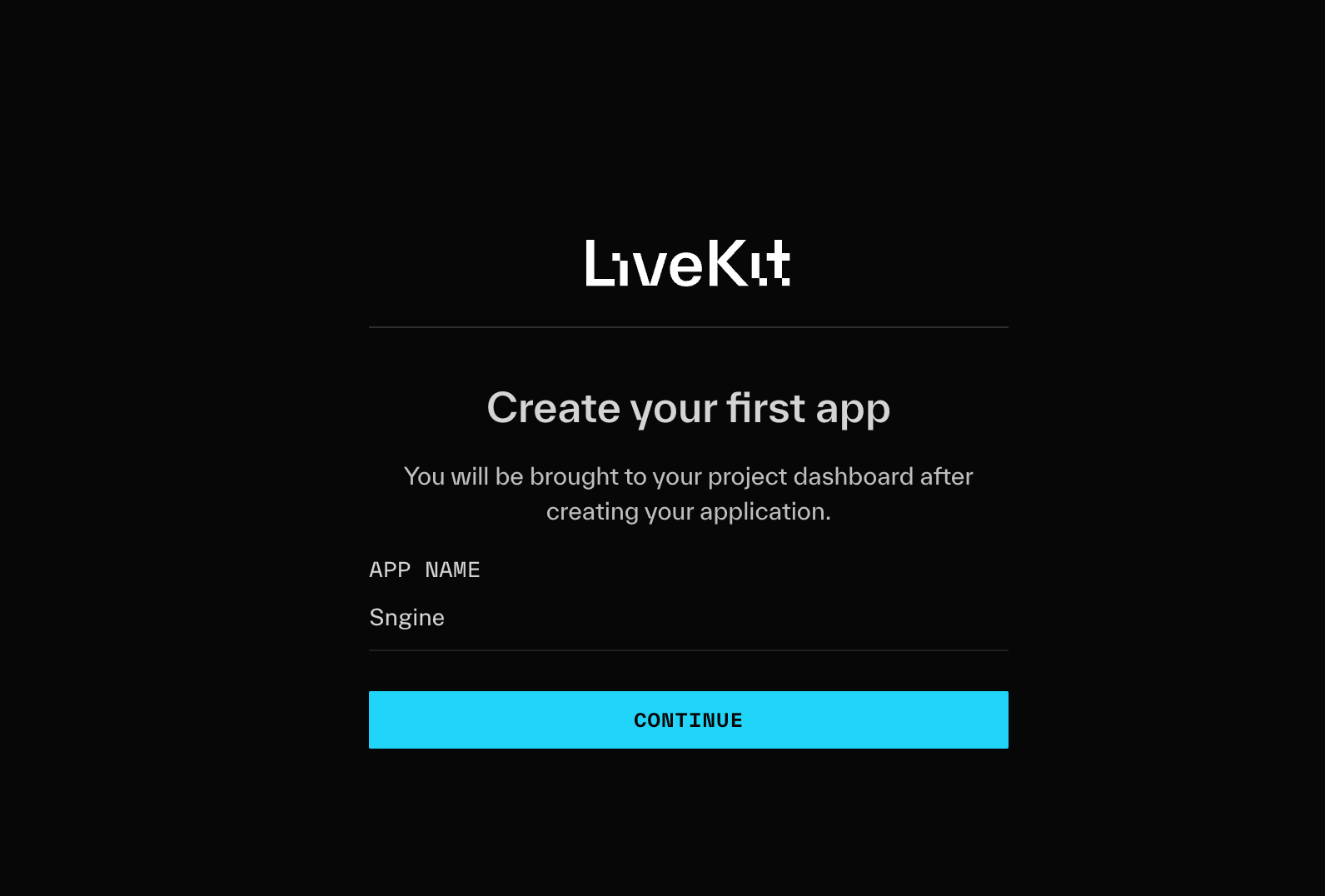
Create a new project
-
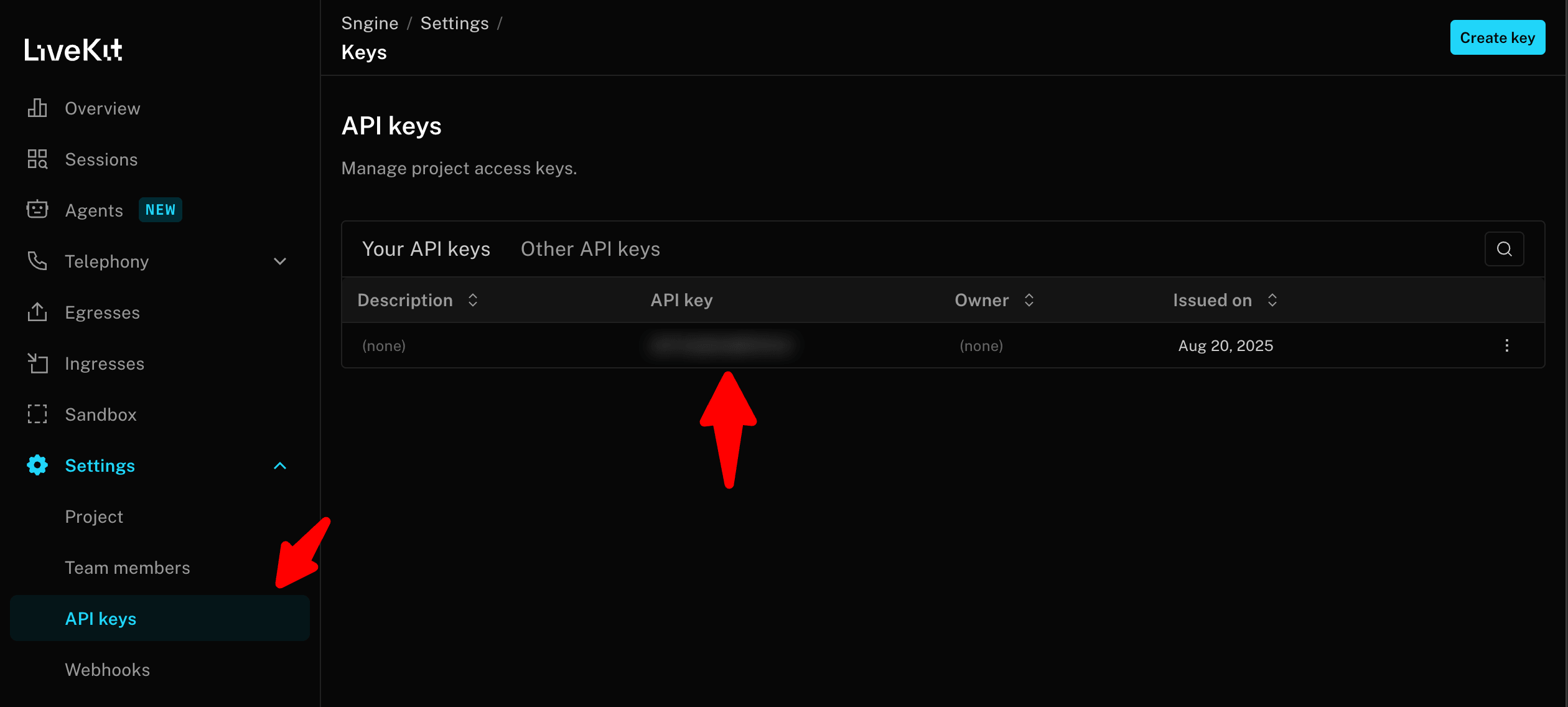
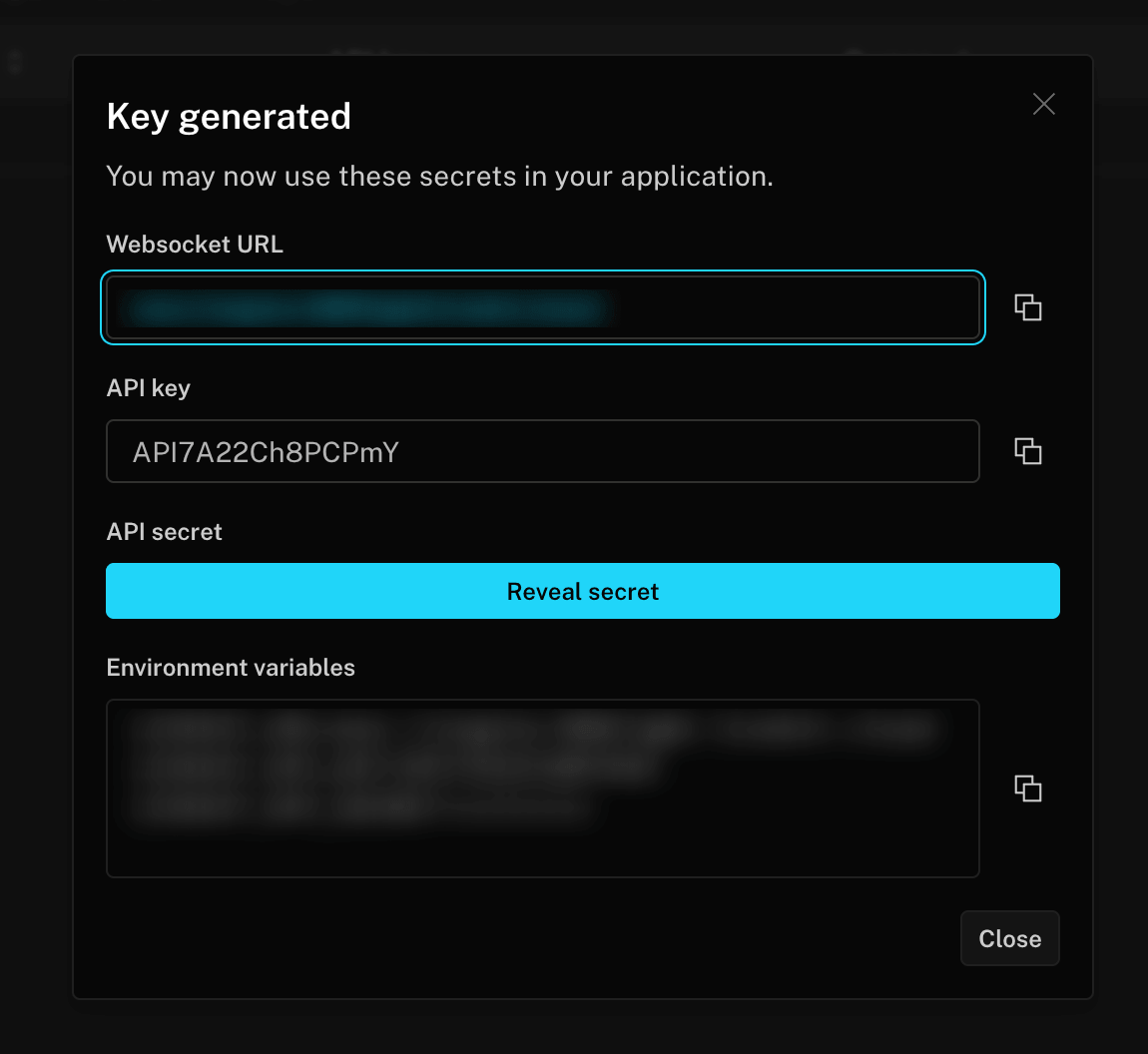
Go to Settings then select Keys and copy the API Key, API Secret and WebSocket URL
Configure Sngine
-
Go to Sngine Admin Panel → Settings → Live Stream Settings, turn on Live Stream Enabled and set Live Stream Provider to LiveKit
-
Under LiveKit, paste the LiveKit API Key, LiveKit API Secret and LiveKit WebSocket URL. The WebSocket URL looks like
wss://your-project.livekit.cloudLive streaming has its own LiveKit keys, separate from the ones in Chat Settings → Audio/Video Calls. You can use the same LiveKit project for both or a separate one. -
Optionally turn on OBS / RTMP Streaming to let users go live from OBS or any other streaming software instead of their camera. This needs LiveKit Cloud or a self-hosted LiveKit Ingress service
Save live videos
-
To keep a recording of every live stream, create an S3 bucket by following the same steps as Amazon S3. S3-compatible storage like Cloudflare R2, Wasabi, DigitalOcean Spaces or Backblaze B2 works too
-
Go to Sngine Admin Panel → Settings → Live Stream Settings → Cloud Recording, turn on Save Live Videos and enter your bucket name, region, access key ID and secret. Fill in S3 Endpoint only for S3-compatible storage and leave it empty for Amazon S3
Saving live videos needs LiveKit Cloud or a self-hosted LiveKit Egress service.