


CCBill
Integrate CCBill with Sngine in a few easy steps.
Get your account details
-
Go to https://admin.ccbill.com/ and sign in with your CCBill merchant account or apply for a new one
-
Note your Account Number (6 digits) and two Subaccounts (4 digits each): one for recurring payments and one for one-time payments. Ask CCBill support to enable Dynamic Pricing on both subaccounts, since Sngine sends the price with every payment
-
Ask CCBill support for your Salt Key. Sngine uses it to sign each payment form so the price can't be changed
Create the FlexForm
-
Go to FlexForms Systems, create a new FlexForm and copy its FlexForm ID
-
Set the approval (success) URL of the FlexForm to your site URL followed by
/ccbill/status.If you installed Sngine in your domain directly like www.domain.com the URI should be like this:
https://www.domain.com/ccbill/statusIf you installed Sngine in your domain directly but without
wwwlike domain.com the URI should be like this:
https://domain.com/ccbill/statusIf you installed Sngine in sub-domain like sub.domain.com the URI should be like this:
https://sub.domain.com/ccbill/statusIf you installed Sngine in a directory like domain.com/directory the URI should be like this:
https://www.domain.com/directory/ccbill/status
Add the webhook
-
For each of the two subaccounts, open Account Info → Sub Account Admin → Webhooks, choose the JSON format and add this URL for all events:
https://www.domain.com/webhooks/ccbill.phpThe webhook is what completes the payment in Sngine. Without it, buyers are charged but their package, wallet top-up, or purchase is never unlocked.
Configure Sngine
-
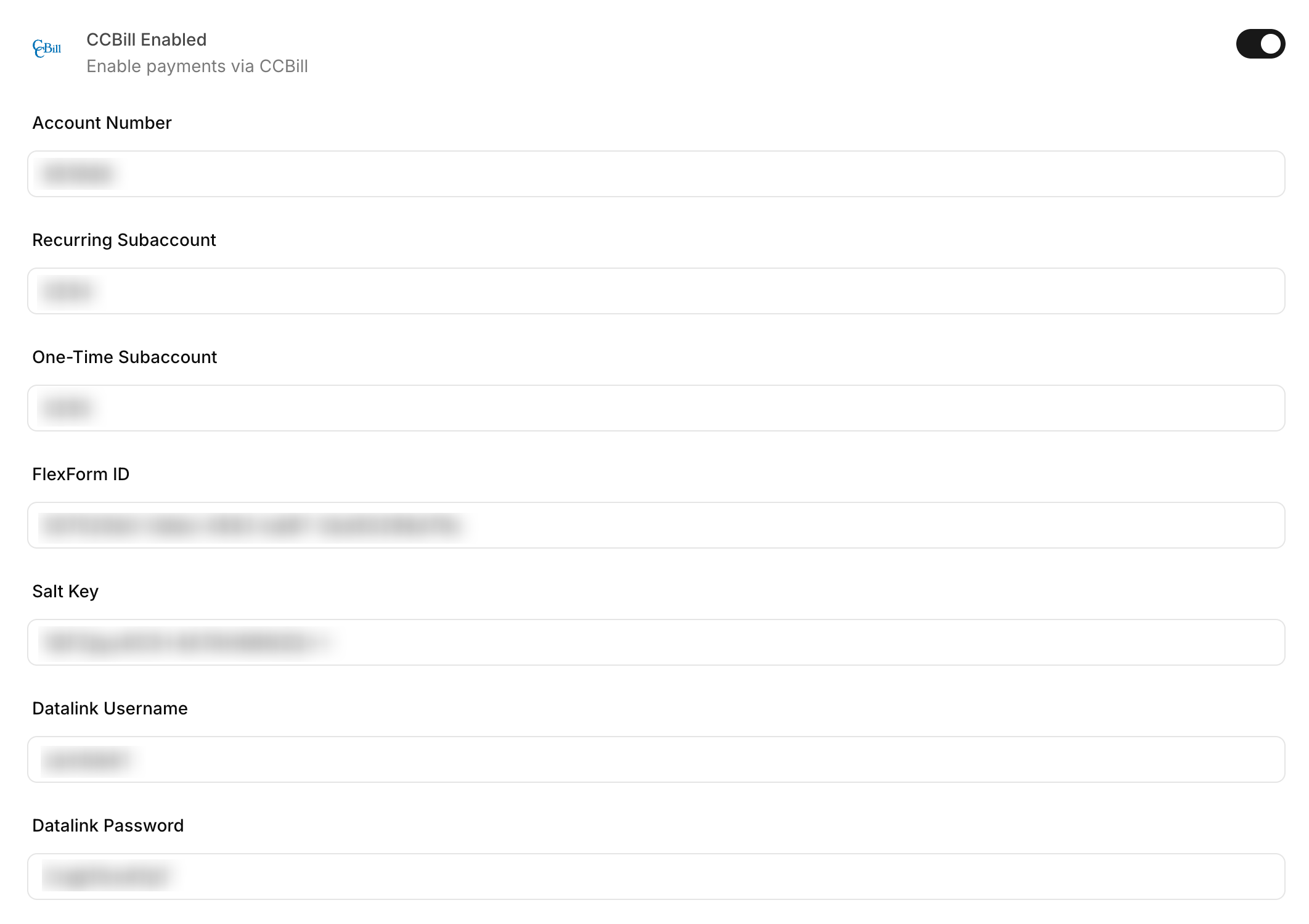
Go to your Sngine Admin Panel → Settings → Payments Settings, turn on CCBill Enabled and fill in Account Number, Recurring Subaccount, One-Time Subaccount, FlexForm ID, Salt Key, Datalink Username and Datalink Password
 Supported currencies: USD, EUR, GBP, CAD, AUD, JPY, CHF, DKK, NOK, SEK, NZD and ZAR. Any other site currency is charged as USD.