


Skip to content

Google Cloud Storage

Integrate Google Cloud Storage with Sngine in a few easy steps.

Create a service account

  1. Go to https://console.cloud.google.com/iam-admin/serviceaccounts and sign in with your Google account and select your project or create a new one
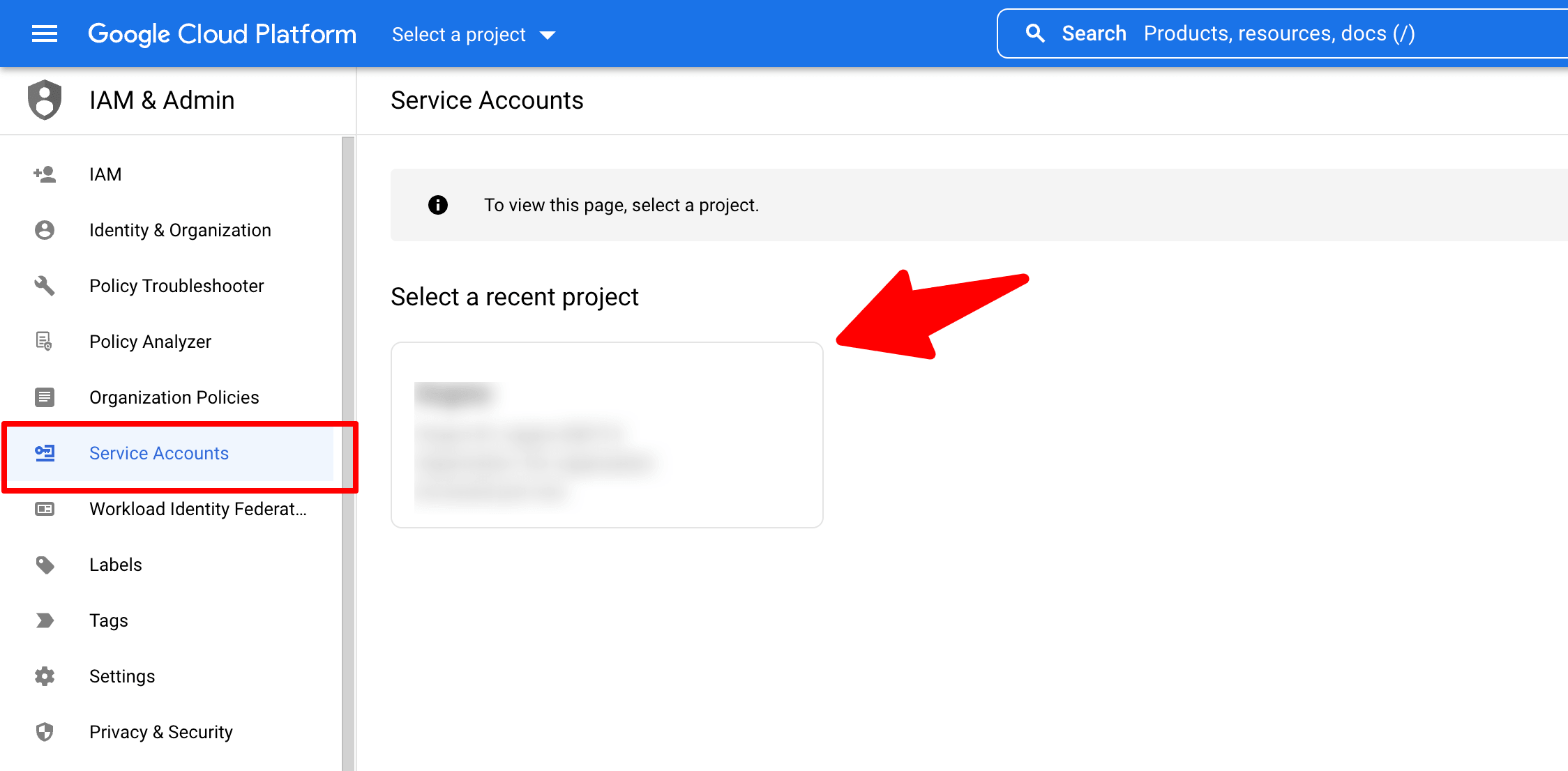
    Go to https://console.cloud.google.com/iam-admin/serviceaccounts and sign in with your Google account and select your…

  2. Click Create service account and fill the form
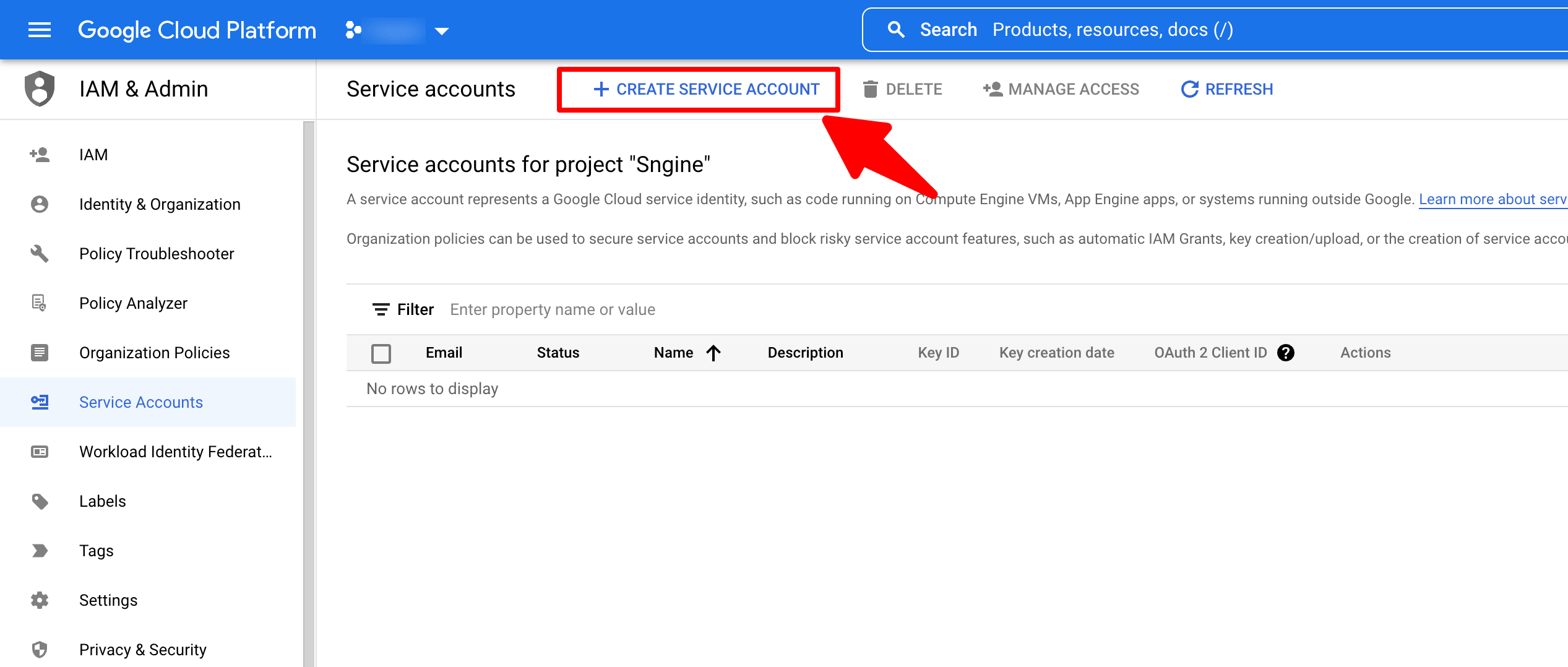
    Click Create service account and fill the form
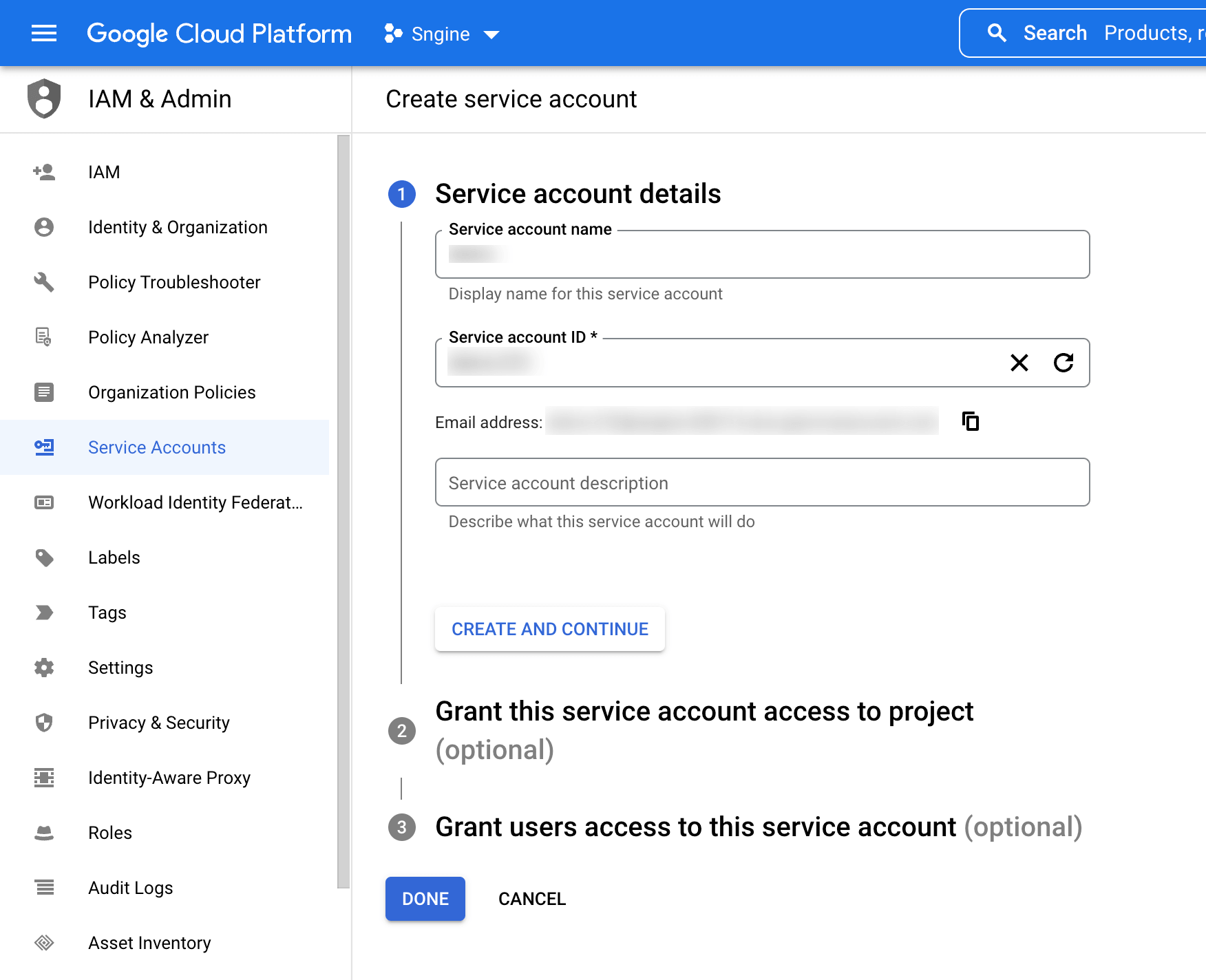
    Click Create service account and fill the form

  3. Make sure you give this account Storage Admin Role as shown
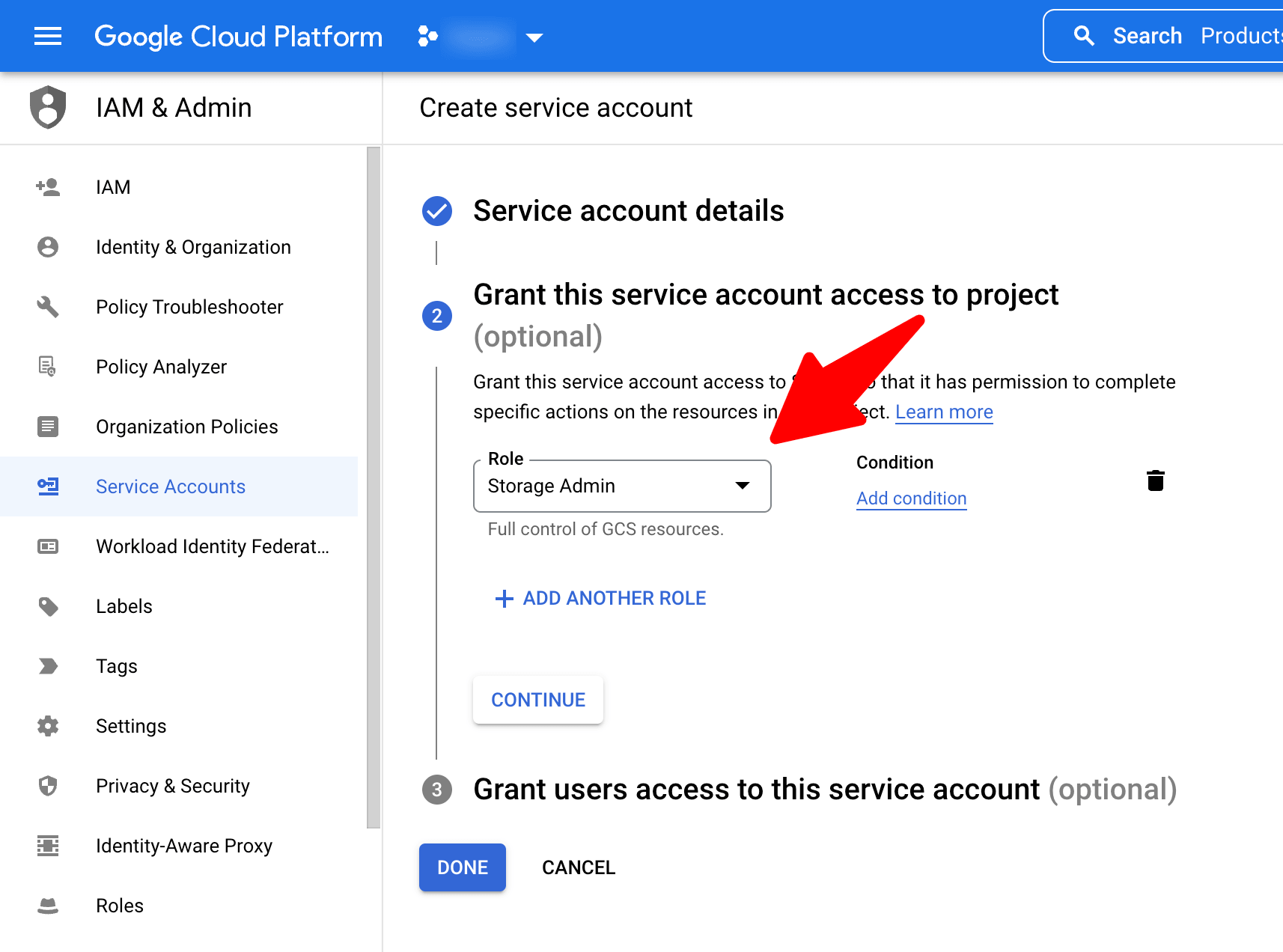
    Make sure you give this account Storage Admin Role as shown

  4. You now need to generate a new key as JSON, so select your new account and click Manage Keys
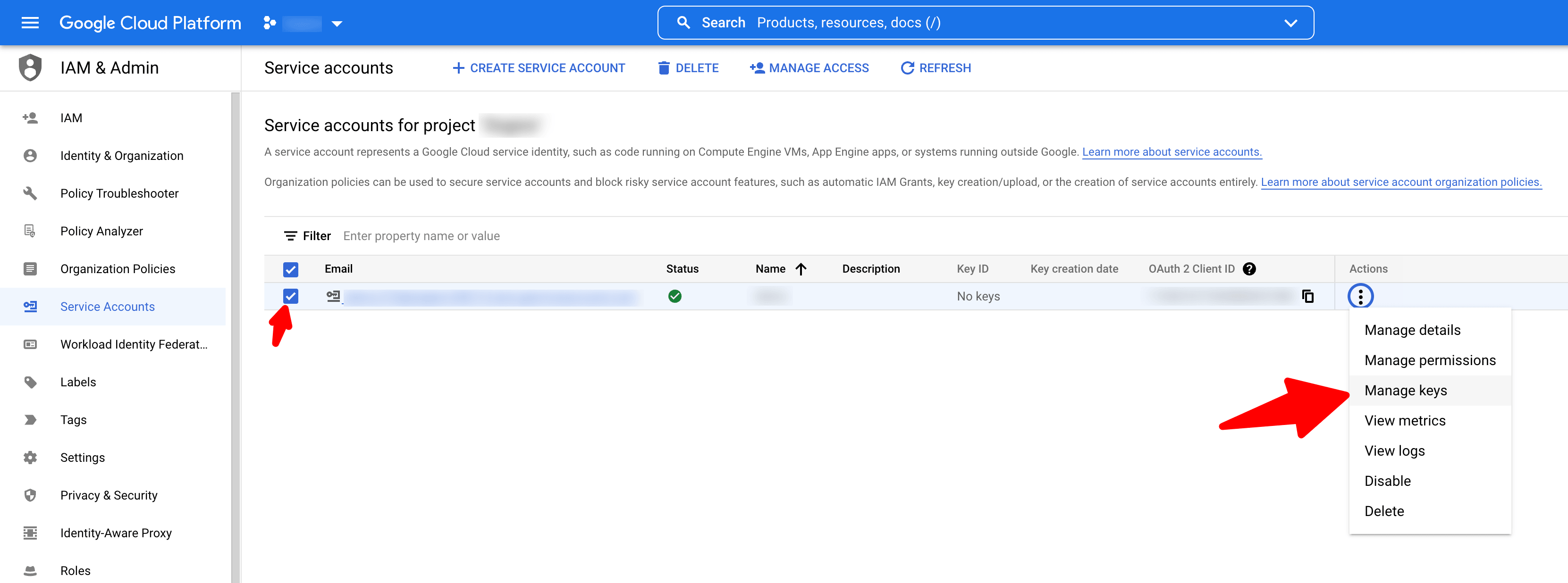
    You now need to generate a new key as JSON, so select your new account and click Manage Keys
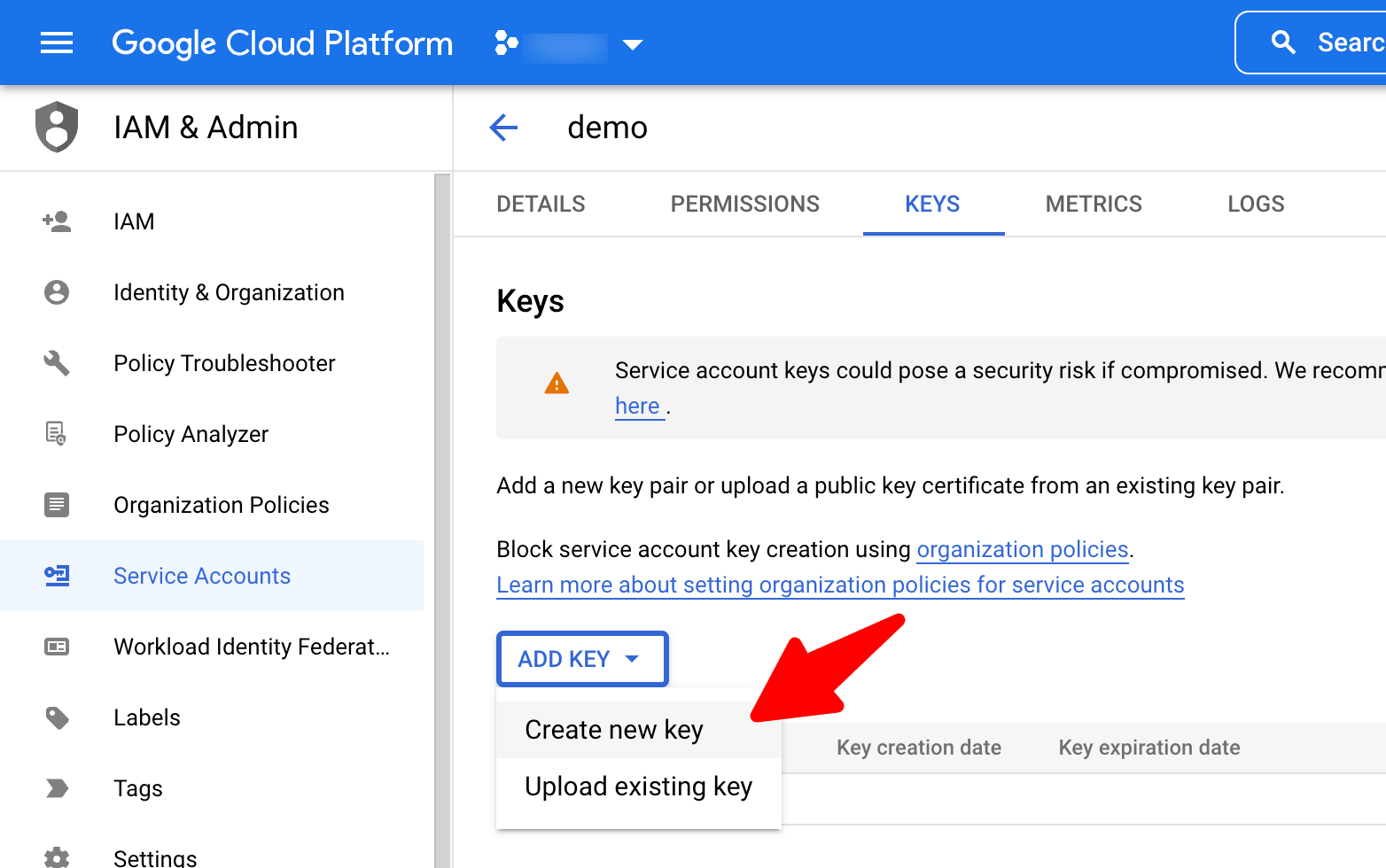
    You now need to generate a new key as JSON, so select your new account and click Manage Keys
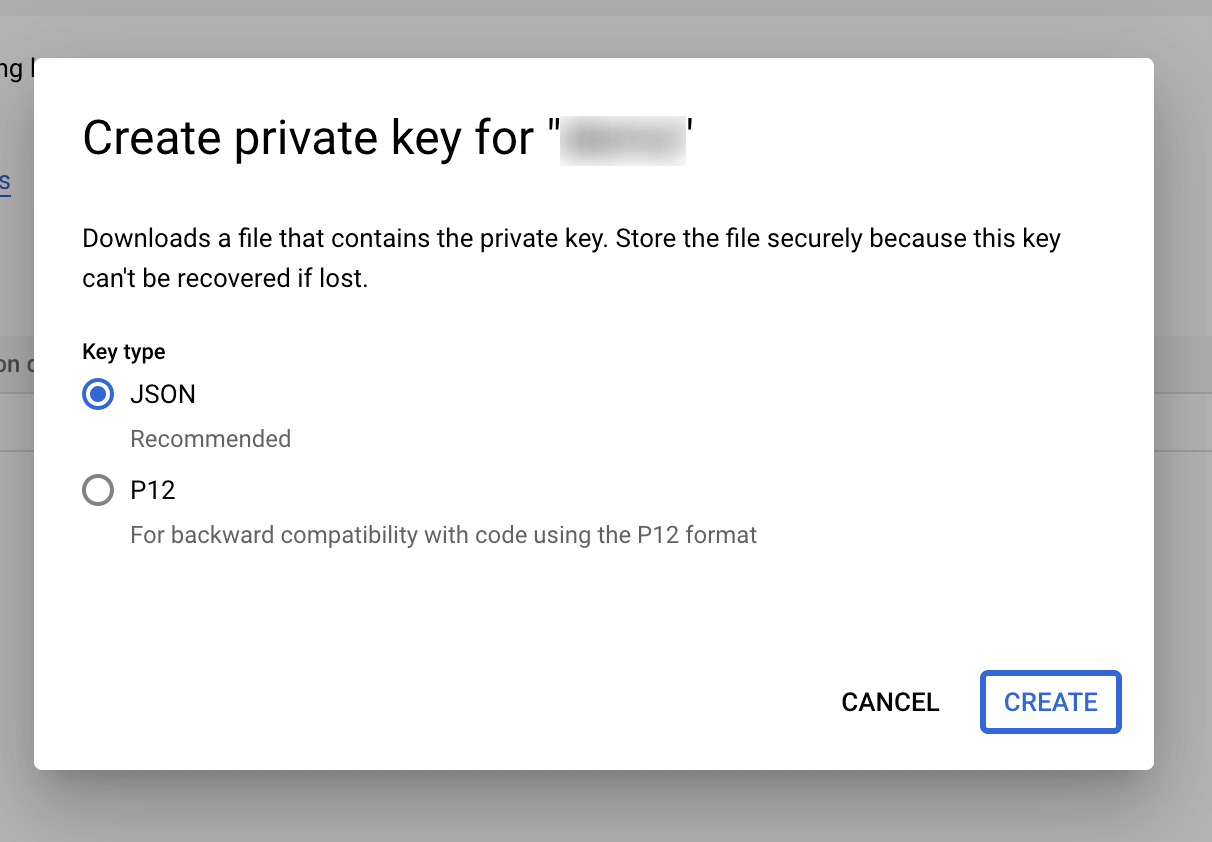
    You now need to generate a new key as JSON, so select your new account and click Manage Keys

  5. Your new public/private key pair is generated and downloaded to your machine as a new file. This file is the only copy of this key
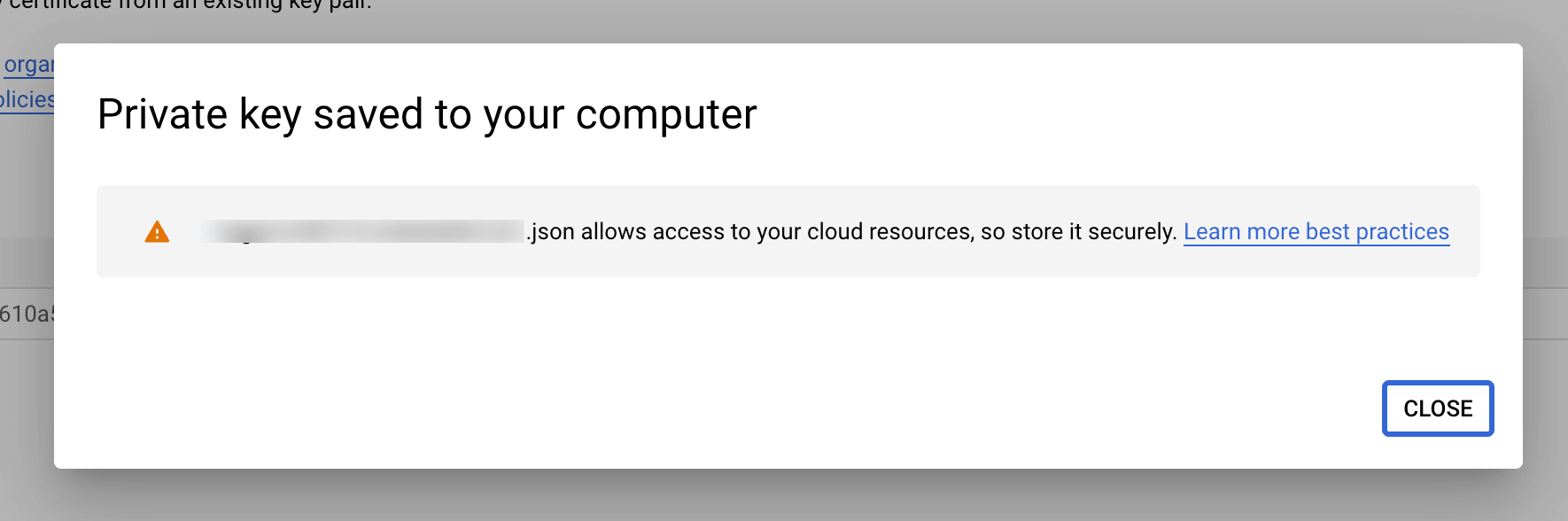
    Your new public/private key pair is generated and downloaded to your machine as a new file. This file is the only copy of…

Create the bucket

  1. Now create the bucket — go to https://console.cloud.google.com/storage/browser and click Create Bucket
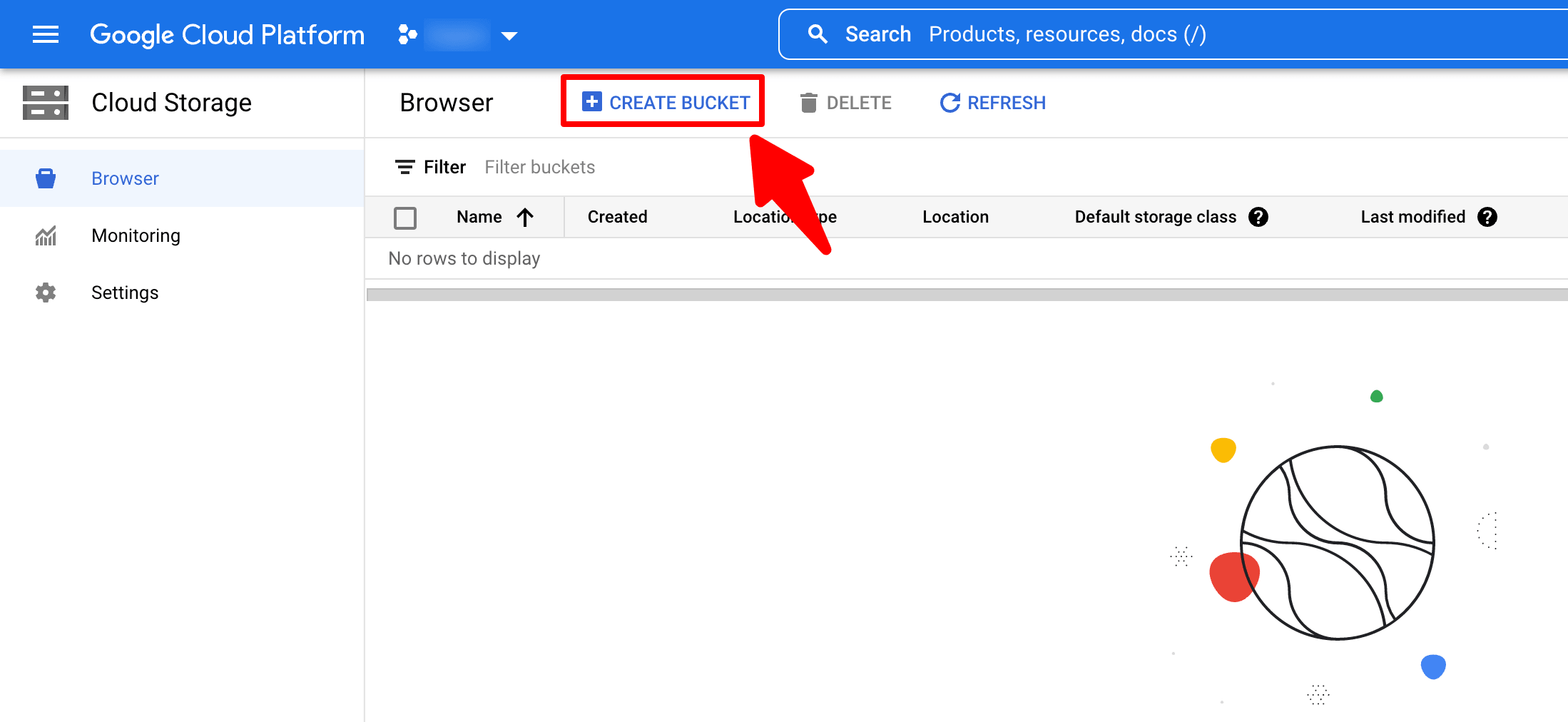
    Now create the bucket — go to https://console.cloud.google.com/storage/browser and click Create Bucket

  2. Make sure your bucket is public by following these steps
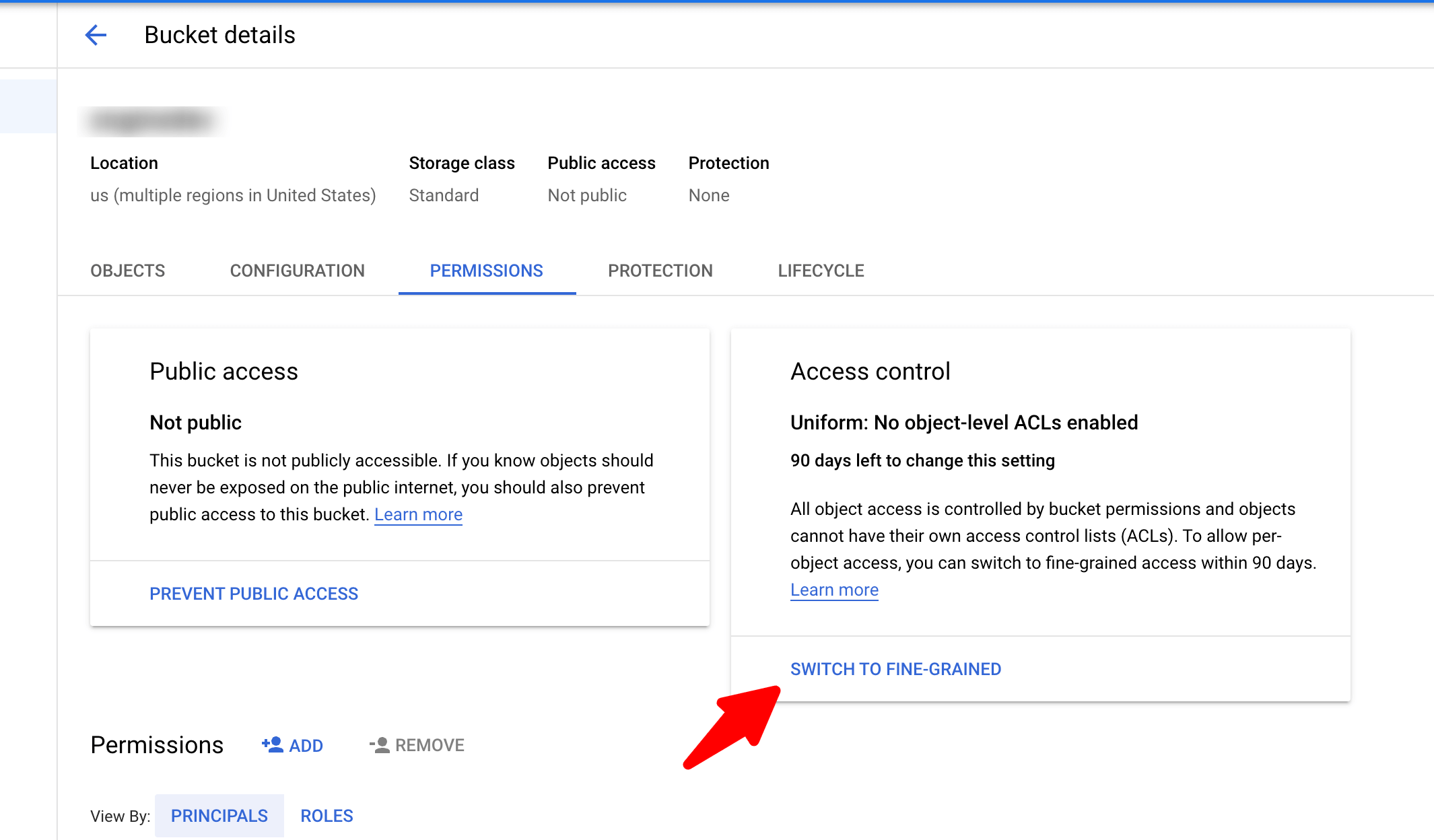
    Make sure your bucket is public by following these steps
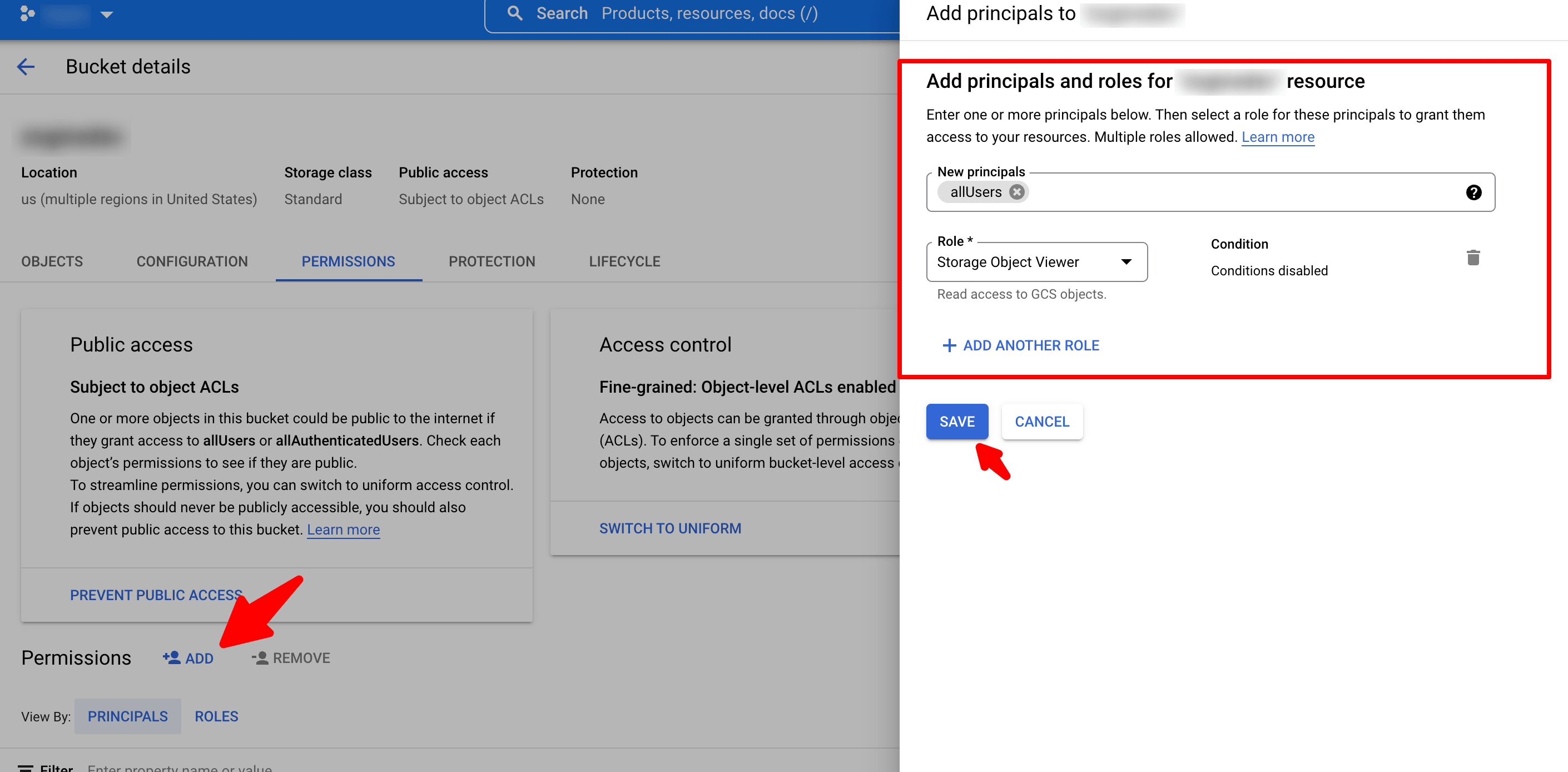
    Make sure your bucket is public by following these steps
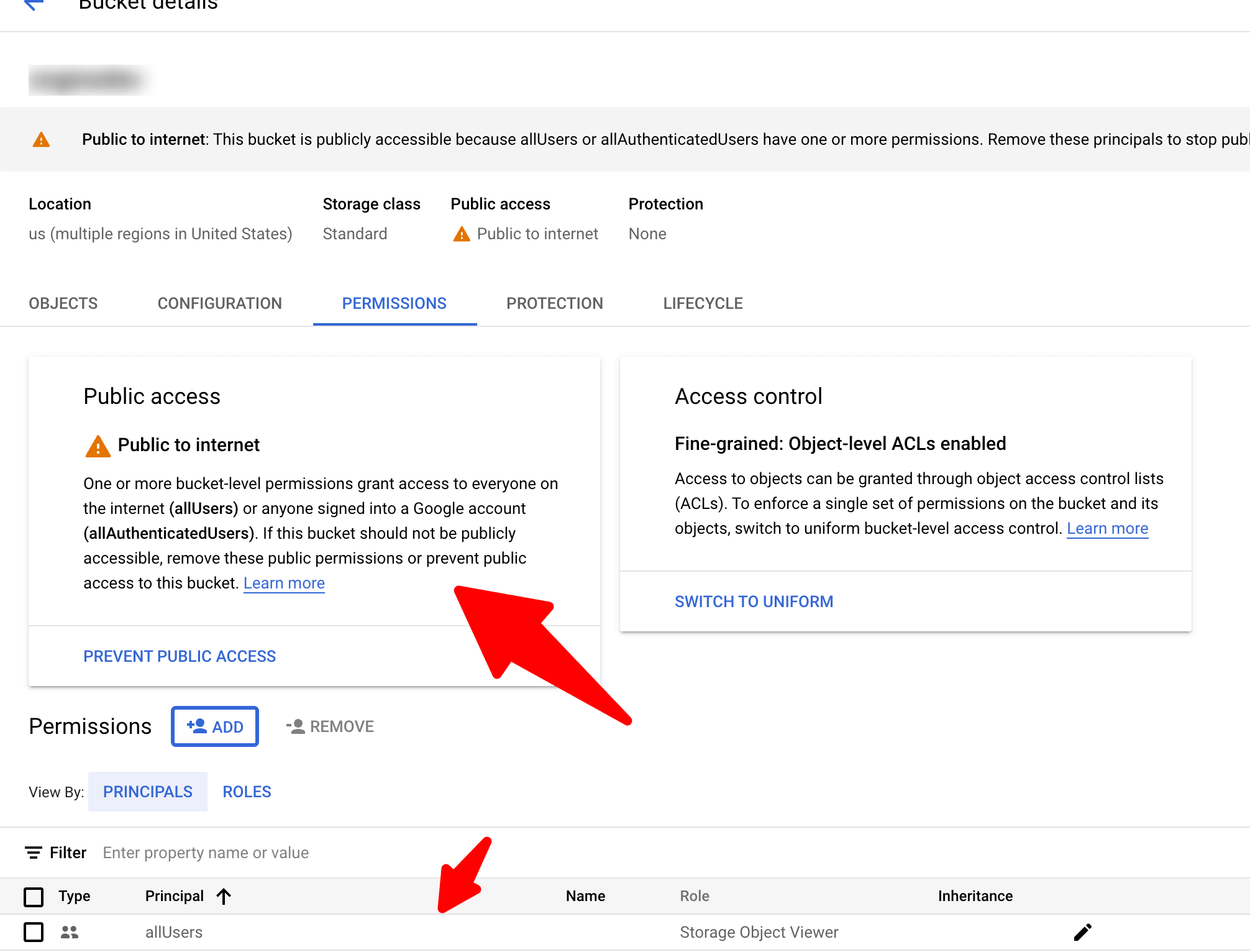
    Make sure your bucket is public by following these steps

Add the credentials to Sngine

  1. Go to your Sngine Admin Panel → Settings → Upload Settings and paste both bucket name and your JSON Key file content and after click Save Changes click Test Connection
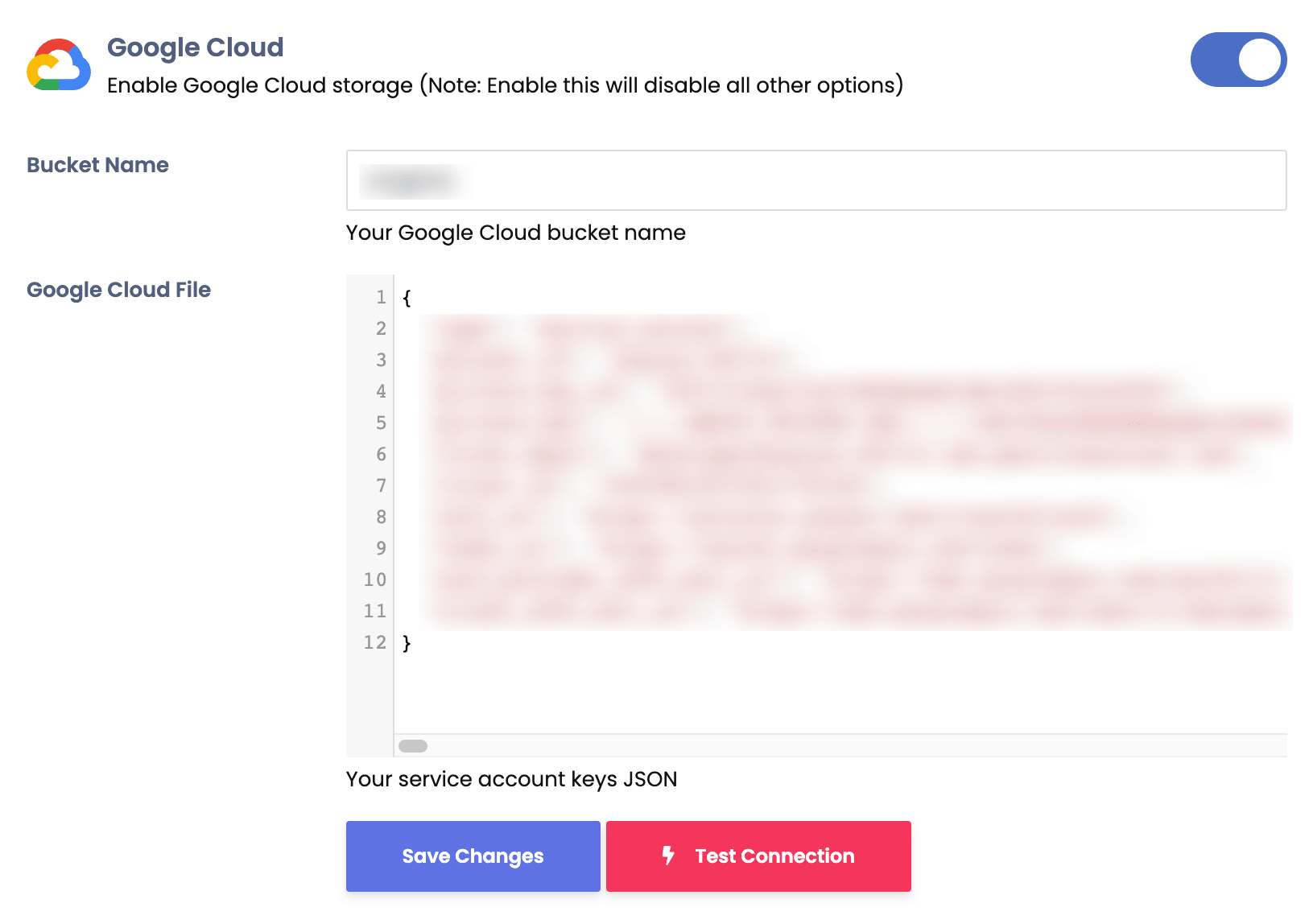
    Go to your Sngine Admin Panel → Settings → Upload Settings and paste both bucket name and your JSON Key file content and…