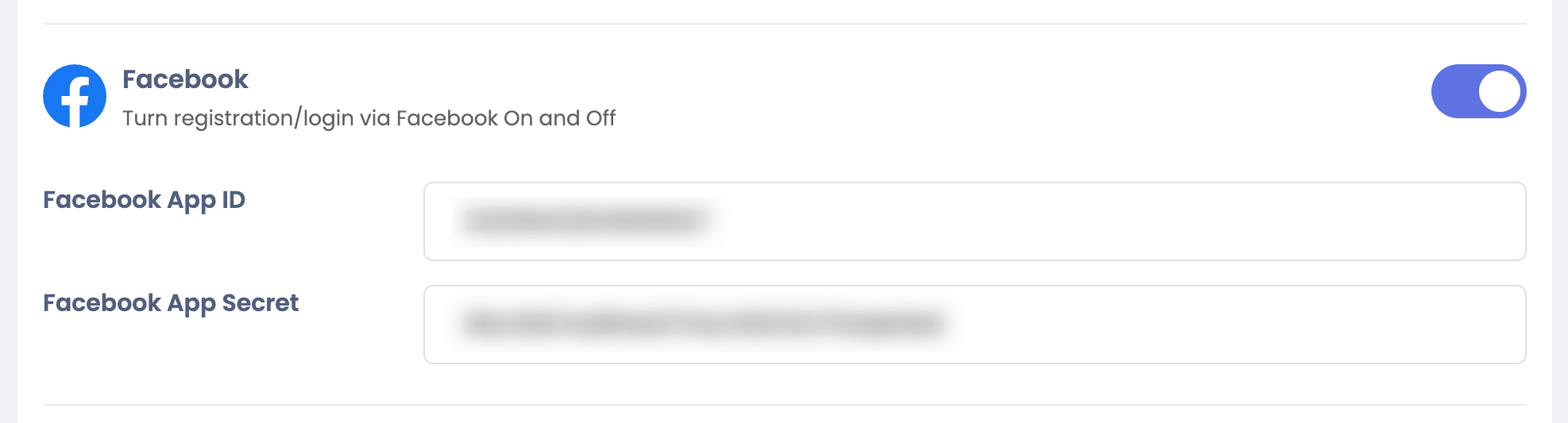


Integrate Facebook with Sngine in a few easy steps to let your users log in with their Facebook accounts.
Create the Facebook app
-
Go to https://developers.facebook.com and sign in with your Facebook account
-
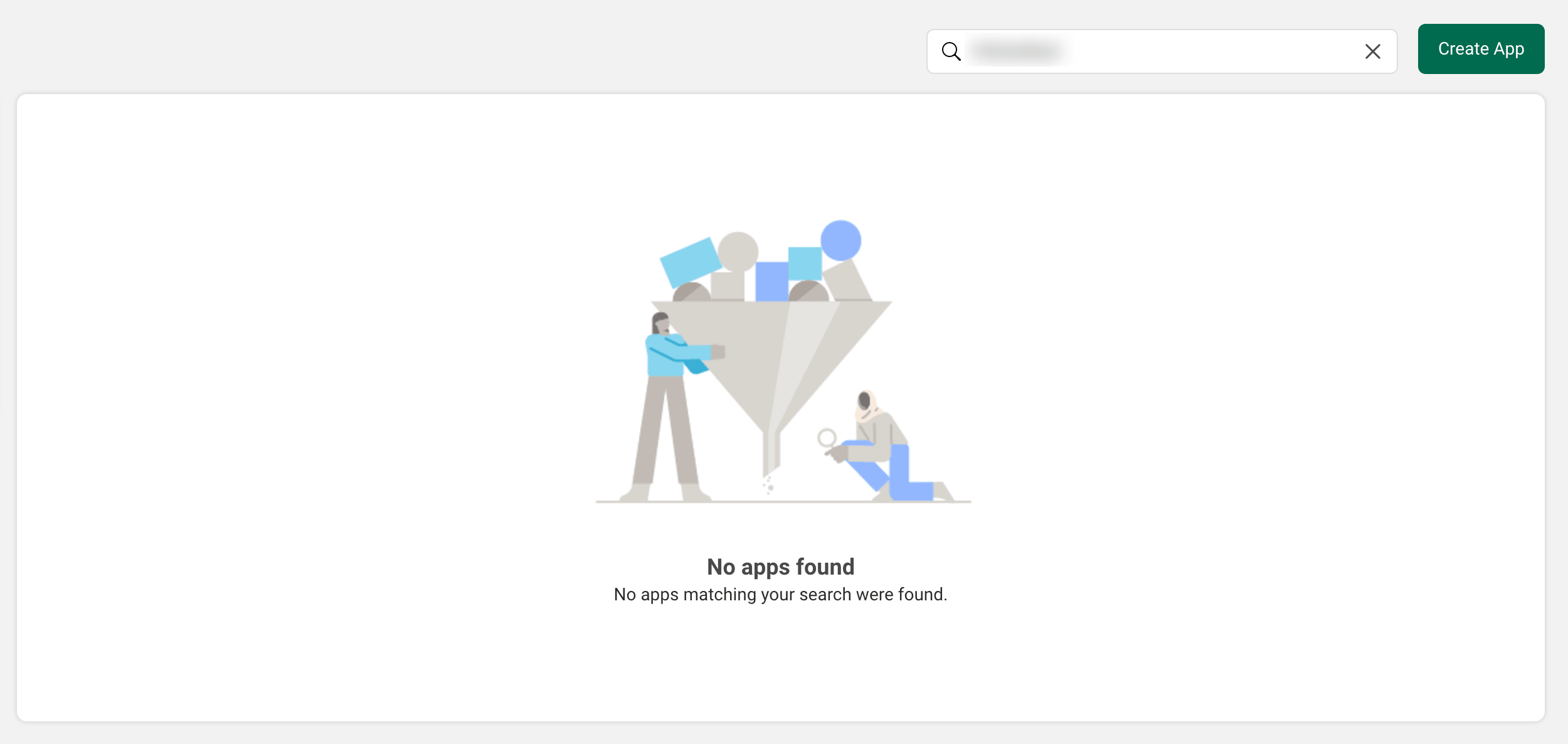
Click My Apps and click Create App
-
Fill the form and click Create App ID
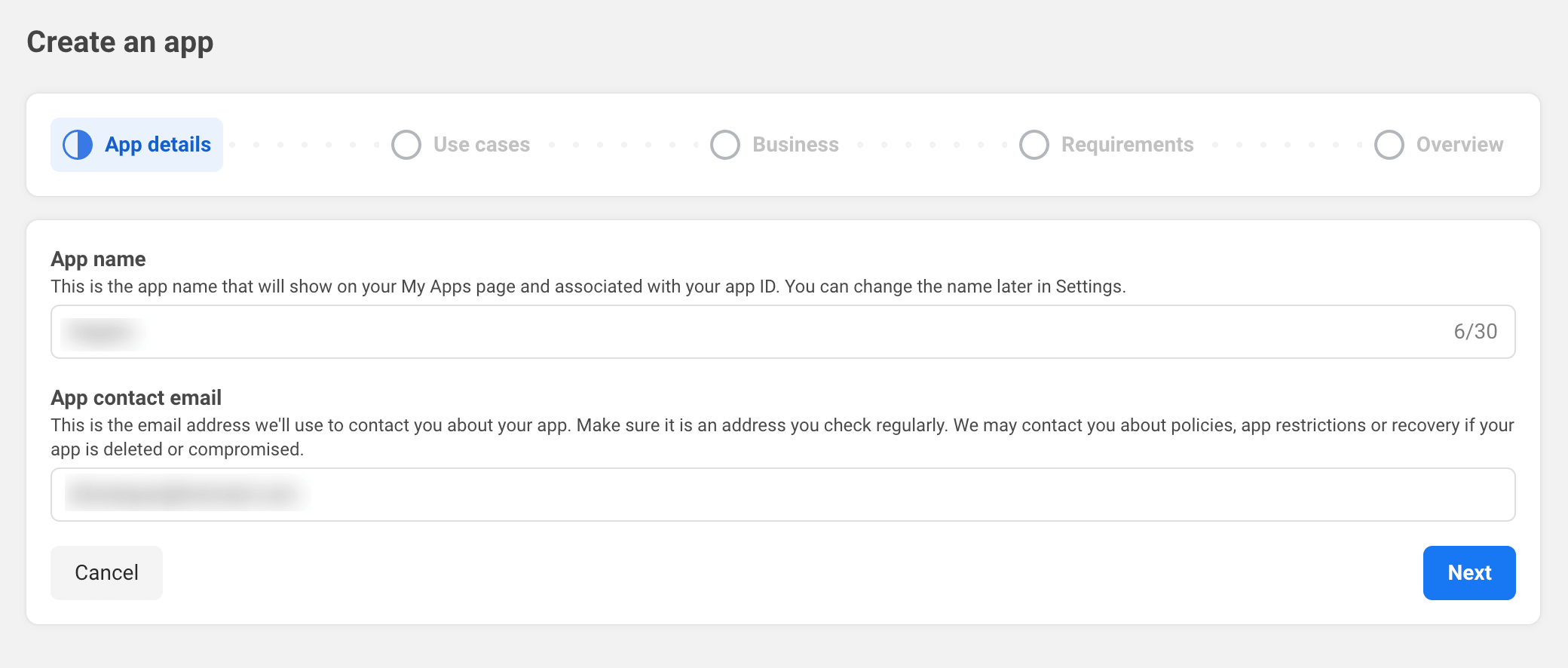
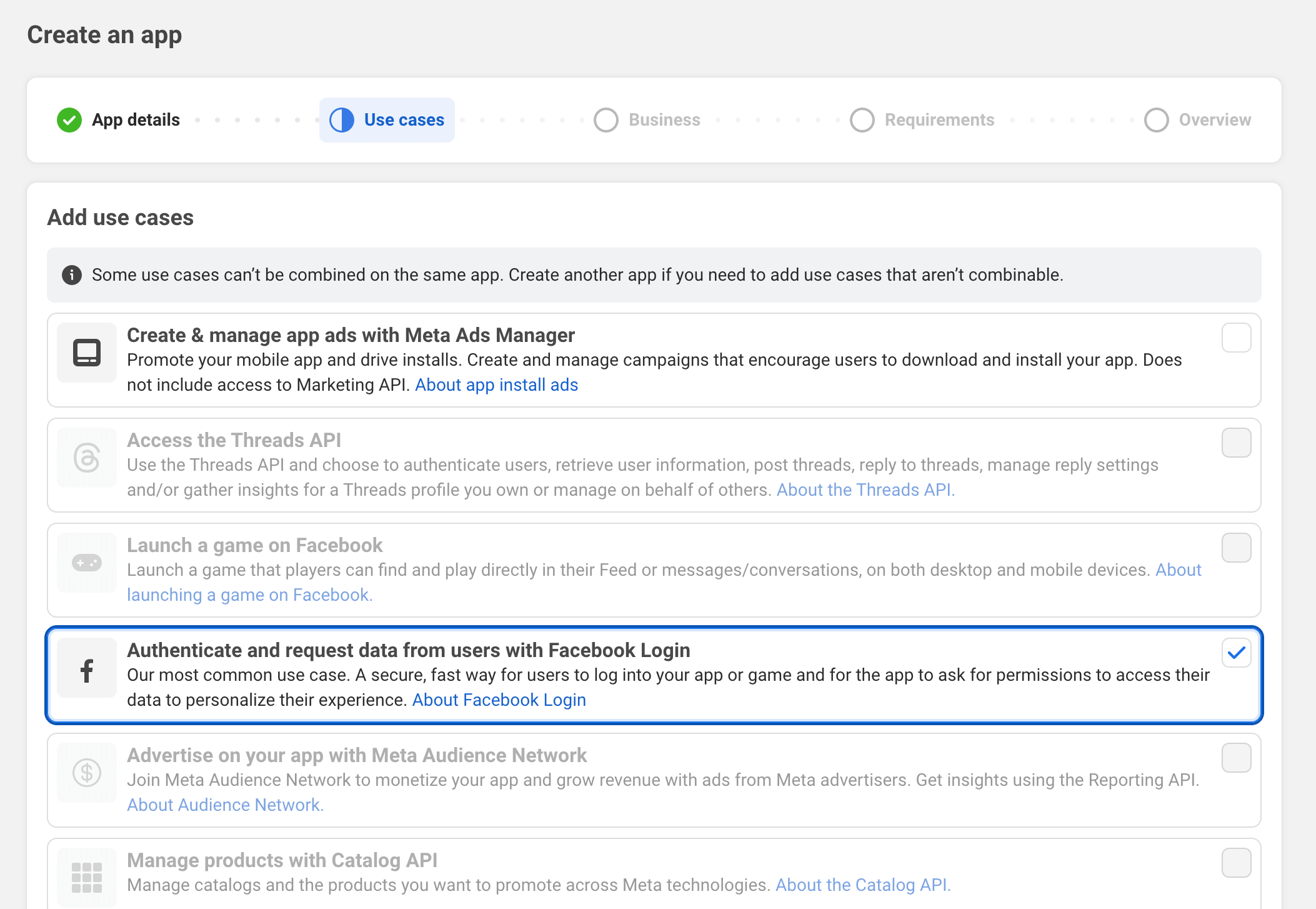
Configure the app
-
Go to Settings and enter your domain or subdomain where you installed Sngine in the App Domains
Also provide Privacy Policy URL and Terms of Service URL you can use your Sngine static pages for these also you will need to select the app Category
For User Data Deletion add your website link then
/settings/deleteFinally click Save Changes
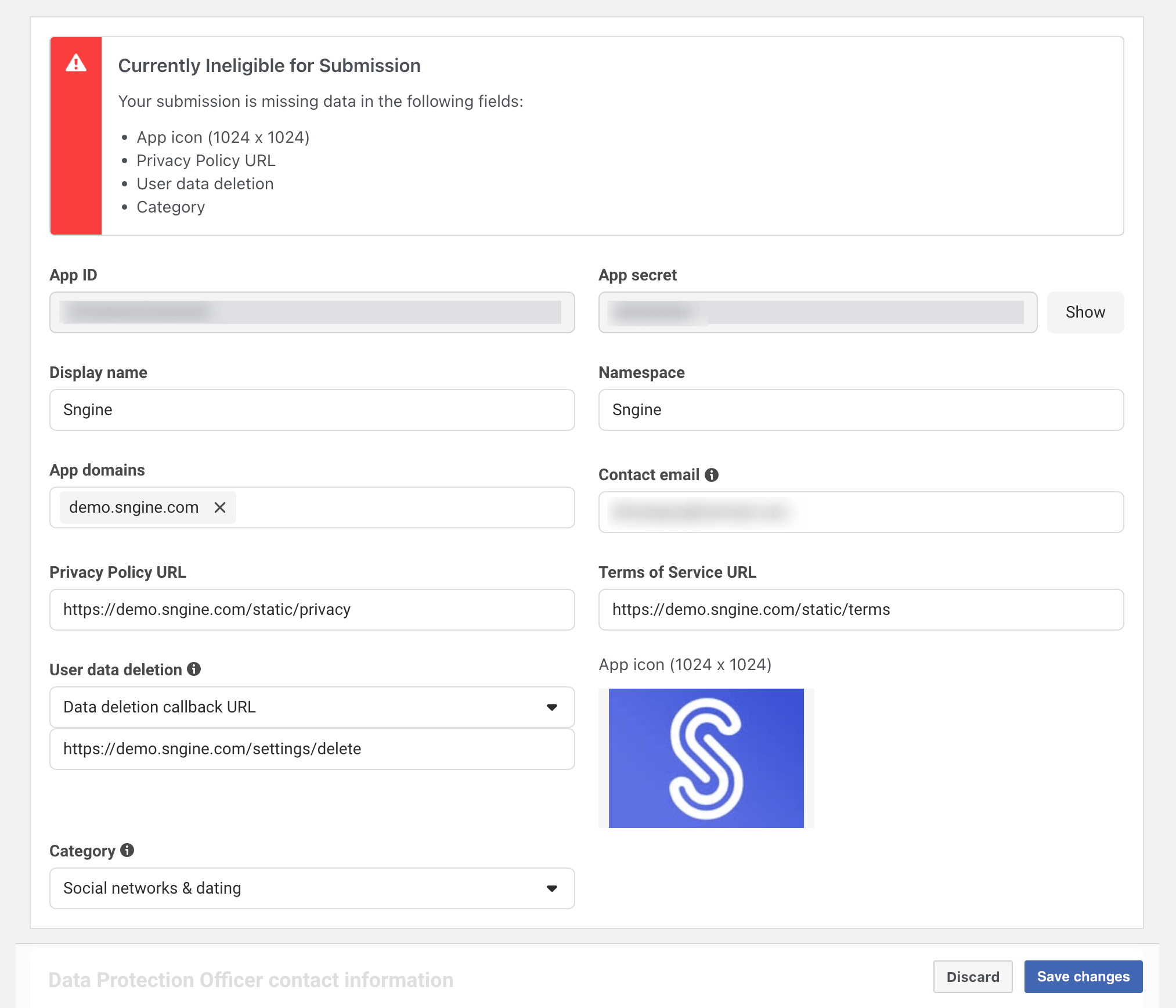
-
Also make sure you added your website URL in Site URL

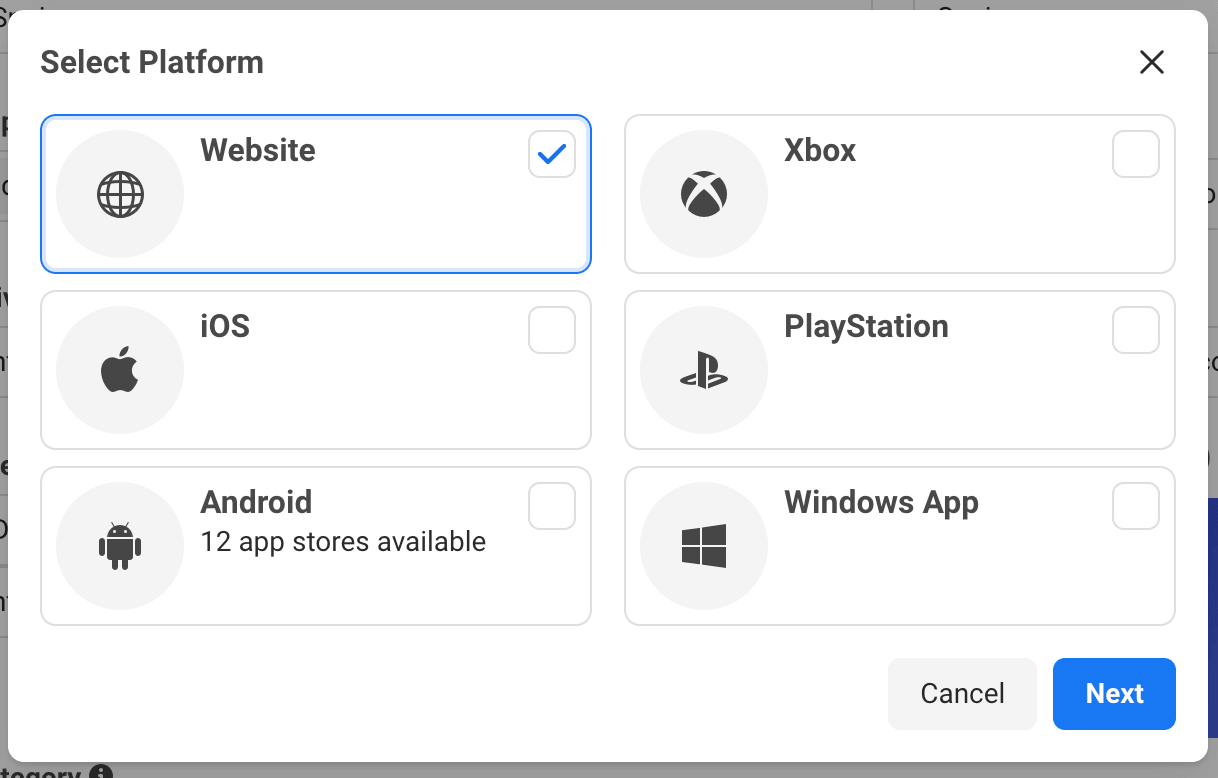
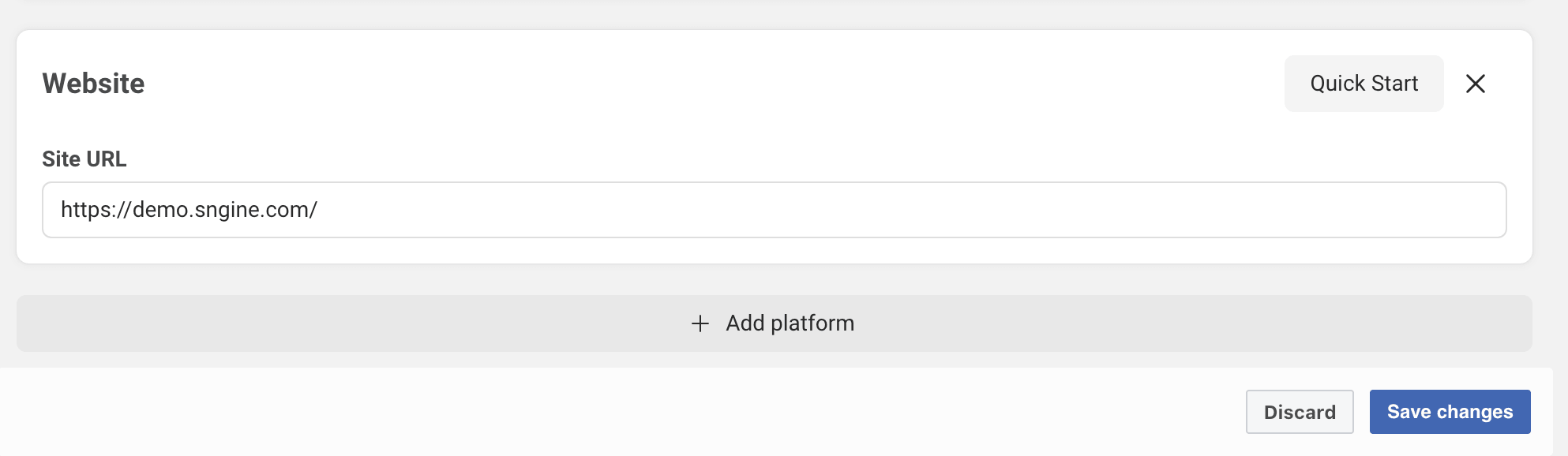
-
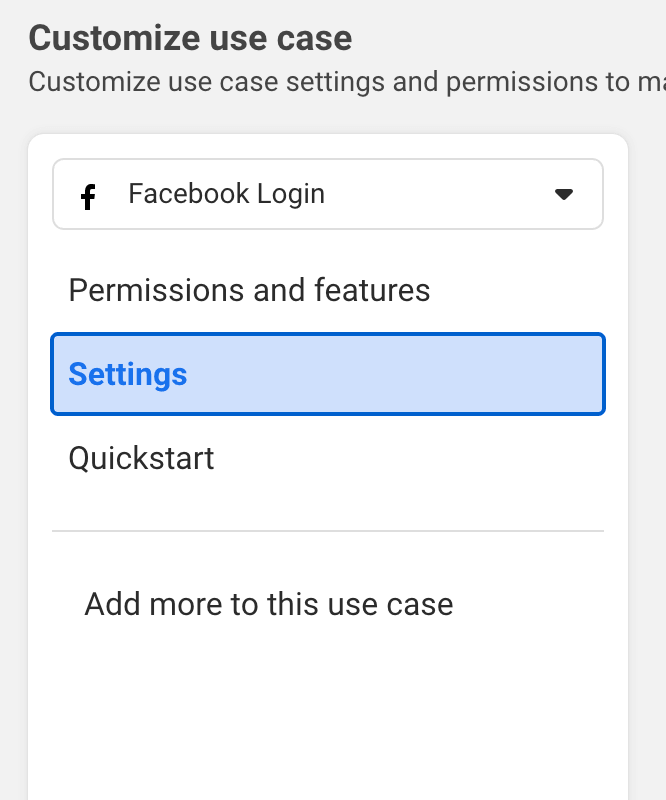
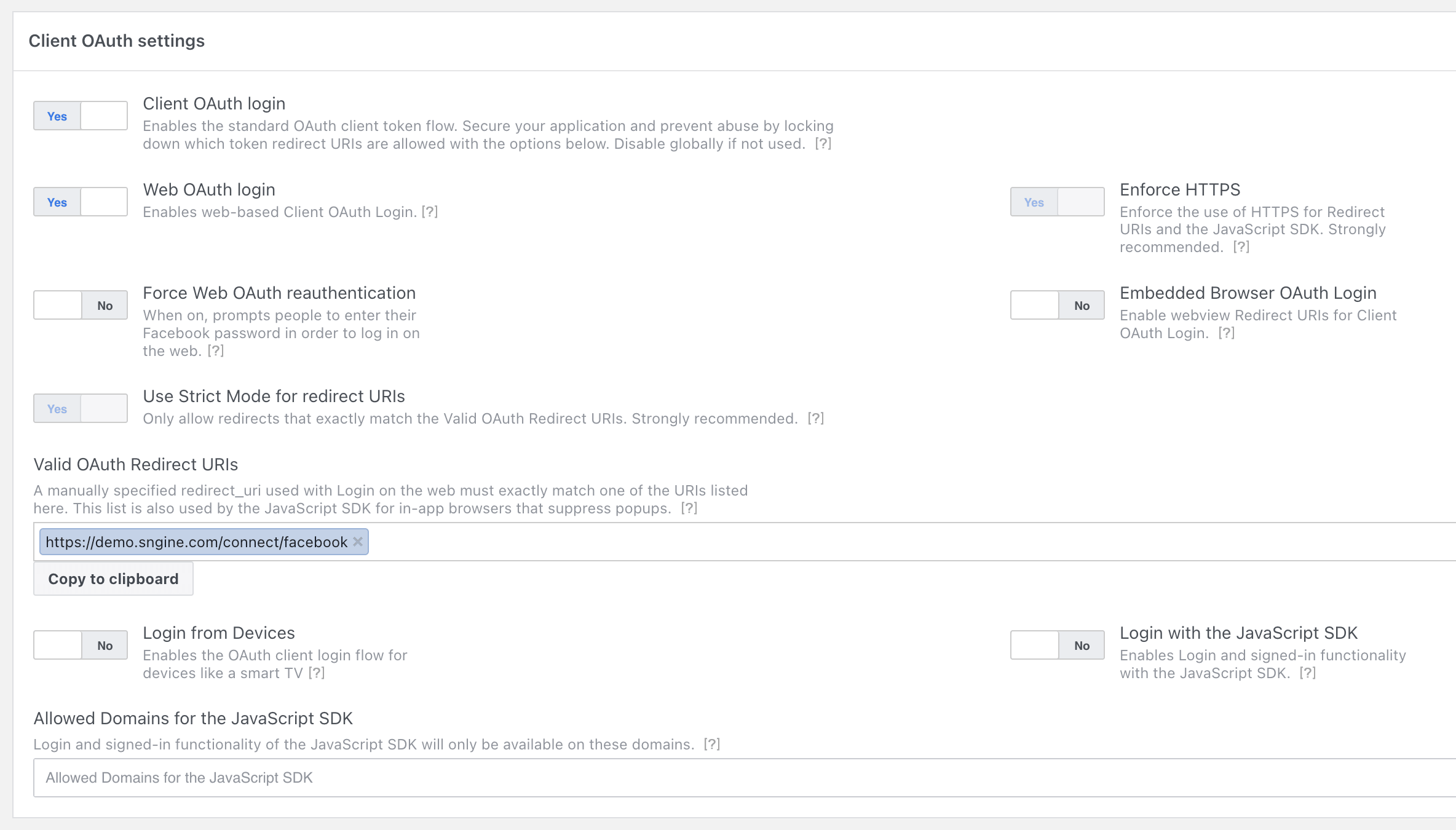
Go to Use cases then Use cases then Settings and put the following URL as Valid OAuth redirect URIs then click Save Changes
If you installed Sngine in your domain directly like www.domain.com the URI should be like this:
https://www.domain.com/connect/facebookIf you installed Sngine in your domain directly but without
wwwlike domain.com the URI should be like this:
https://domain.com/connect/facebookIf you installed Sngine in sub-domain like sub.domain.com the URI should be like this:
https://sub.domain.com/connect/facebookIf you installed Sngine in a directory like domain.com/directory the URI should be like this:
https://www.domain.com/directory/connect/facebook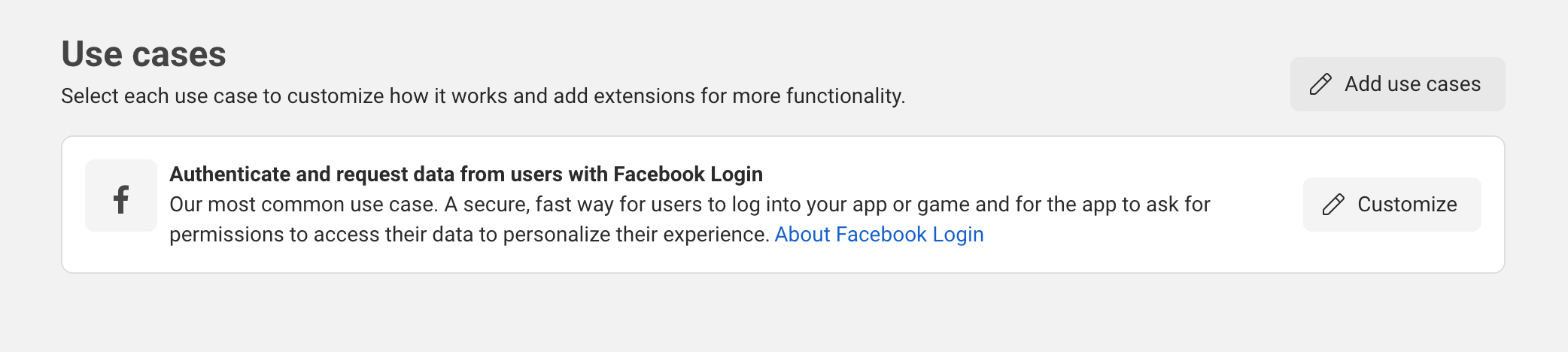
-
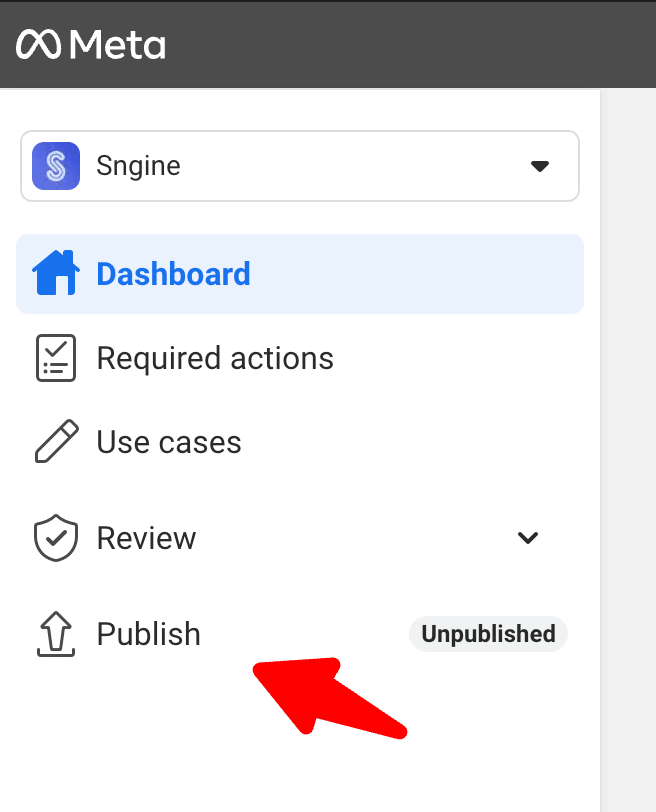
The app is still In Development — click Publish and follow the steps required by Facebook
Add the credentials to Sngine
-
Go to Sngine Admin Panel → Settings → Registration Settings → Social Login and paste both keys (App ID & App Secret)