

Discord
Integrate Discord with Sngine in a few easy steps to let your users log in with their Discord accounts.
-
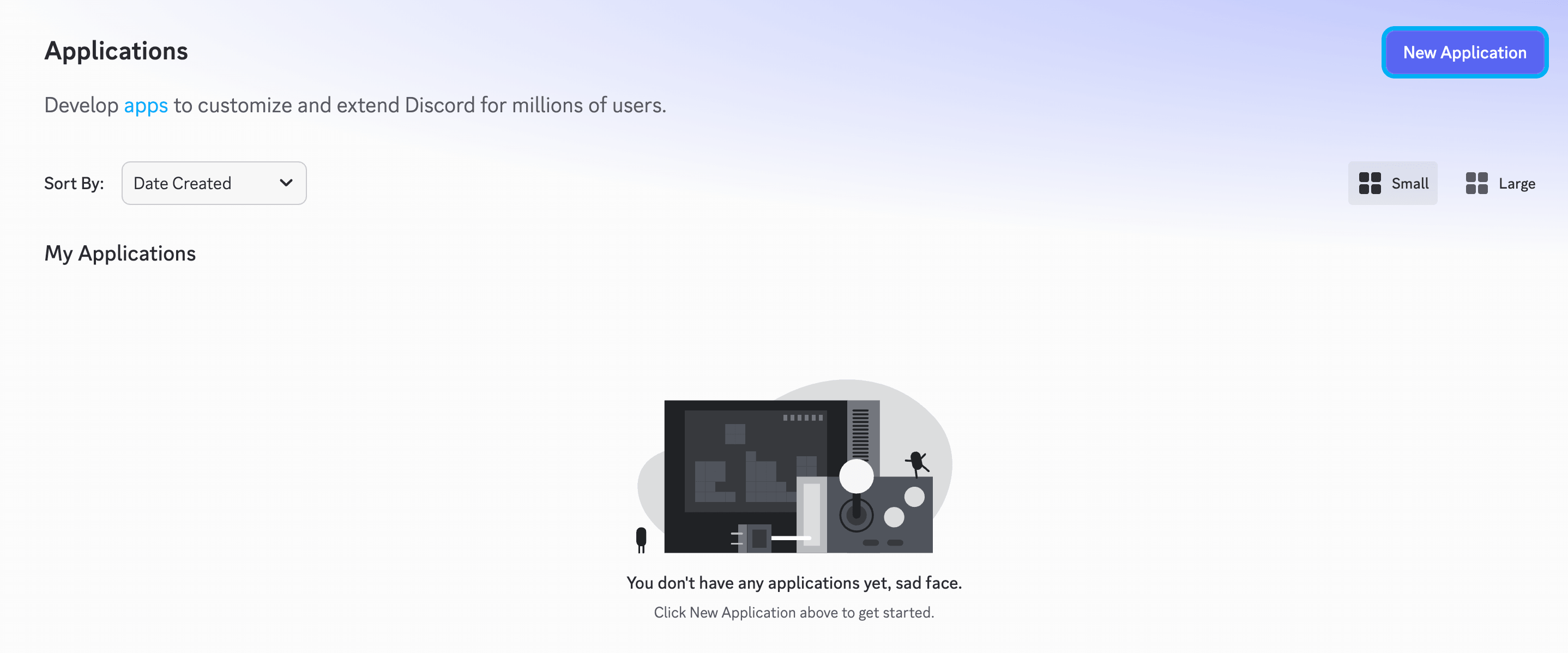
Go to https://discord.com/developers/applications and sign in with your Discord account. Click New Application
-
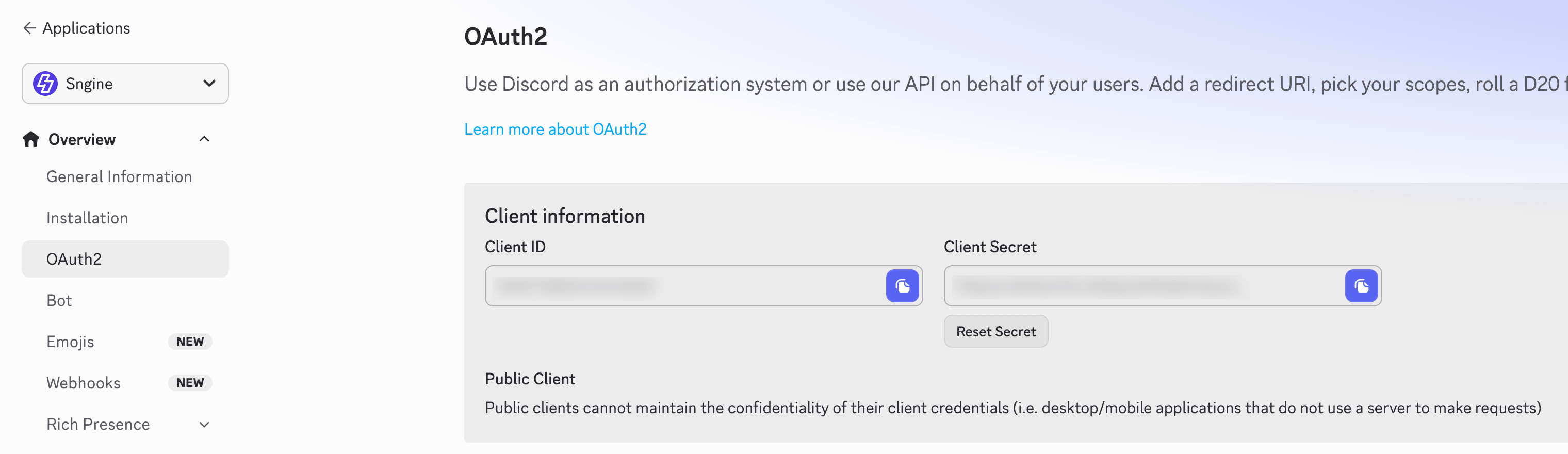
Give your application a name and click Create. Then go to OAuth2 in the left sidebar and copy the Client ID and Client Secret
-
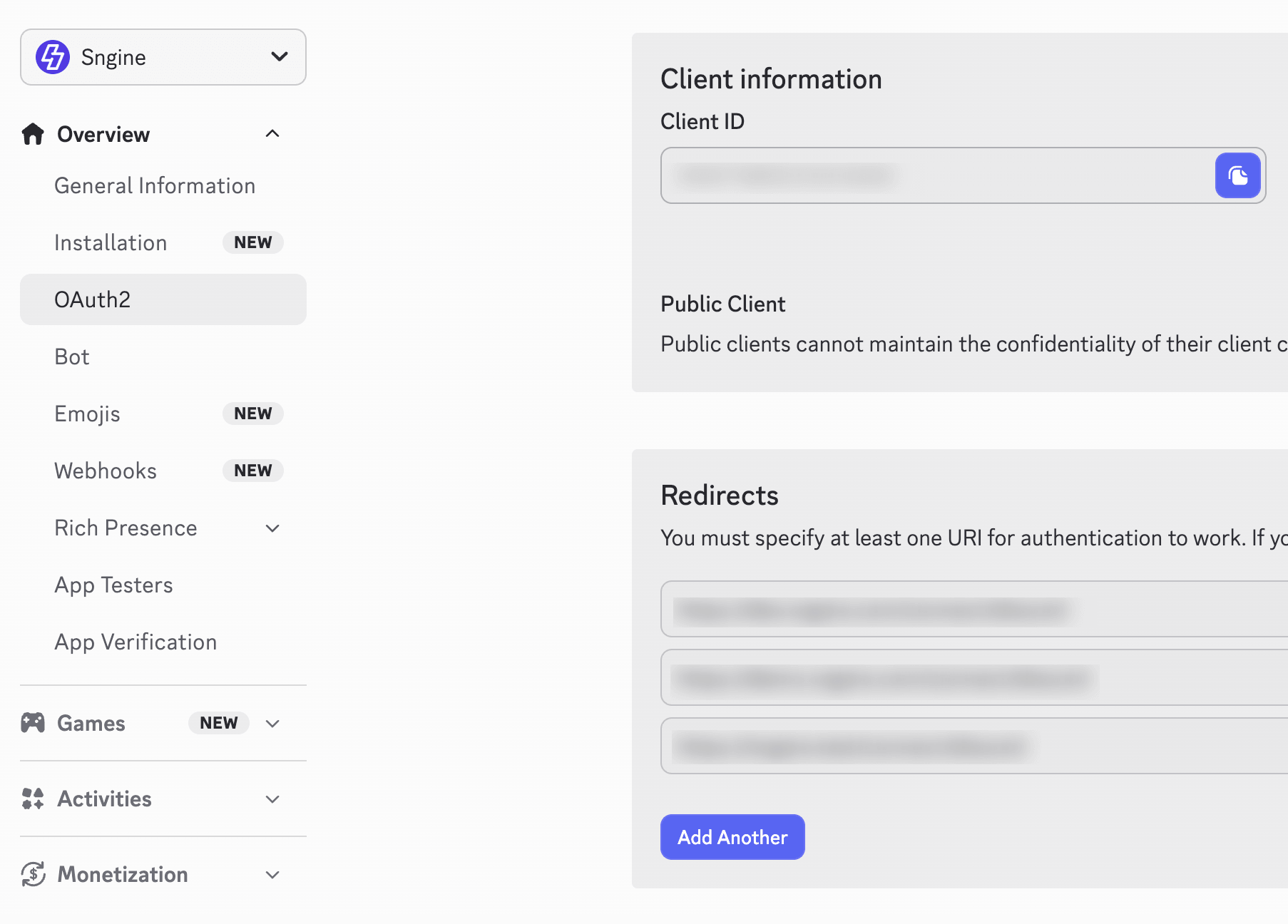
Scroll down to the Redirects section and click Add Another. Enter the callback URL for your Sngine installation:
If you installed Sngine in your domain directly like domain.com the URI should be like this:
https://www.domain.com/connect/discordIf you installed Sngine without
wwwlike domain.com the URI should be like this:
https://domain.com/connect/discordIf you installed Sngine in sub-domain like sub.domain.com the URI should be like this:
https://sub.domain.com/connect/discordIf you installed Sngine in a directory like domain.com/directory the URI should be like this:
https://www.domain.com/directory/connect/discordClick Save Changes
-
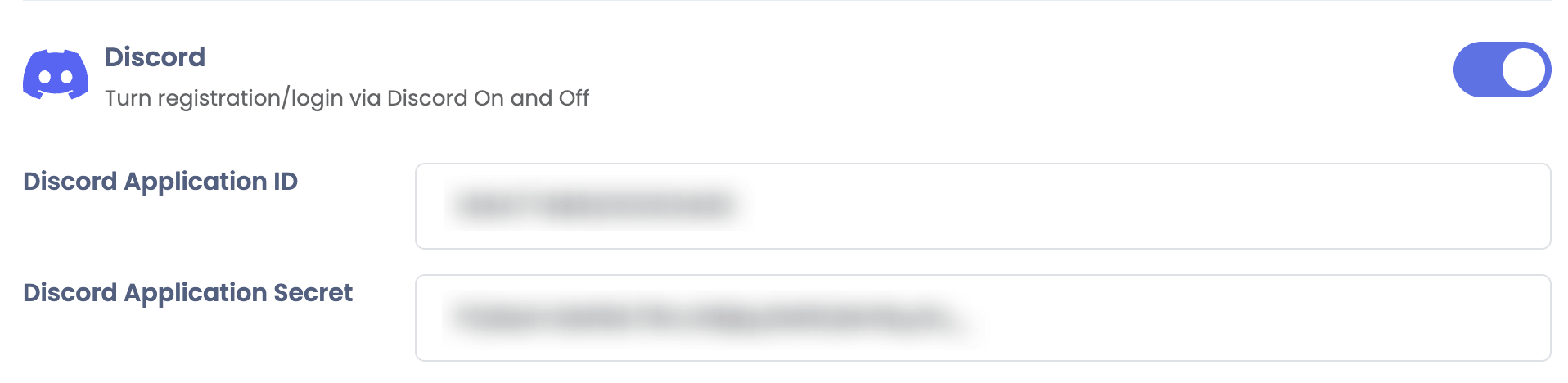
Go to Sngine Admin Panel → Settings → Registration Settings → Social Login and paste both Discord Application ID and Discord Application Secret then save