

PayPal
Integrate PayPal with Sngine in a few easy steps.
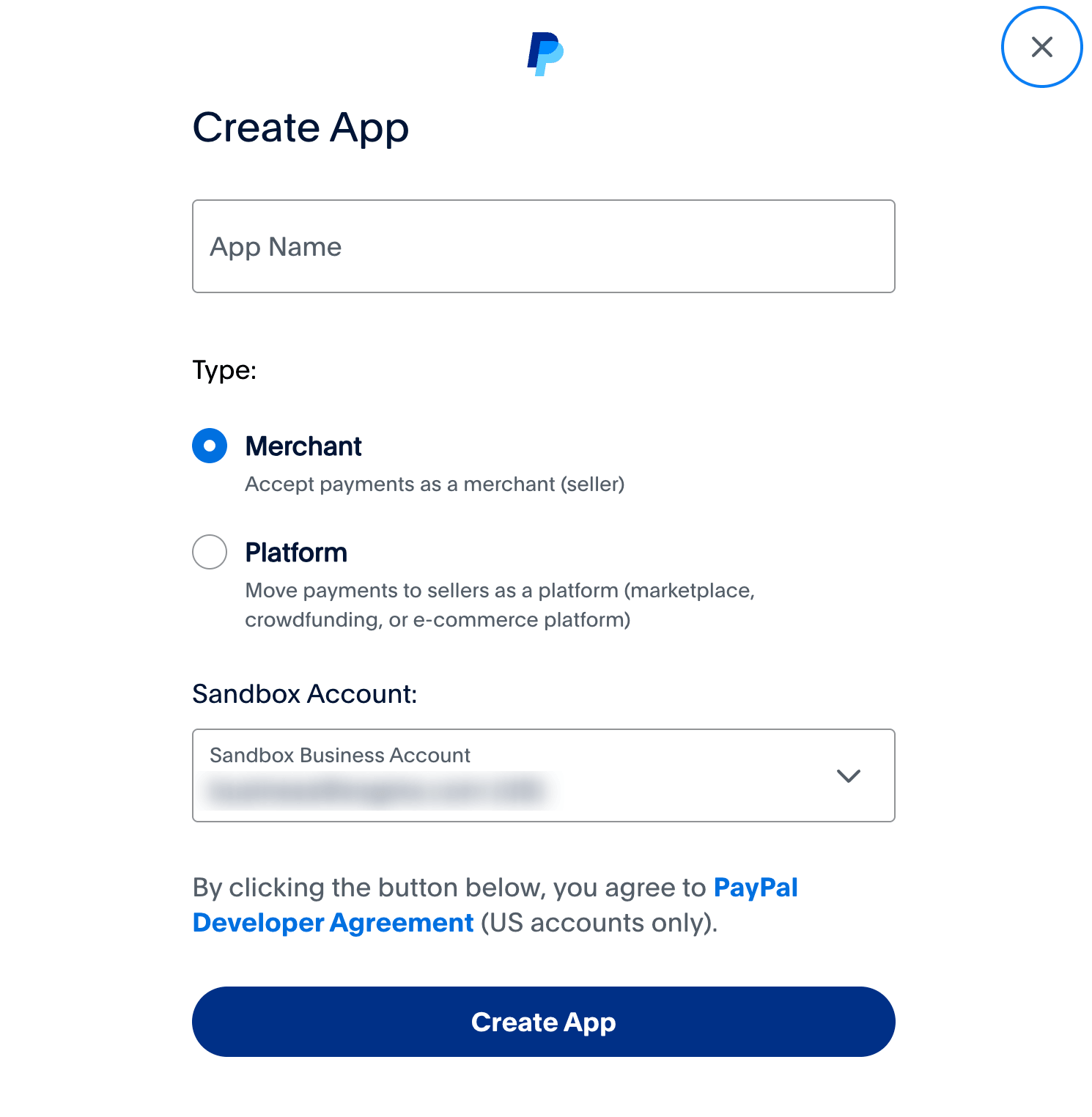
Create the PayPal app
- Go to https://developer.paypal.com/developer/applications/ and sign in with your PayPal account
-
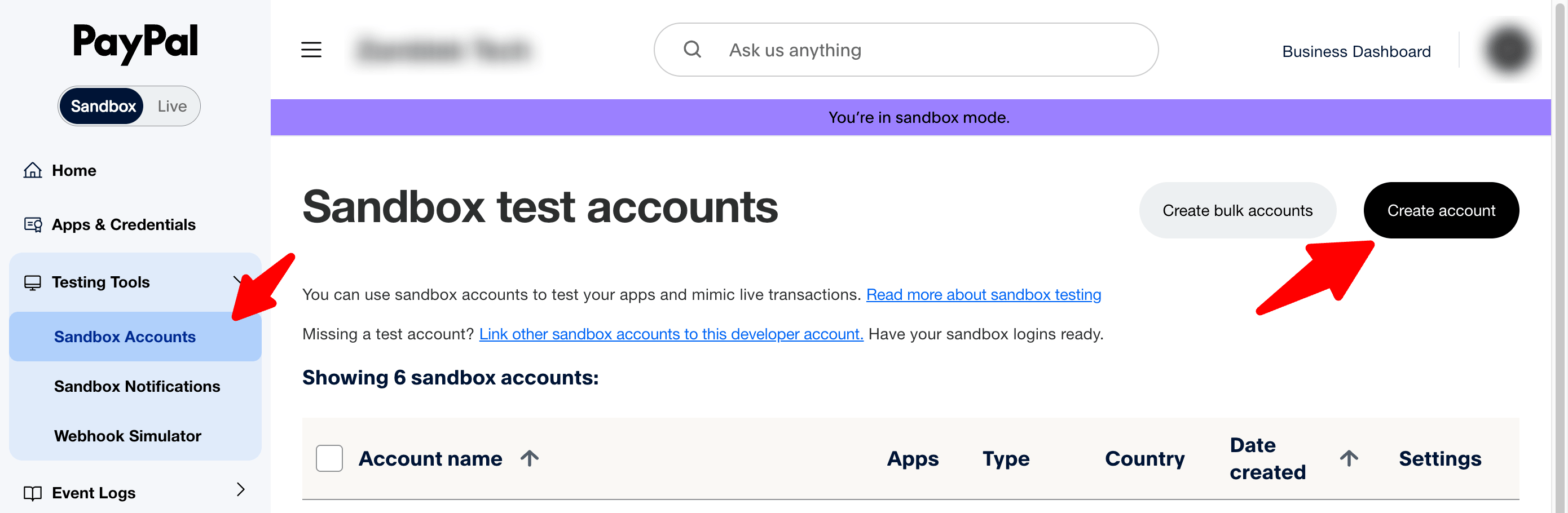
Now under Testing Tools click Sandbox Accounts then click on Create Account button and Create new Business (Merchant Account) and fill the form then repeat the same process for Personal (Buyer Account)
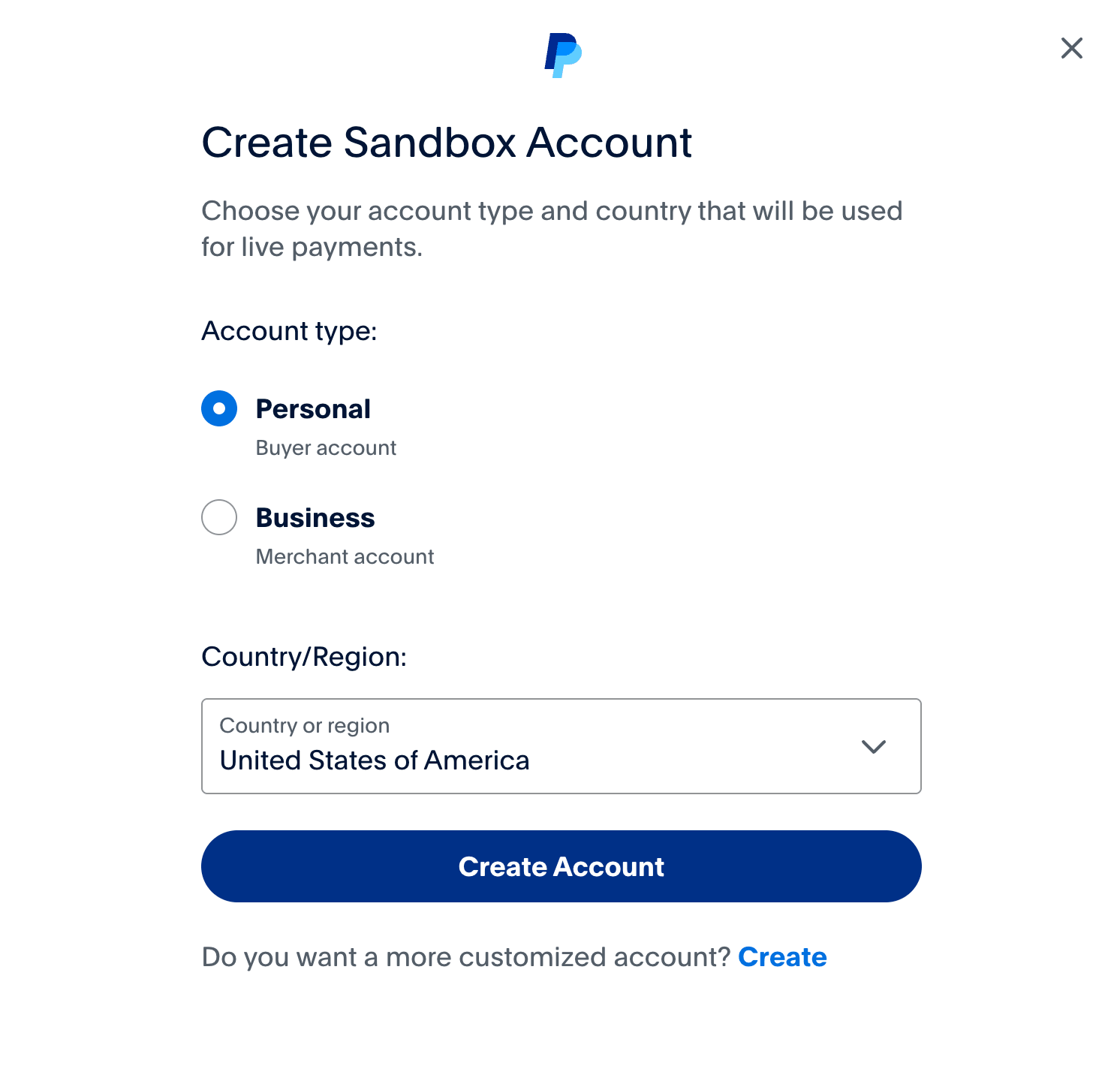
- Both accounts will be linked with your new PayPal app for Sandbox Mode
-
Click My Apps & Credentials
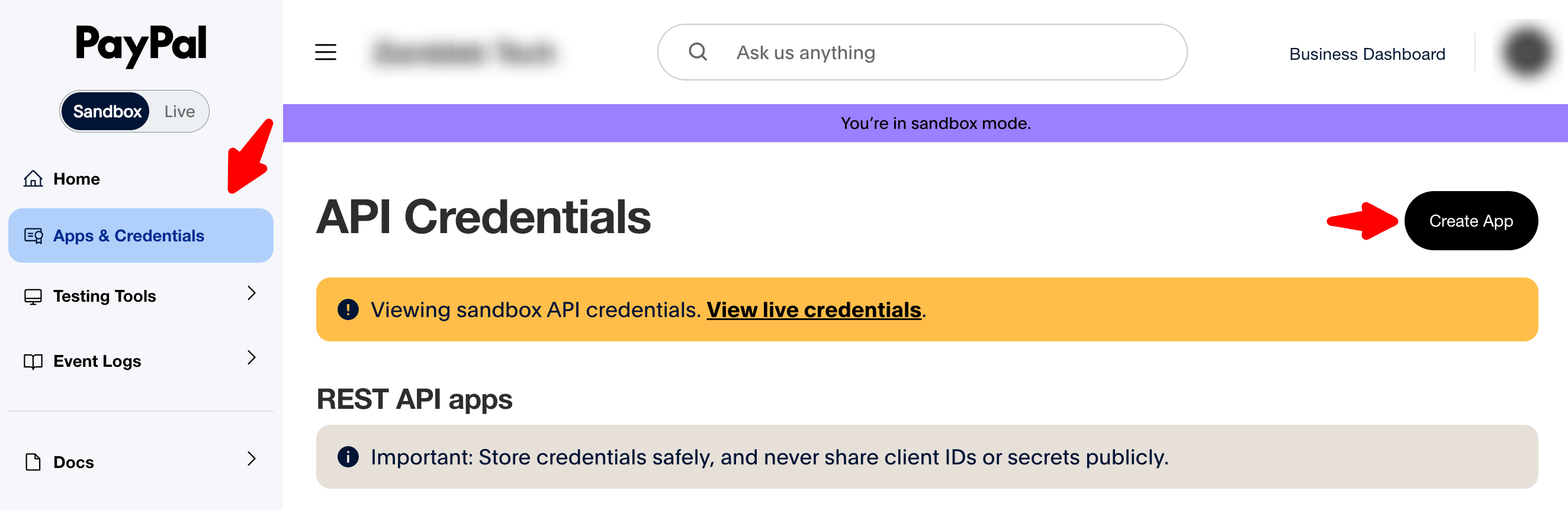
Add the webhook
-
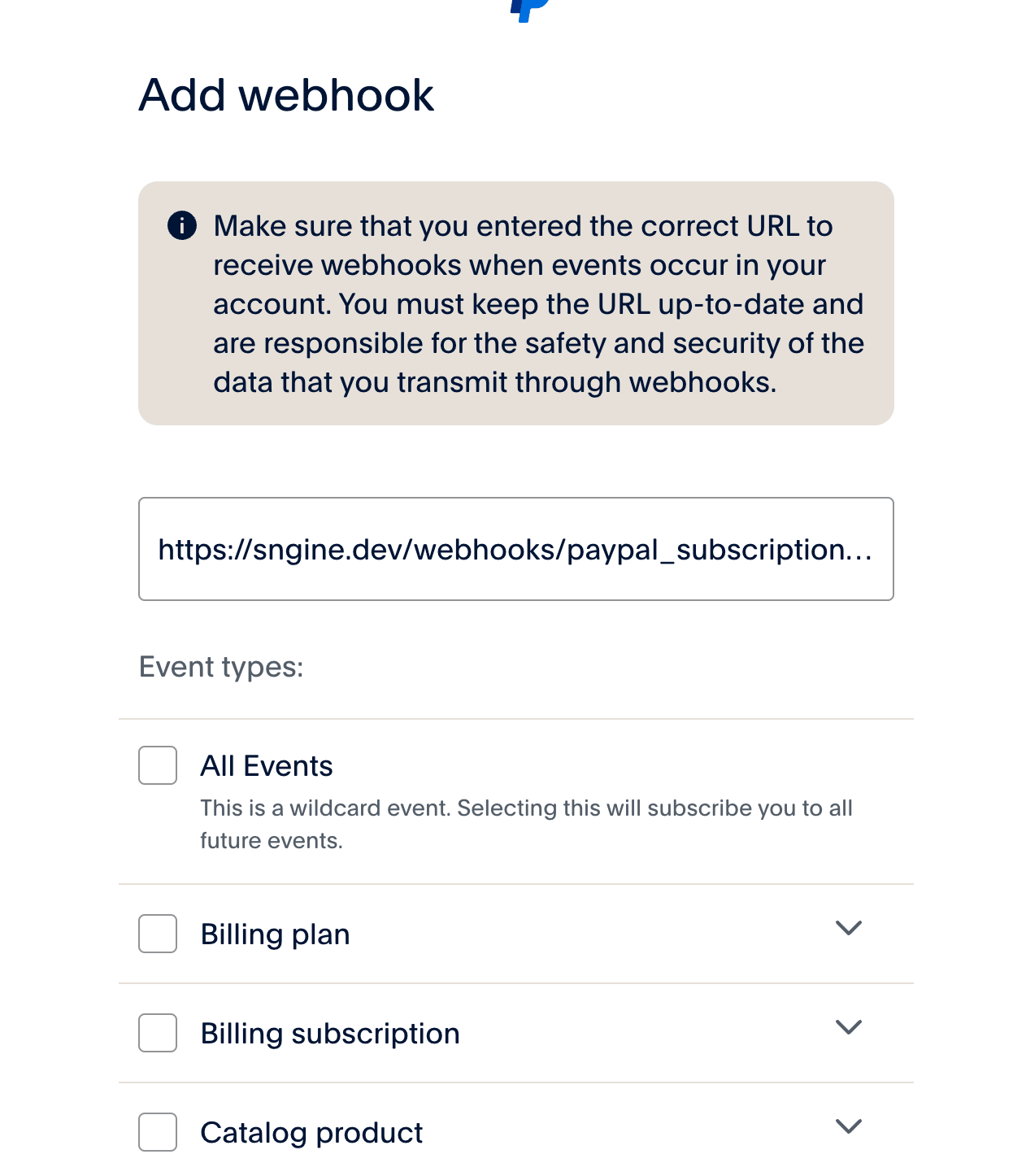
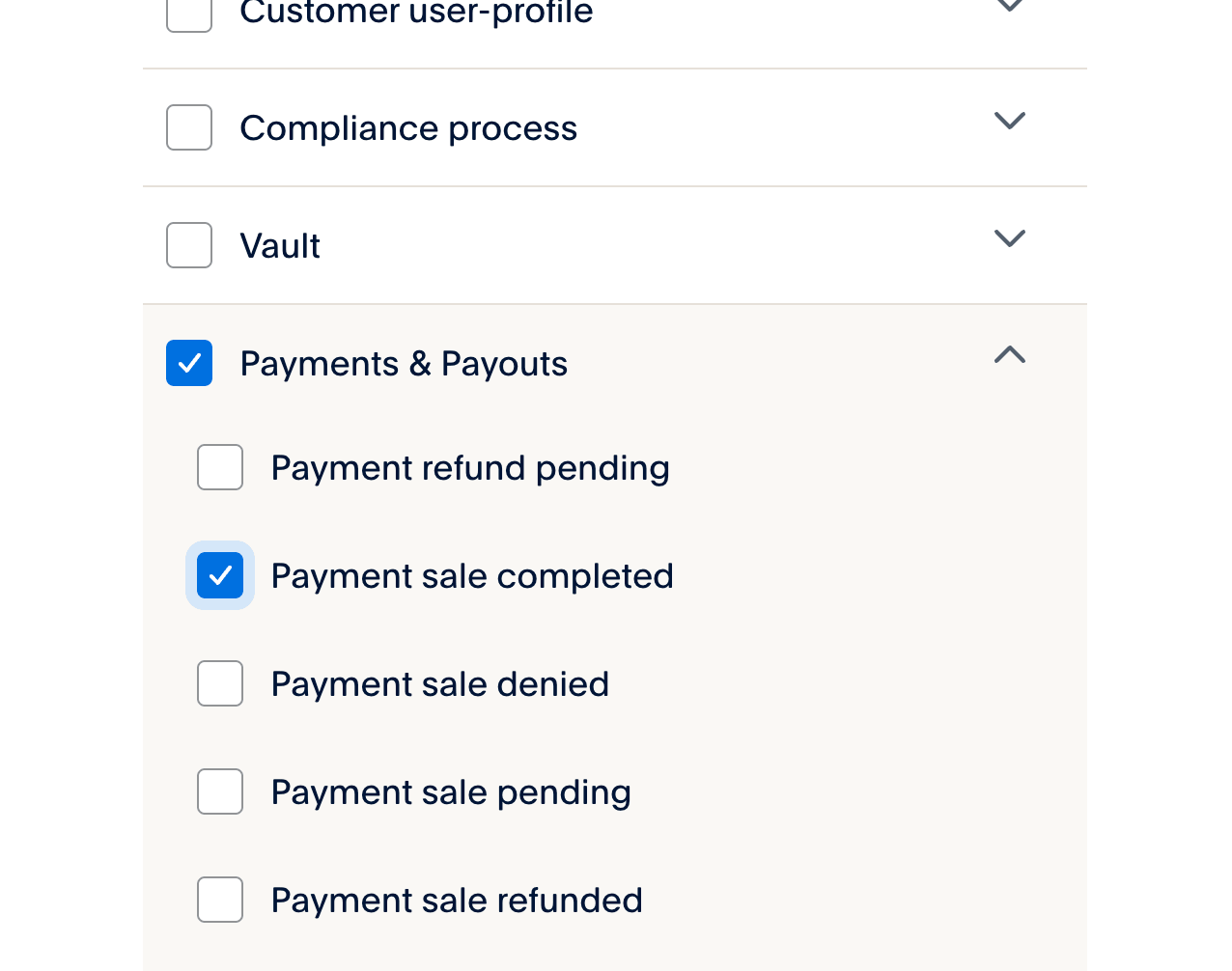
Go to your PayPal App and add new webhook, Webhook URL should be like this:
If you installed Sngine in your domain directly like www.domain.com the URI should be like this:
https://www.domain.com/webhooks/paypal_subscriptions.phpIf you installed Sngine in your domain directly but without
wwwlike domain.com the URI should be like this:
https://domain.com/webhooks/paypal_subscriptions.phpIf you installed Sngine in sub-domain like sub.domain.com the URI should be like this:
https://sub.domain.com/webhooks/paypal_subscriptions.phpIf you installed Sngine in a directory like domain.com/directory the URI should be like this:
https://www.domain.com/directory/webhooks/paypal_subscriptions.php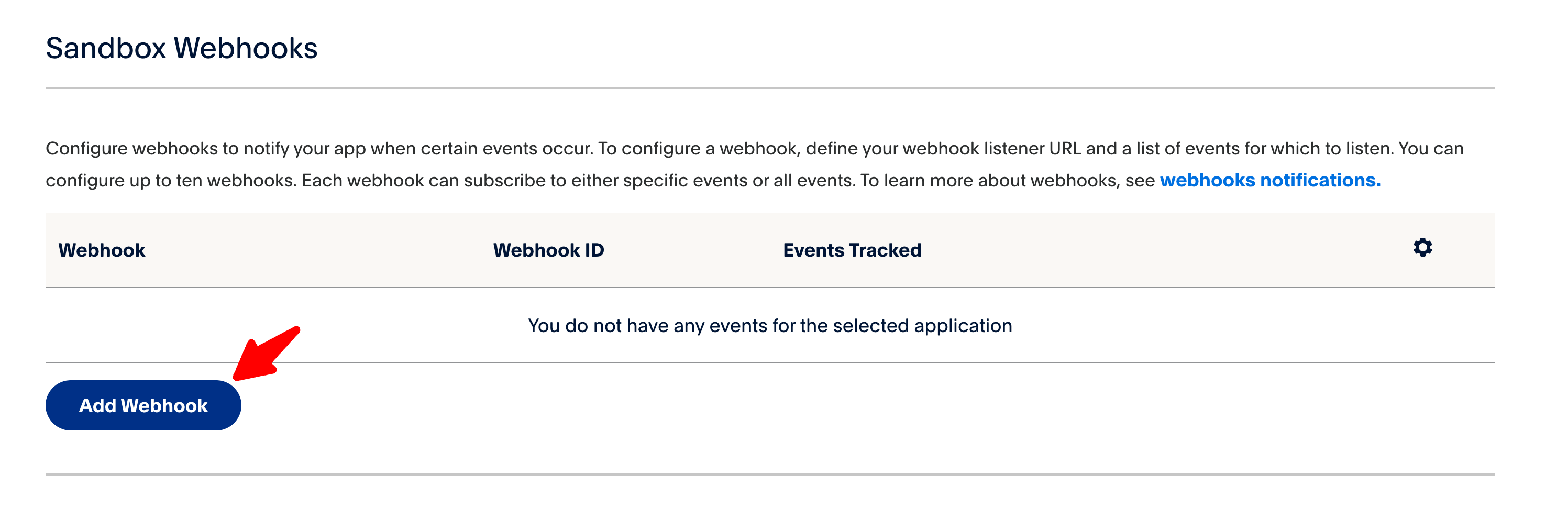
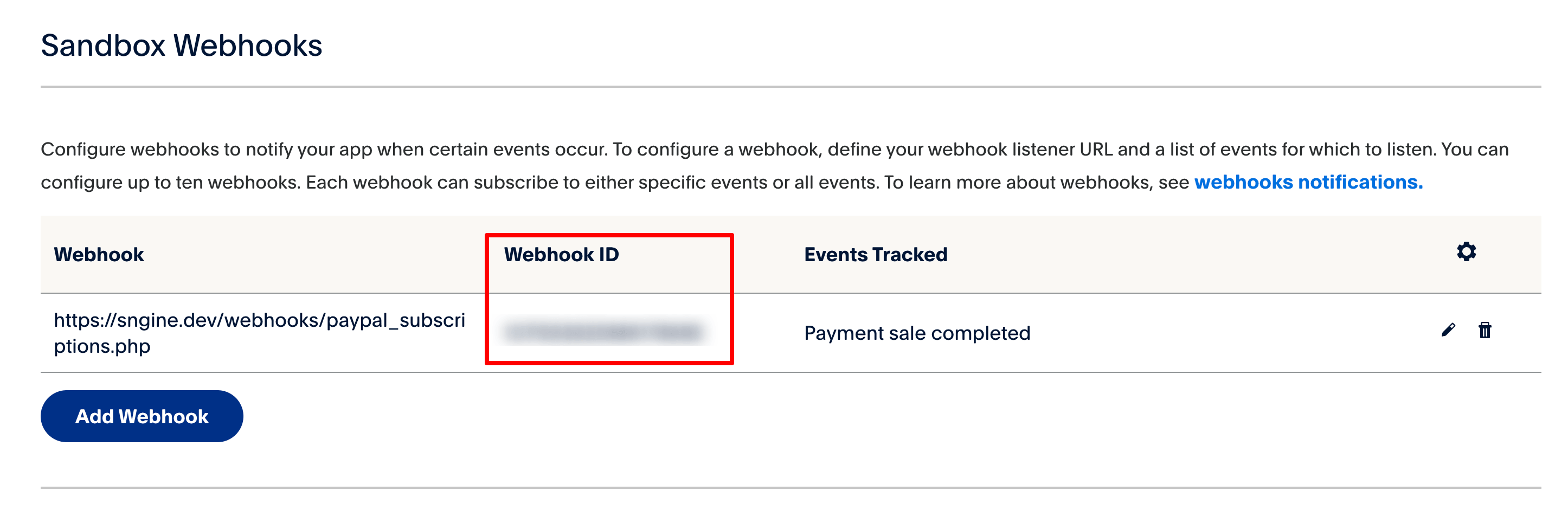
-
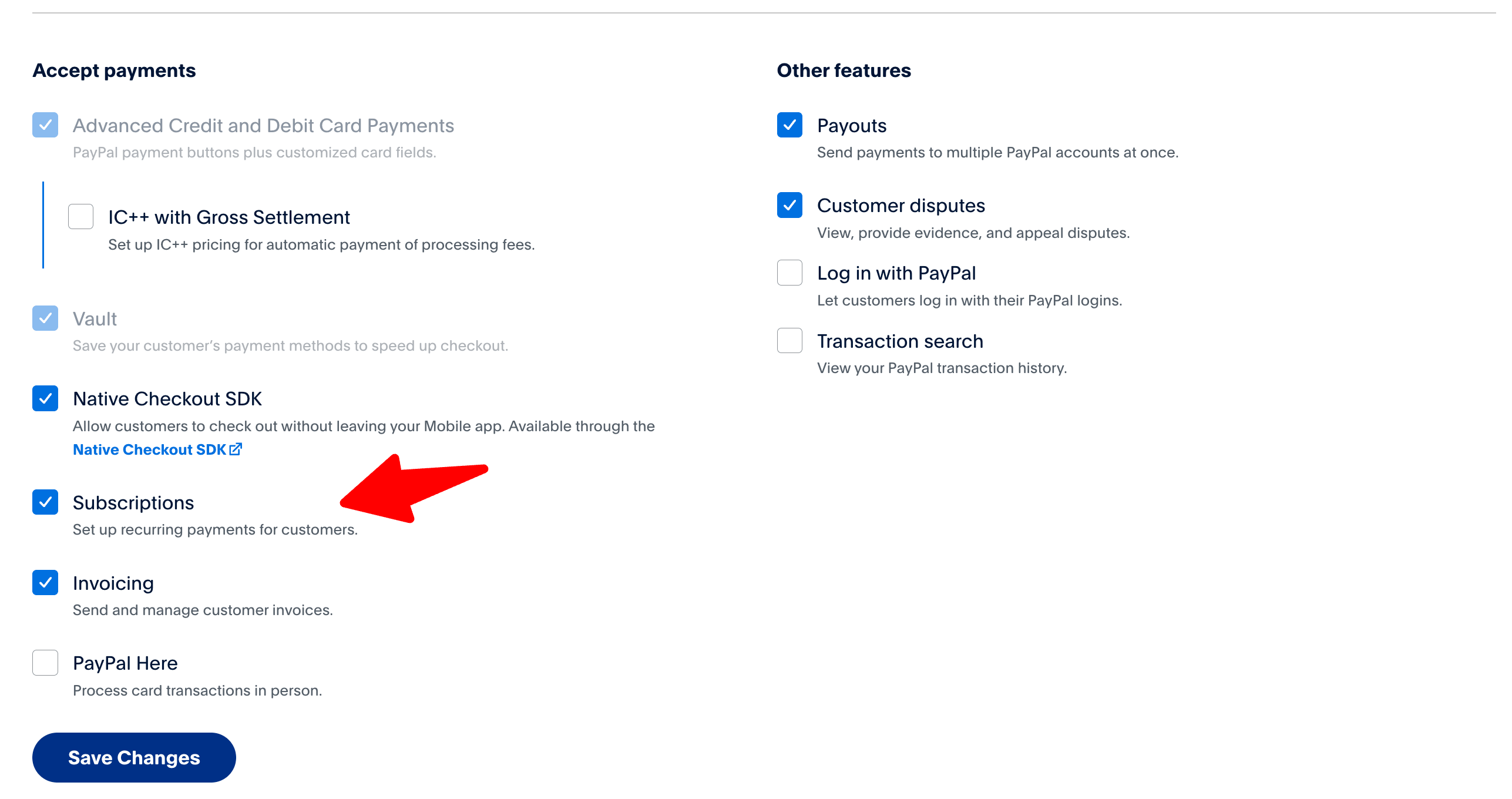
Also make sure that your app has subscriptions enabled
Copy your credentials into Sngine
-
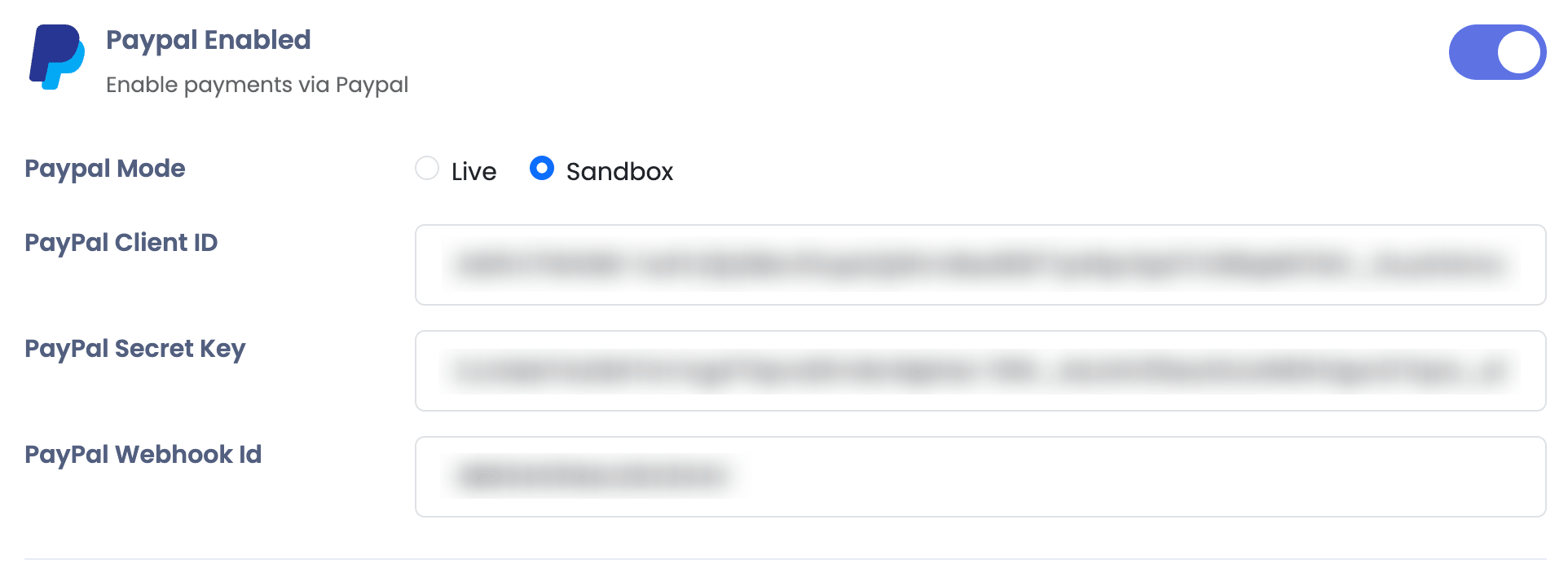
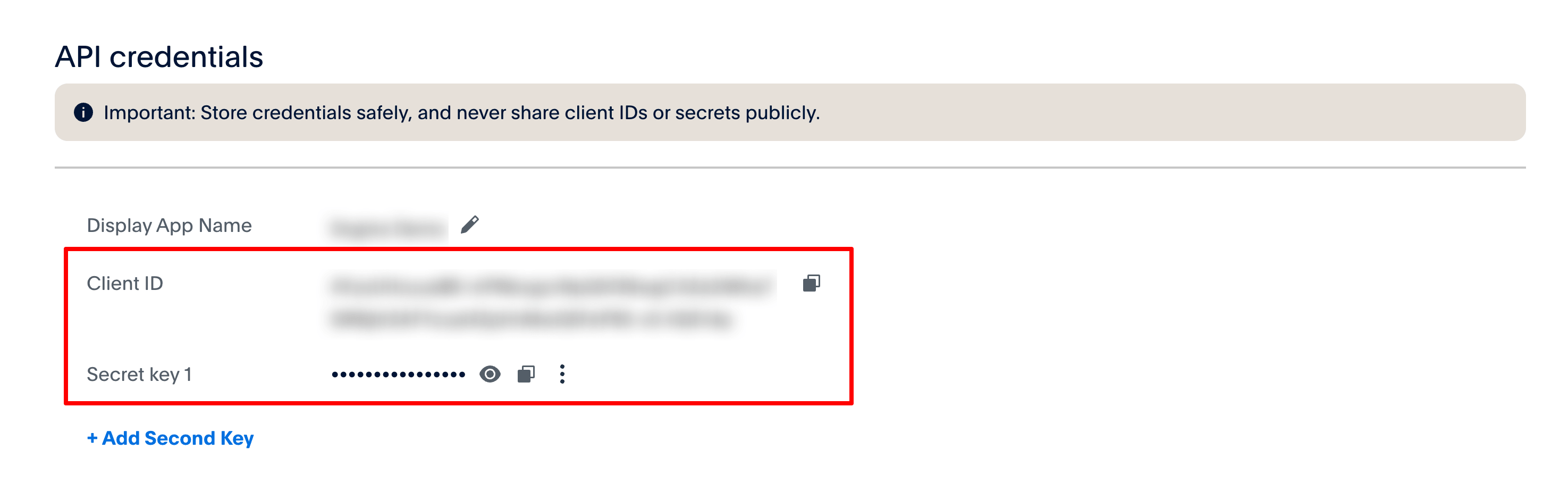
Now if you will use PayPal in Sandbox (Test) Mode Copy Client ID and Secret
-
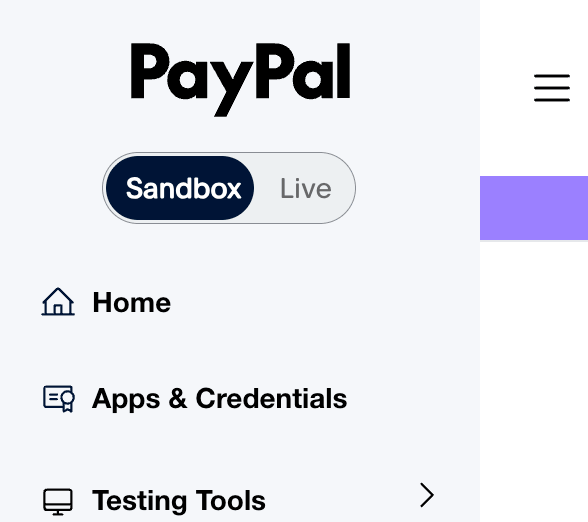
For Live Mode Copy Client ID and Secret from Live Tab
-
Go to your Sngine Admin Panel → Settings → Payments Settings and paste both Client ID and Secret and select the mode you want Test or Live