


Skip to content

Web Apps

To enable push notifications for Web Apps follow these steps:

Create the OneSignal app

  1. Go to https://app.onesignal.com/ and sign in with your account or sign up for a new one.

  2. Click on New App/Website

  3. Enter your website or app name then Select Web then click Next: Configure Your Platform
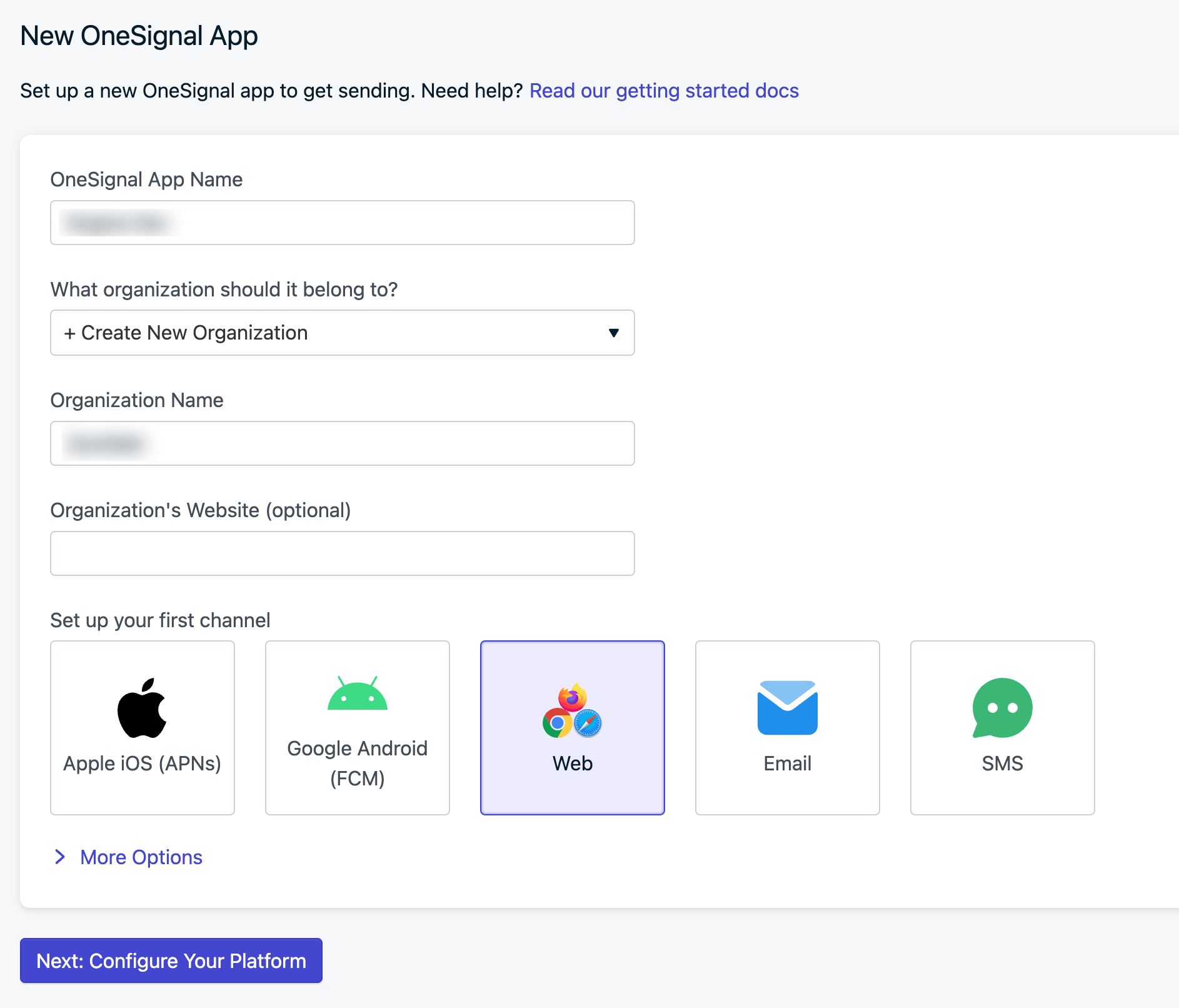
    Enter your website or app name then Select Web then click Next: Configure Your Platform

  4. Select Custom Code and Enter your website data and then click Save
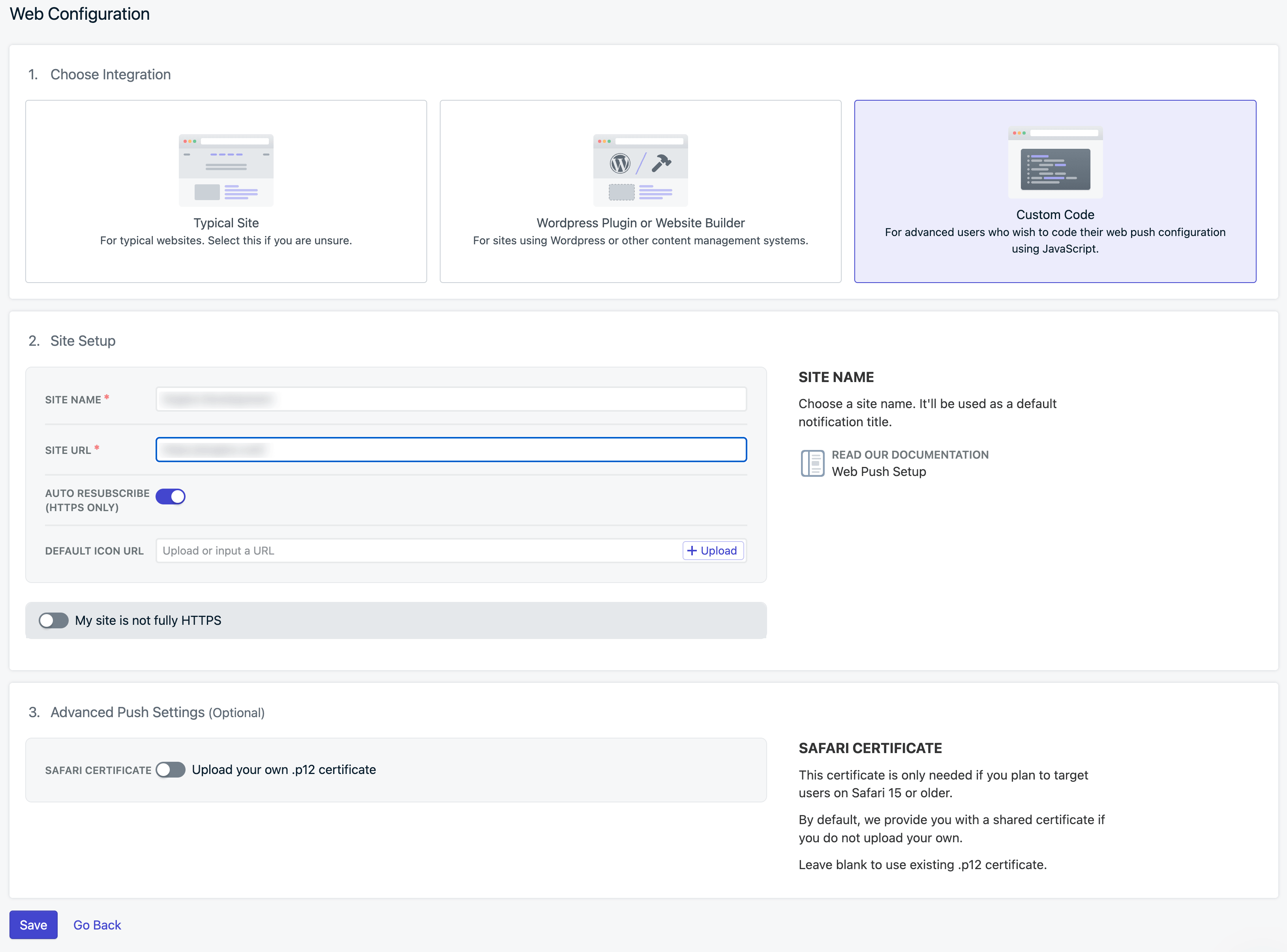
    Select Custom Code and Enter your website data and then click Save

    Select Custom Code and Enter your website data and then click Save

Create the API key

  1. You need to create a new API Key, Go to Settings and click on Keys & IDs then click on Add Key
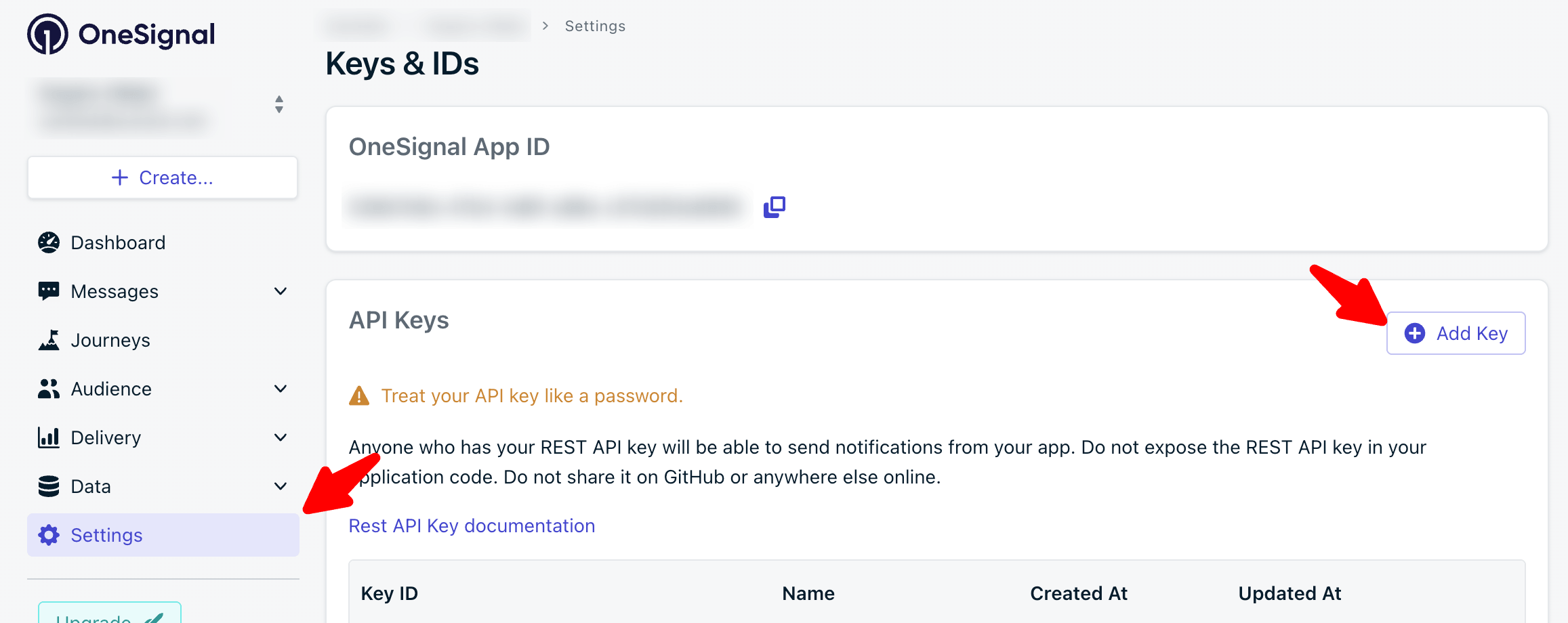
    You need to create a new API Key, Go to Settings and click on Keys & IDs then click on Add Key
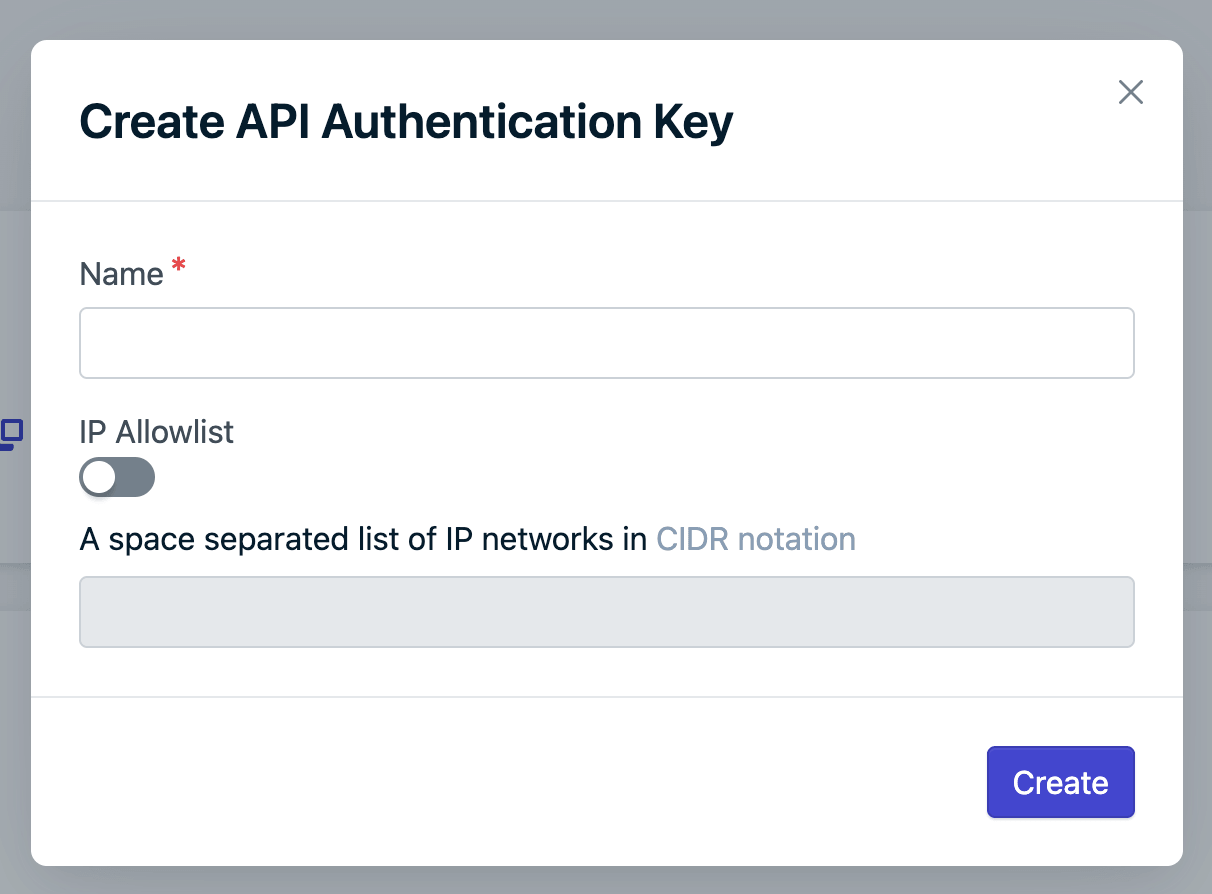
    You need to create a new API Key, Go to Settings and click on Keys & IDs then click on Add Key
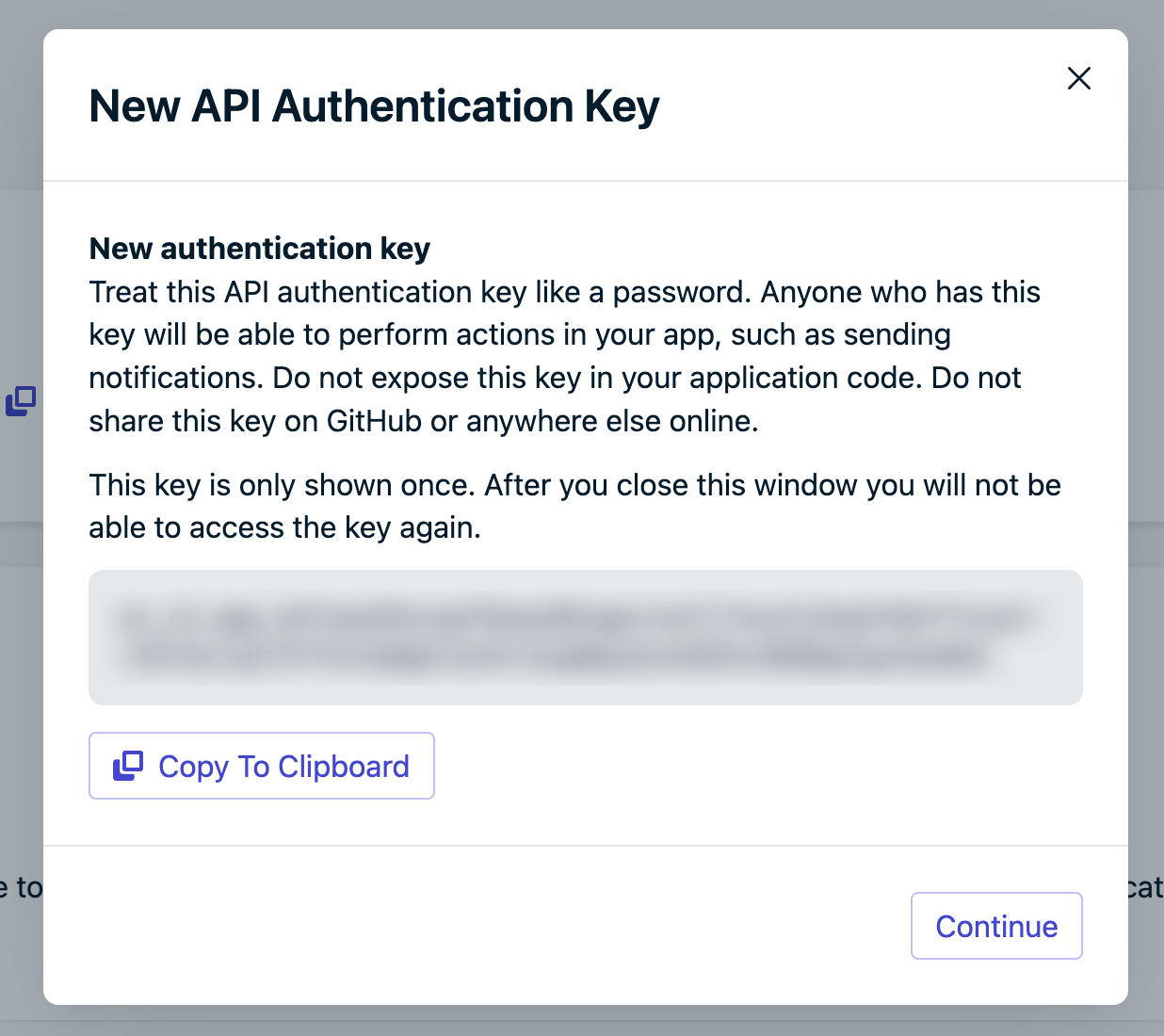
    You need to create a new API Key, Go to Settings and click on Keys & IDs then click on Add Key

  2. Copy your new API ID & APP Key and paste it in Sngine Admin Panel → Settings → Notifications Settings in Web Apps section
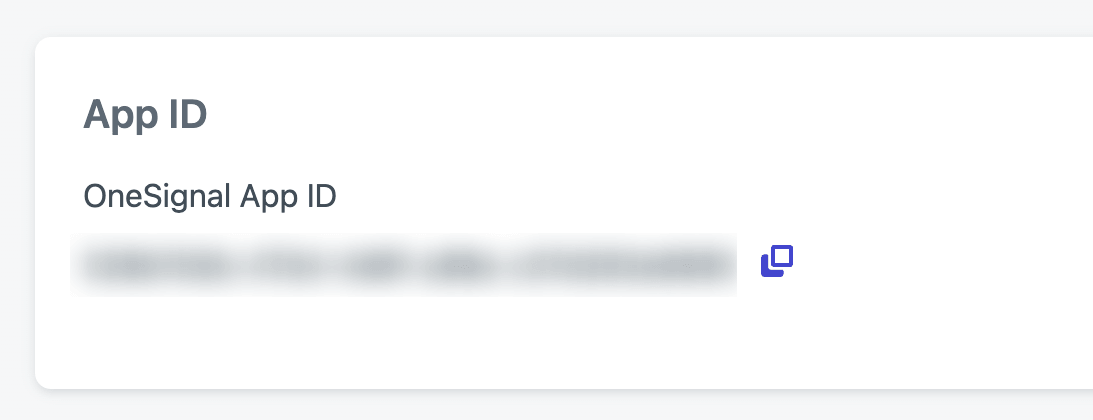
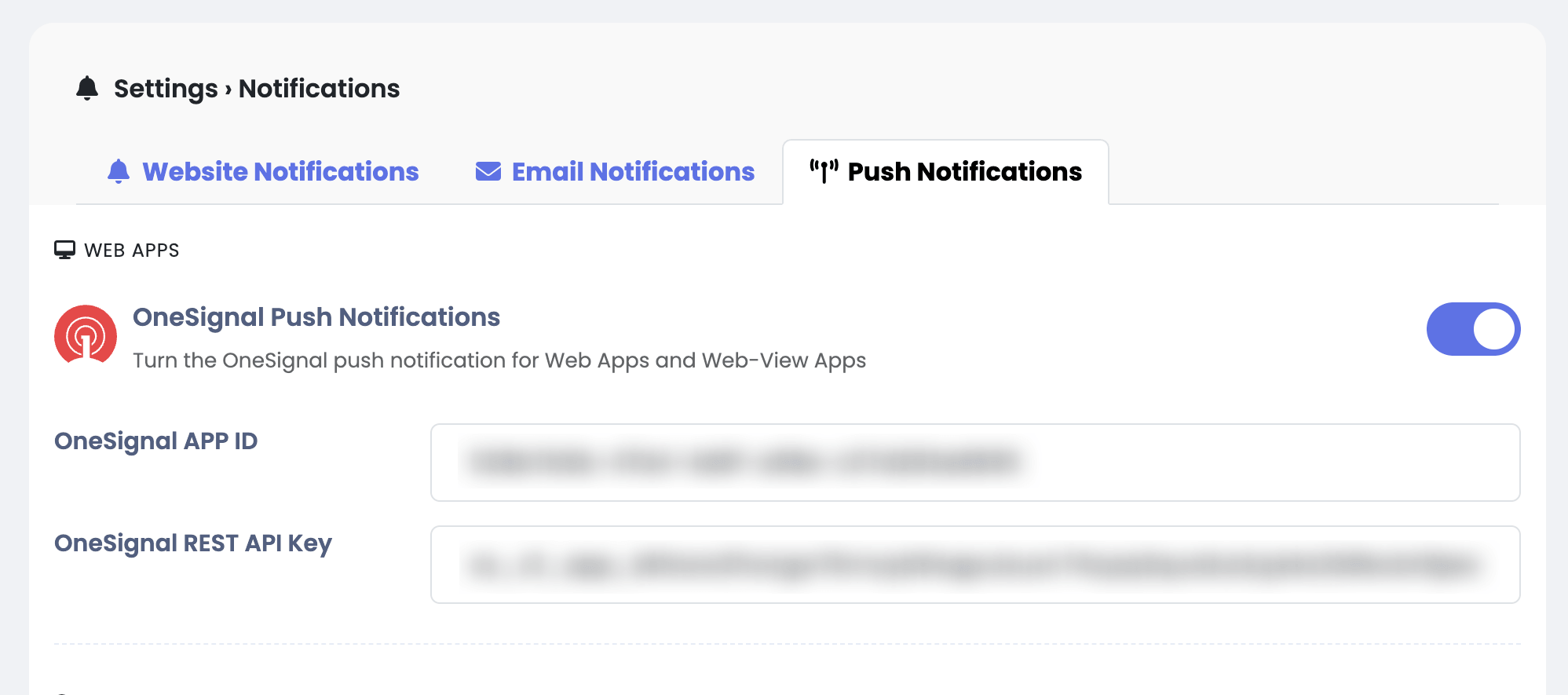
    Copy your new API ID & APP Key and paste it in Sngine Admin Panel → Settings → Notifications Settings in Web Apps section

    Copy your new API ID & APP Key and paste it in Sngine Admin Panel → Settings → Notifications Settings in Web Apps section

Android app

  1. Now to integrate OneSignal with your Android Web-View App you need to go to Settings and click on Push & In-App then click on Google Android (FCM)
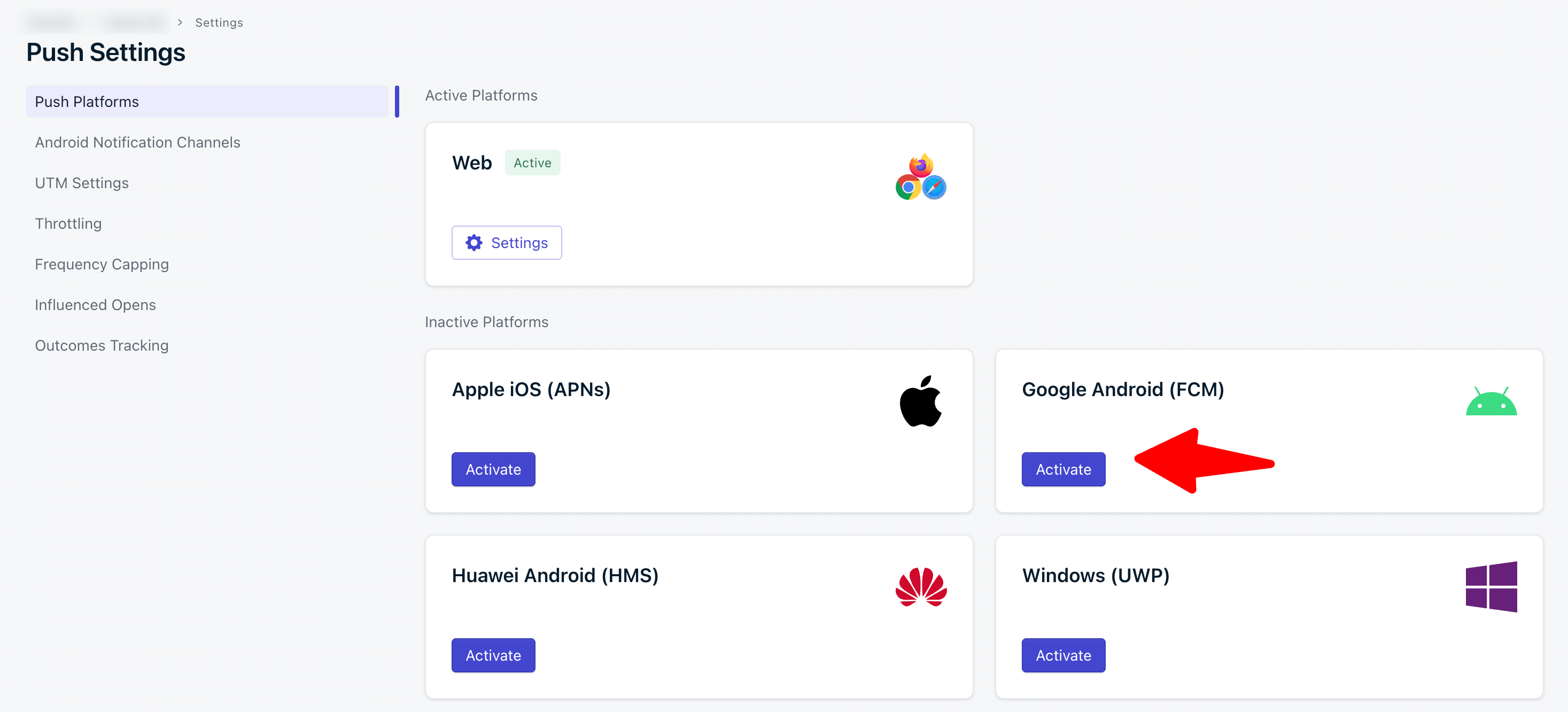
    Now to integrate OneSignal with your Android Web-View App you need to go to Settings and click on Push & In-App then click…

  2. To get help with your Service Account JSON you can follow this link https://documentation.onesignal.com/docs/android-firebase-credentials
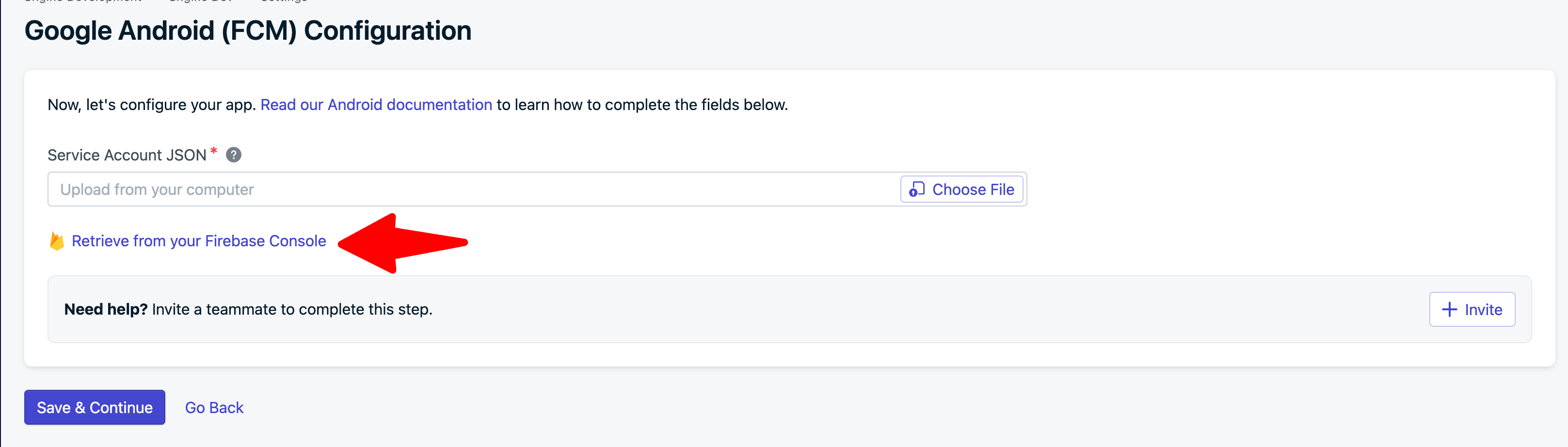
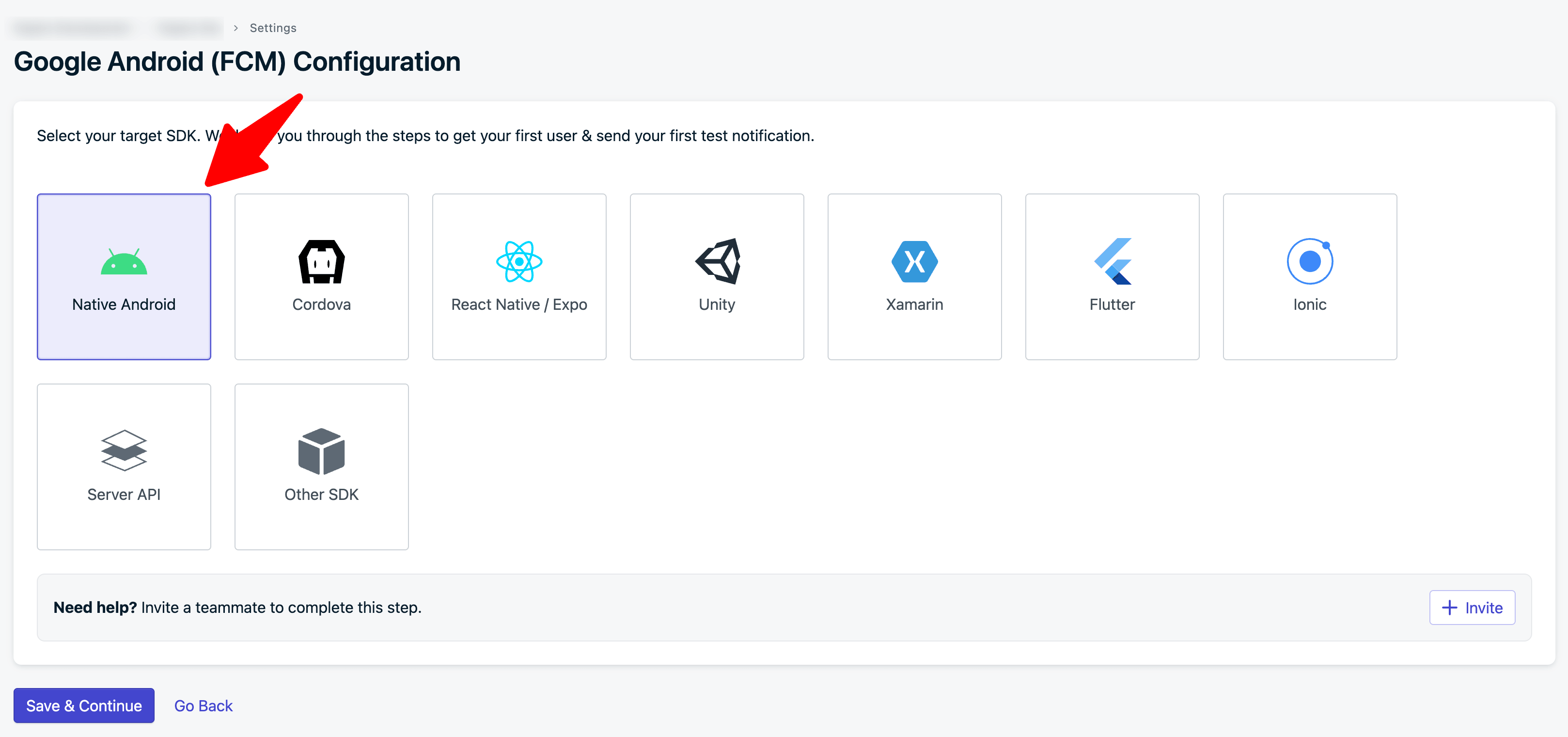
    To get help with your Service Account JSON you can follow this link…

    To get help with your Service Account JSON you can follow this link…

  3. After that you will need to add the OneSignal APP ID to your Android App and rebuild the app and republish it
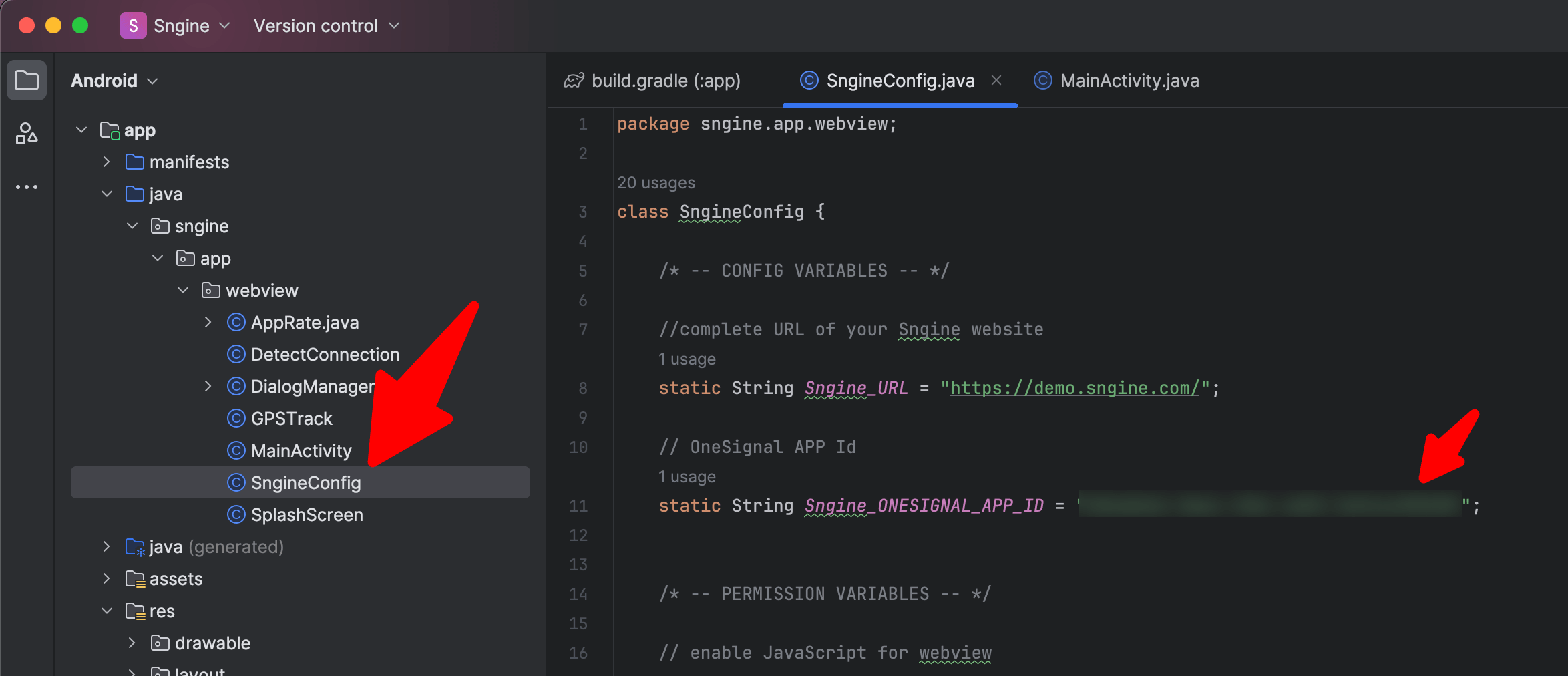
    After that you will need to add the OneSignal APP ID to your Android App and rebuild the app and republish it

iOS app

  1. Now to integrate OneSignal with your iOS Web-View App you need to go to Settings and click on Push & In-App then click on Apple iOS (APNS)
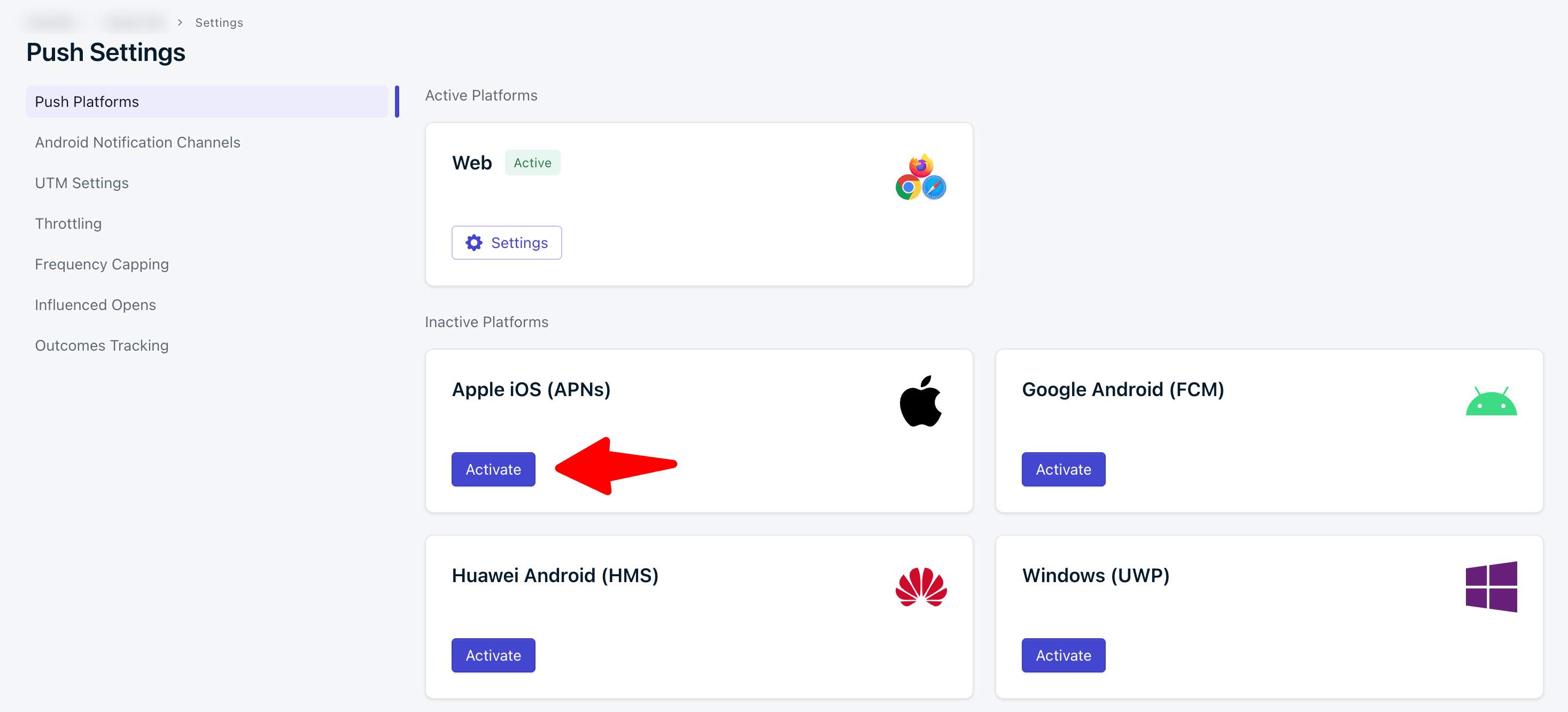
    Now to integrate OneSignal with your iOS Web-View App you need to go to Settings and click on Push & In-App then click on…

  2. To get help with your p8 Auth Key you can follow this link https://documentation.onesignal.com/docs/ios-p8-token-based-connection-to-apns
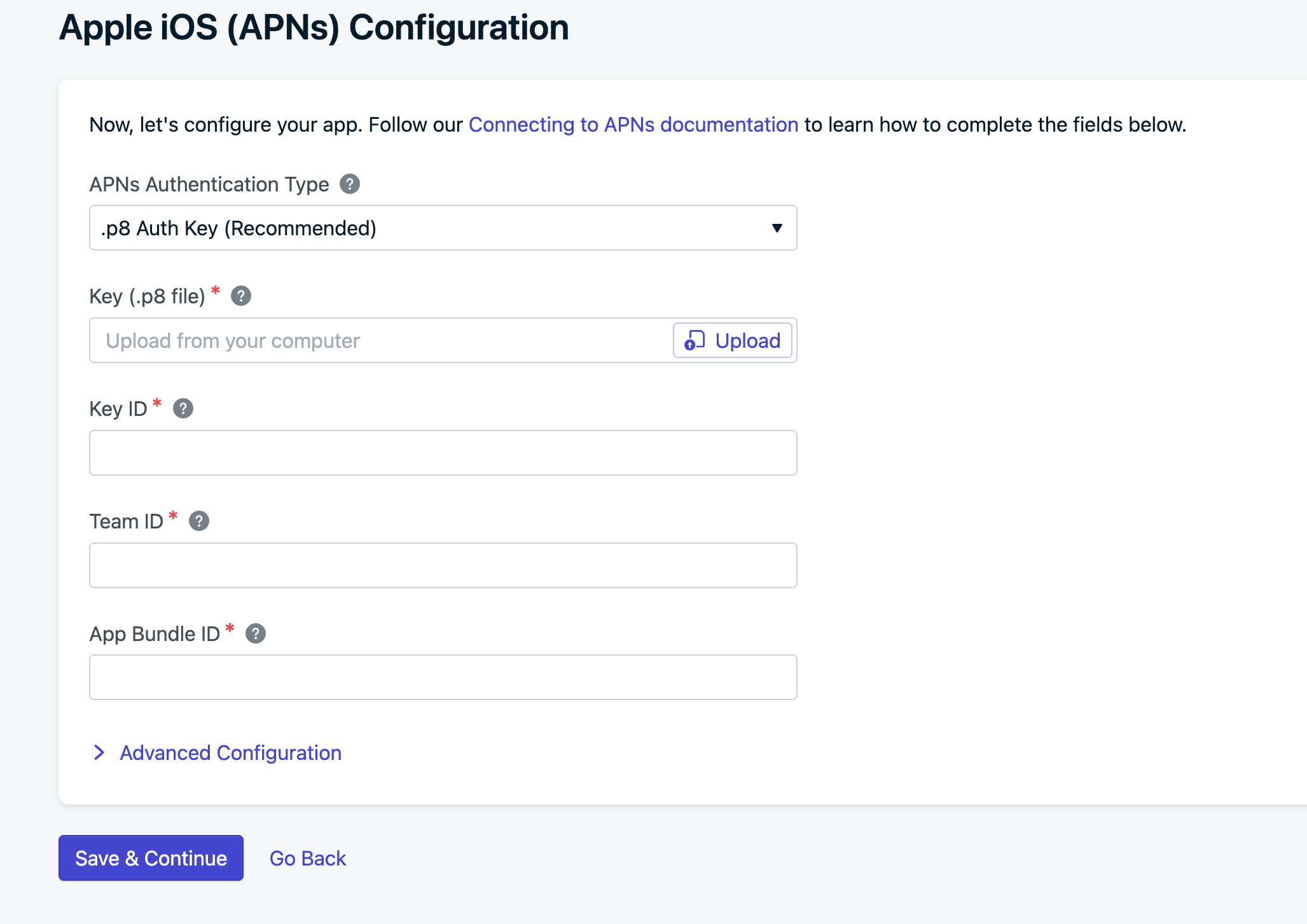
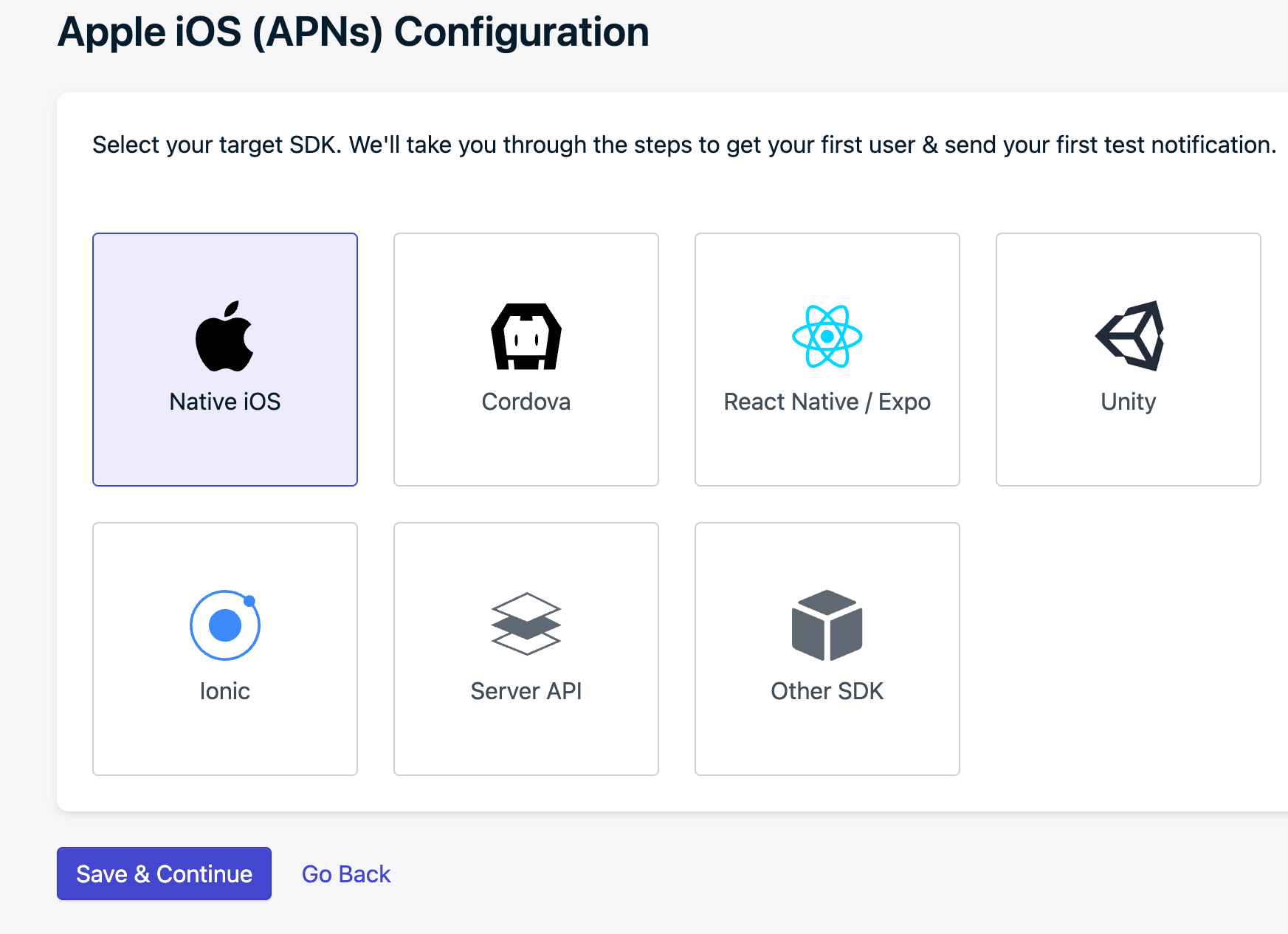
    To get help with your p8 Auth Key you can follow this link https://documentation.onesignal.com/docs/ios-p8-token-based-connec…

    To get help with your p8 Auth Key you can follow this link https://documentation.onesignal.com/docs/ios-p8-token-based-connec…

  3. After that you will need to add the OneSignal APP ID to your iOS Web-View App and rebuild the app and republish it
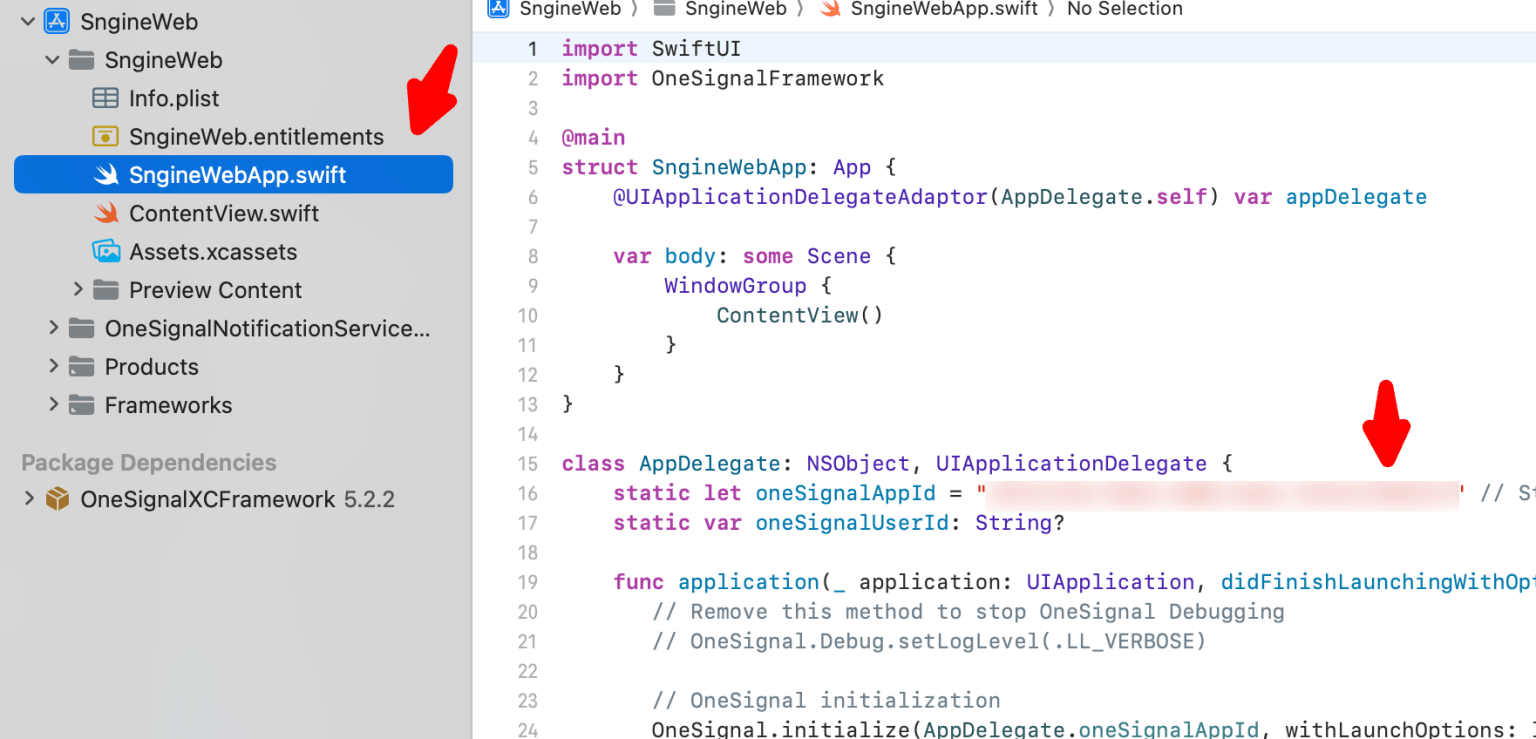
    After that you will need to add the OneSignal APP ID to your iOS Web-View App and rebuild the app and republish it